How to Make a QR Code for Google Drive That People Can Actually Open
By OwnQR · Published · Updated
A Google Drive QR code is usually a QR code containing a Drive sharing URL. When someone scans the symbol, their device tries to open that URL. For the distinction between a QR symbol and the information inside it, see our QR code overview. The QR code does not grant access to the file, copy it into the scanner's phone, or override the owner's sharing settings.
That distinction explains the most common frustration: the symbol scans correctly, yet the recipient sees a sign-in prompt, a request for access or a page they cannot open. The fix is usually in Google Drive permissions—not the QR image.
Start with the sharing decision, not the generator
Before making the code, decide who should be able to access the resource. A public event handout and an internal staff procedure should not use identical sharing rules.
Google's Drive sharing instructions describe access choices such as Restricted and Anyone with the link, together with Viewer, Commenter and Editor roles. The distinction is whether a person has access to the underlying item; printing a link cannot extend that access.
Expected behavior based on Google's sharing documentation, not results of an account or phone test:
| Drive access choice | Who is intended to have access | What the QR changes | Main consideration |
|---|---|---|---|
| Restricted | People and groups explicitly granted access | Only provides a convenient way to reach the URL | Unapproved recipients may need to sign in or request permission |
| Your organization (where offered by Workspace policy) | Members of the permitted organization | Gives eligible users a scannable route | External readers may be blocked by the organization's access policy |
| Anyone with the link | Generally people who have the link, subject to administrator and item restrictions | Makes the sharing URL scannable from print or screen | Choose Viewer when read-only access is intended; treat the link as shareable |
Named-person or group invitations are an additional way to grant permissions, not a fourth General access setting. Viewer, Commenter and Editor are roles associated with permitted access, not separate QR-code types.
The important question is not simply, “Does the QR work?” It is, “Can a person with this intended account and permission reach the file?” Those are different tests.
Create a Google Drive QR code in five steps
- Choose the right file or folder. A Google Doc, Sheet, Slide, PDF or folder can have a sharing link. Be certain the selected item—not a parent folder with different permissions—is what people should open.
- Open Share in Google Drive. Set the appropriate audience and role. Use Viewer when people only need to read; do not give Editor access just to make a QR function.
- Copy the sharing link. Keep its full form rather than guessing the file ID or constructing a URL yourself.
- Paste the URL into a standard QR generator. A static URL QR can encode the copied Drive link directly. OwnQR's QR code generator works with ordinary URLs; it does not connect to your Google account or change Drive sharing settings.
- Verify the actual recipient experience. Test the URL in a separate browser/account that resembles your recipient's access. A scan only proves the image can be decoded.
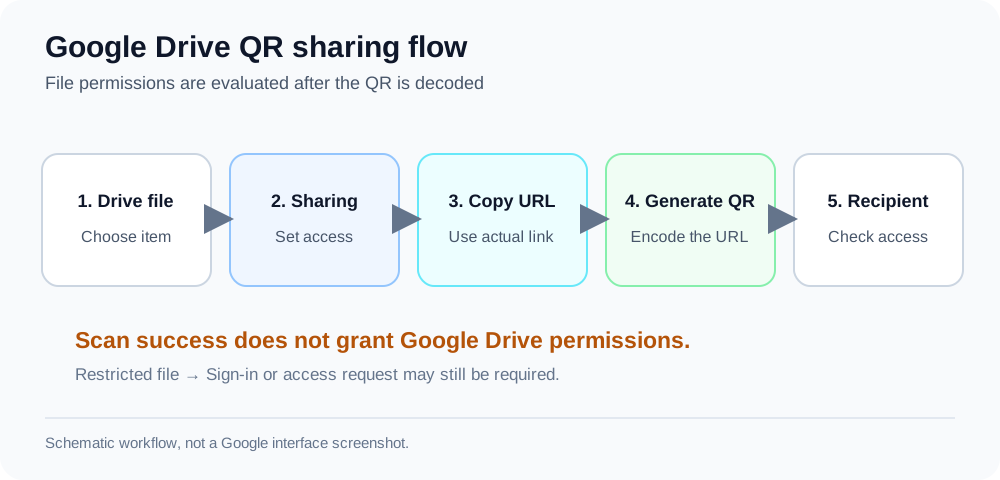
Figure: A QR image encodes the Drive URL; it does not change Google Drive access controls. This is a workflow diagram, not a screenshot of Google's interface.
You do not have to upload the file to a QR platform to encode its sharing URL. Google Drive remains responsible for hosting the Drive resource; the QR simply carries the route to it.
Can I stop viewers from downloading, printing or copying the document?
Google's Drive Help instructions on limiting sharing explain that a file owner can adjust download, print and copy permissions in Share → Settings for supported roles on a shared file. A Google Workspace update from July 8, 2025 also documents controls for people with edit permissions and notes that administrator-applied restrictions take priority. Exact options may depend on the account and its administrator. These file-level options are not a universal folder restriction and do not guarantee that screenshots, photography, or other forms of copying are impossible. Check the settings on the individual file and confirm the intended recipient experience before distributing its QR.
Are Drive QR codes or add-ons different from an ordinary shared link?
Marketplace add-ons and dedicated QR generators may help create or style the symbol, but the underlying Drive permissions still determine access. You do not need a Google-specific QR format to encode an existing sharing URL. Evaluate add-on permissions separately before installing any tool that requests access to your Drive files.
Why the code scans but says “You need access”
If the camera recognizes a URL and Google shows a permission page, the QR's image has completed its essential job. Google is deciding whether the visitor may view the requested item. The official Google access help explains that a person may need to request access when their account lacks permission.
Use this troubleshooting sequence:
- Check the exact link. Open the URL independently of the QR; a wrong, moved or deleted item will not be fixed by redesigning the code.
- Check the account. Someone who can open the file while signed into their company account may be blocked while using a personal account.
- Check General access. If the link is Restricted, a new scanner does not automatically become an approved person.
- Check the role. Public access does not require Editor privileges. Use the least permissive role suitable for the task.
- Check organization policy. Work and school administrators can limit external sharing. Do not promise that “Anyone with the link” will bypass those restrictions.
- Check the particular item. Parent-folder access and item-level sharing can be different; examine the file the URL actually points to.
An incognito window is a helpful screening step but not a substitute for a second-account test. Browser sessions and organization policies may lead to different results. For a public campaign or important workplace procedure, test with a genuine outside account before printing.
A successful scan only proves that the device decoded the symbol; it does not prove the linked file is public, and it does not guarantee the viewer is online. Our offline QR code guide separates decoding from network access. If the file does load but the wrong person can see it, review Drive sharing permissions rather than changing the QR artwork.
A permission-first deployment checklist
The configurations below are planning examples, not observed scan results from different Google accounts.
| Question | Example for a public PDF | Example for an internal SOP |
|---|---|---|
| Who should read? | Visitors with the link | Staff with approved accounts |
| Sharing configuration | Link access if publication is intended | Restricted or organization-approved |
| QR payload | The exact Drive file URL | The exact authorized file URL |
| Test account | External account not owned by the publisher | Authorized and unauthorized accounts |
| Printed fallback | Short readable URL or instructions | Helpdesk/contact instructions |
| Maintenance owner | Content publisher | SOP document owner |
Use the two-account check before circulating a sensitive or large print run: verify access with an authorized account and a genuinely unauthorized account.
Will the QR still work if you update the file?
A QR stores a destination string. If the same Drive item keeps the same sharing URL and remains accessible, editing its content need not change the QR pattern. Google Drive documents Manage versions → Upload new version as a way to upload a replacement version of a non-Google file such as a PDF within the existing file's version history. After any replacement, verify the actual sharing URL and permissions again; the documented upload steps do not by themselves establish that every link or access rule will remain unchanged. Replacing the file with an entirely different Drive item can require a different link.
For printed material that needs continuing updates, assign a person to periodically open the link as an ordinary reader. If the code points to an address on your own domain that you control, you may be able to change the destination at the web layer; that is a separate web-management arrangement, not a Google Drive feature of the QR itself.
PDFs and folders are links too
A “PDF QR code” usually encodes a link to where a PDF is already hosted. If your PDF lives in Drive, the access rules of that Drive item still apply. OwnQR's PDF QR tool is for linking to a PDF URL, not for uploading a PDF to OwnQR storage.
A folder QR points to the folder's sharing URL. It does not create a new folder, attach files, or give every visitor permission. For sensitive documents, consider linking to a carefully curated read-only folder instead of giving access to a much larger shared drive.
Frequently asked questions
Can I keep the QR private while letting approved employees scan it?
Yes. Keep the Drive item restricted to approved accounts and distribute the QR as a convenient link. A person still needs the required access; possession of the QR alone is not an authorization method.
How can I test a QR intended for external guests?
Ask an actual external account to try the link after checking the share settings. A second sign-in context reveals permission problems that a scan on the owner's device can hide.
How do I scan a Google Drive QR code from a printed handout?
Open your phone's camera or trusted QR scanner, point it at the symbol, inspect the destination and follow the link. With Anyone with the link sharing, a visitor typically can view without signing in; Restricted or organization-managed sharing may require the correct account. Scanning does not download the document automatically or bypass any applicable access check.
What happens if the account administrator disallows external sharing?
The administrator's restrictions can prevent the file being shared broadly. A new QR cannot bypass organizational policy; use an approved publication channel instead.
Can I use a free static QR for a Google Drive document?
Yes, if a generator supports static URL QR codes, you can encode an existing Drive sharing link without uploading the document to the generator. Whether recipients can open it still depends on Drive access settings. OwnQR does not host the Drive file.
Sources
Preparation and review: Prepared with AI assistance, last revised November 10, 2026; no independent expert review or genuine two-account access test was conducted.
- Google Drive Help, Share and manage access to files and folders — publication date: NOT_PROVIDED; study/event period: NOT_APPLICABLE (sharing help page); accessed November 10, 2026. Defines Restricted, Anyone with the link, roles and organizational restrictions.
- Google Drive Help, Learn more about access to Google files — publication date: NOT_PROVIDED; study/event period: NOT_APPLICABLE (support guidance); accessed November 10, 2026.
- Google Drive Help, Check activity & file versions — publication date: NOT_PROVIDED; study/event period: NOT_APPLICABLE (Drive version management); accessed November 10, 2026. Explains Manage versions → Upload new version; does not guarantee that every sharing URL or permission remains unchanged.
- Google Drive Help, Stop, limit, or change sharing — file-level settings to limit downloading, printing, and copying; consulted November 2026.
- Google Workspace Updates, Drive IRM Update: More Control for File Owners and Shared Drive Managers — published July 8, 2025; describes editor restrictions and administrator priority.
- The permission comparison tables summarize expected behavior based on documentation, not a completed two-account access or phone-scanning experiment.