How to Put a Unique QR Code on Every Word Mail Merge Letter
By OwnQR · Published · Updated
A mail-merge letter can contain a different QR code for each recipient if each data row supplies a unique destination. Word's MERGEBARCODE field can encode that row's URL as a QR symbol, rather than pasting a separate QR image into each letter. For QR structure basics rather than mail-merge steps, see our QR code overview.
This guide follows Microsoft's documented field syntax and covers practical troubleshooting reported by Word users. Before a large mailing, validate a small sample on your actual Word version, printer and scanners.
Start with the destination data
Decide what makes each recipient's destination unique. For an event mailing, it might be a private RSVP page; for a school, it could be a recipient-specific information page. Avoid putting full names, addresses, student numbers or other sensitive information directly into the URL if the QR will be printed on a publicly visible envelope.
Prepare one full URL per row in the spreadsheet or data source. A simple fictional example:
| Recipient | QRURL |
|---|---|
| A. Example | https://example.org/r/tk_7M4Q2 |
| B. Example | https://example.org/r/tk_9R6W8 |
| C. Example | https://example.org/r/tk_2F8N5 |
These invented tokens illustrate a pattern; they are not active links and do not imply any OwnQR bulk-generation feature. A real deployment needs a website or service that knows what each token means, applies appropriate authorization and lets the sender disable or rotate compromised links.
Keep the spreadsheet URL column as text. Use a simple header such as QRURL without spaces, trim accidental spaces in values, preserve necessary query parameters, and validate that each URL refers to the intended recipient record. If recipients must not see one another's content, the server—not the QR graphic—must enforce that boundary.
Use Word's MERGEBARCODE field
Microsoft's official Field codes: MergeBarcode documentation lists QR among the supported types and gives the structure:
{ MERGEBARCODE field-argument-1 field-argument-2 [switches] }
To generate a QR from a column called QRURL, the documented pattern becomes:
{ MERGEBARCODE QRURL QR \q 3 }
Here QRURL names your data column, QR selects the barcode type and \q 3 selects one of the documented QR error-correction options. Microsoft lists accepted \q values from 0 through 3. A higher correction setting does not guarantee a printed result will scan or that the destination is correct.
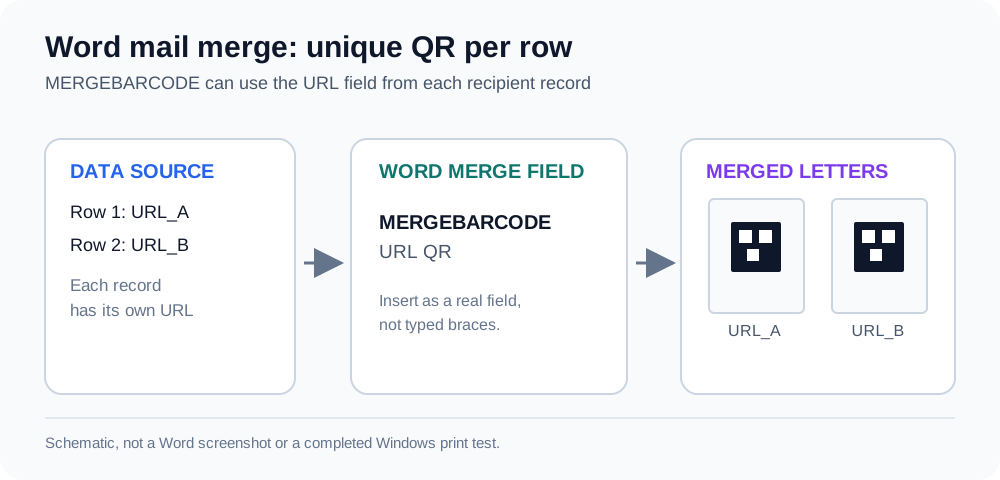
Figure: Data-source URL values are merged into the MERGEBARCODE field to produce per-record QR graphics. The displayed squares are schematic, not scannable samples or a Windows Word screenshot.
Do not type the braces manually. In desktop Word, Microsoft's instructions say to insert actual field braces using Ctrl+F9 and type the field code inside. Ordinary { and } characters from the keyboard are not equivalent Word field delimiters. If you're using a platform or Word version with a different workflow, consult Microsoft's documentation for that version rather than assuming these steps are identical on Mac or web.
Version scope: Microsoft's MergeBarcode support page lists Word for Microsoft 365, Word 2024, Word 2021, Word 2019 and Word 2016; its implementation notes do not establish Word 2010 support. Do not assume equivalent behavior on Mac or Word for the web.
Desktop Word workflow: Follow Microsoft's mail-merge letters instructions and MERGEBARCODE help. The data-source commands are also documented in Microsoft's data-source guide.
- In a spreadsheet, create one row per recipient, with a text column headed exactly
QRURL. Save a small synthetic sample containing three clearly different URLs. - In desktop Word, use Mailings → Start Mail Merge → Letters, then Select Recipients → Use an Existing List to connect the data file. Microsoft's data-source guidance says to use a local file or file share, not an HTTP-hosted data file. Confirm that Word recognizes
QRURLas the intended field. - Position the cursor where the QR belongs on the letter. Insert a Word field using the field-delimiter method described above, then enter
MERGEBARCODE QRURL QR \q 3. - Use Word's Preview Results to switch among at least three recipient records and inspect the generated barcode field. The exact display or field-update behavior may vary by version.
- Use Finish & Merge → Edit Individual Documents to generate a small merged output. Confirm there is one correct QR next to each recipient's information before printing.
- Print the small sample using the actual printer and paper, scan every symbol, and compare the decoded destination with its original
QRURLrow. Check an intentionally invalid token on the website as a privacy test.
Set the barcode size with documented field switches
Microsoft's MERGEBARCODE documentation also lists \s for scale (an integer from 10 to 1000 percent) and \h for barcode height measured in twips. For example, Microsoft's syntax permits { MERGEBARCODE QRURL QR \s 150 } as a field-code illustration of 150% scale, not a tested output or a recommended printing dimension. Set dimensions appropriate to the letter layout and inspect the merged output. These switches do not establish a universal scannable print size. Microsoft's support page lists QR correction switch \q values 0–3, while the MS-OI29500 implementation specification also documents named levels L/M/Q/H in its MERGEBARCODE notes and DISPLAYBARCODE material. Without an explicit mapping in those sources, do not assume which numeric value matches which named level. Verify the exact Word version before a real mailing.
Two ways to organize a QR mail merge
| Method | Best fit | Dependency |
|---|---|---|
Word MERGEBARCODE field | The QR can be built from a per-row text value | Correct Word field syntax, compatible installation and proper data |
Pre-generated images per recipient, sometimes merged through INCLUDEPICTURE | Custom QR artwork must be mapped to records | Word image-field handling may repeat the first image without proper updating; the workflow needs separate verification, as reported in Microsoft Q&A |
The first approach reduces the need to manage thousands of separate images, but still depends on Word generating the expected barcode. The second gives more control over source artwork but requires a separately verified image-merging or variable-data-printing workflow, not an undocumented Word feature. Neither option removes the need to test the complete letter.
Preview is not the same as printing
For an important mailing, create a small synthetic sample before using real recipient data. Test a few records that differ in token length and content; confirm each print maps back to the correct row. A sensible sample test checks:
- The QR is visibly present in every merged document.
- The printed symbol has an uncluttered white region around it.
- The printer has not distorted squares or filled in spaces.
- A phone recognizes the QR at an ordinary viewing distance.
- The URL that opens is exactly the record's intended destination.
- A revoked or invalid token does not disclose somebody else's private page.
A soft proof in Word is not evidence that a particular printer, envelope, coating or camera will be reliable. Check field names and unexpected formatting. With INCLUDEPICTURE, confirm every merged image corresponds to its own row; a Microsoft Q&A discussion describes a first-image caching problem and field-update steps. Retest whenever layout, paper or printer changes.
Do not select a universal “minimum QR size” from this example. Practical dimensions depend on module count, printer resolution, paper finish, contrast and use conditions; choose and validate the actual production setup.
Troubleshooting a QR mail merge
| Symptom | First check | Evidence boundary |
|---|---|---|
Word does not recognize QRURL | Inspect the spreadsheet column header and imported field list; use a simple matching name without spaces | Data-field matching is documented by Microsoft; the no-space header is a conservative setup choice |
| Field code shows instead of a barcode | Check that Word field braces came from Ctrl+F9; toggle field-code display or try Update Field before judging the result | Word version and layout can change the commands shown |
INCLUDEPICTURE repeats the first image for every recipient | Inspect image-file paths, then update picture fields in the merged document and decode samples across multiple rows | A Microsoft Q&A case reports this behavior; it is not a confirmed universal defect |
| Several labels show the same or wrong recipient | Check label record advancement and whether merge fields were placed in text boxes; preview every label before printing | Microsoft's Next Record guidance explains label sequencing, and a community report describes misbound text boxes |
| “Data length is not supported by current type” | Inspect whether the field input is empty or malformed and whether the selected barcode type supports the content; simplify the sample before changing production files | A Microsoft Q&A thread reports this message; the words alone do not diagnose its cause |
For labels or envelopes with multiple records on one page, a field in the wrong layout cell can print another person's QR. Compare each decoded token with the address or recipient beside it, not just whether the image looks different. These are checks to perform, not results from an executed mail merge for this guide.
Plan for privacy and future changes
Personalized URLs can create privacy risks. A plain QR may be photographed or forwarded, and an individualized link may reveal or enable an action if the server has weak access controls. Prefer opaque random-looking tokens instead of addresses or personal names; consider expiration and access controls where appropriate. Even an opaque token is not automatically secure—it may function as a bearer credential if the destination treats possession of the link as sufficient authorization.
Separate what is printed from what is maintained. The printed QR contains the chosen per-recipient URL. If the campaign's web application can change or revoke the content behind that URL, you may not need to reprint the letter. But a QR is not an automatic system for managing tokens, access permissions or campaign rules.
If your organization is subject to data-protection, educational or healthcare requirements, make sure the link-based workflow has been reviewed for those specific obligations before deployment. After a campaign ends, revoke or archive individual URLs according to an agreed retention plan; an expired destination is different from an unreadable printed symbol.
An individualized QR image can still be copied. If the code identifies a recipient or unlocks an account-specific action, the destination needs suitable authentication, token expiry or redemption checks. Our guide to QR code copying and cloning explains why distinct printed patterns are not, on their own, a protection against reuse. The mail-merge field creates the visual code; it does not implement access control.
What OwnQR does not automate
OwnQR's standard QR code generator can create individual URL QR codes. It is not a Word add-in, mail-merge plug-in, CSV import system or bulk/batch API. The Word field workflow comes from Microsoft, not from an OwnQR integration. Organizations that need large-scale personalized printing should evaluate their own document and URL infrastructure before choosing a generator.
Frequently asked questions
Can Microsoft Word generate a different QR for each merged recipient?
Word documents its MERGEBARCODE field with QR as a supported type. Each recipient's row supplies the data used by the field; confirm the result in your installed Word version before production.
Why didn't typing { MERGEBARCODE ... } work?
Word needs actual field delimiters, not ordinary typed curly brackets. Microsoft documents inserting field braces with Ctrl+F9 in the supported desktop workflow.
How can I catch a QR that points to the wrong recipient?
Merge a small synthetic dataset with clearly distinct URL tokens, decode each output and compare it to the source row. Check both the rendered symbol and the server's access control: a correct QR image should never give one recipient unauthorized access to another person's record.
Does this work in Word for Mac?
The cited Microsoft page does not establish equivalent behavior across all Mac versions. Verify the exact app/version and its field-code support before committing to a mail-merge process.
Can OwnQR generate all my personalized codes from a CSV?
No. OwnQR does not offer CSV bulk import, a Word add-in or a bulk/batch API. This guide describes a Microsoft Word field-code approach using recipient-specific URLs prepared outside OwnQR.
Sources
Preparation and review: Prepared by the OwnQR editorial team with AI assistance; last updated November 10, 2026; no independent expert review or hands-on Word, printer or phone scan test was conducted for this guide. The troubleshooting notes distinguish Microsoft documentation from community-reported experiences.
- Microsoft Support, Field codes: MergeBarcode — publication date: NOT_PROVIDED; study/event period: NOT_APPLICABLE (software instructions); accessed November 10, 2026. Documents QR barcode support, field argument syntax, Ctrl+F9 and
\qoptions. - Microsoft Support, Use mail merge to personalize letters — publication date: NOT_PROVIDED; study/event period: NOT_APPLICABLE (software instruction); accessed November 10, 2026. Documents Mailings ribbon commands, preview and Finish & Merge.
- Microsoft Support, Data sources you can use for a mail merge — publication date: NOT_PROVIDED; study/event period: NOT_APPLICABLE; accessed November 10, 2026. Documents Use an Existing List and locally saved/file-share data sources.
- Microsoft Support, Set the rules for a mail merge — publication date: NOT_PROVIDED; study/event period: NOT_APPLICABLE; accessed November 10, 2026. Explains the Next Record rule for labels.
- Microsoft Q&A, Word Mail Merge - Inserting Images — publication date: NOT_PROVIDED; study/event period: NOT_PROVIDED (community-reported first-image
INCLUDEPICTUREproblem); accessed November 10, 2026; not normative Microsoft Support instructions. - Microsoft Q&A, Word Mail Merge: Text Box Has Wrong Record — publication date: NOT_PROVIDED; study/event period: July 2010 (community discussion); accessed November 10, 2026; not proof of current universal behavior.
- Microsoft Q&A, Can't display a QR code when using Mail Merge — publication date: NOT_PROVIDED; study/event period: November 2019 (community report); accessed November 10, 2026; example of an error message rather than a universal diagnosis.
- Microsoft Learn, MS-OI29500 §3.1.3.2.7 DISPLAYBARCODE — publication date: NOT_PROVIDED; study/event period: NOT_APPLICABLE (implementation technical reference); accessed November 10, 2026. Includes L/M/Q/H named-level references in implementation material, including MERGEBARCODE notes; does not prove numeric
MERGEBARCODEswitch mapping. - The sample recipient tokens are fictional; all procedures and troubleshooting are documentation/community-derived, not firsthand execution or printed/phone-scanned outcomes.