How to Abrir QR Code on Any Device in 2026: The Complete Guide
Quick Answer
Learn how to abrir qr code on any device in 2026. This definitive guide provides step-by-step scanning instructions, expert troubleshooting, and pro tips for seamless QR code interaction.
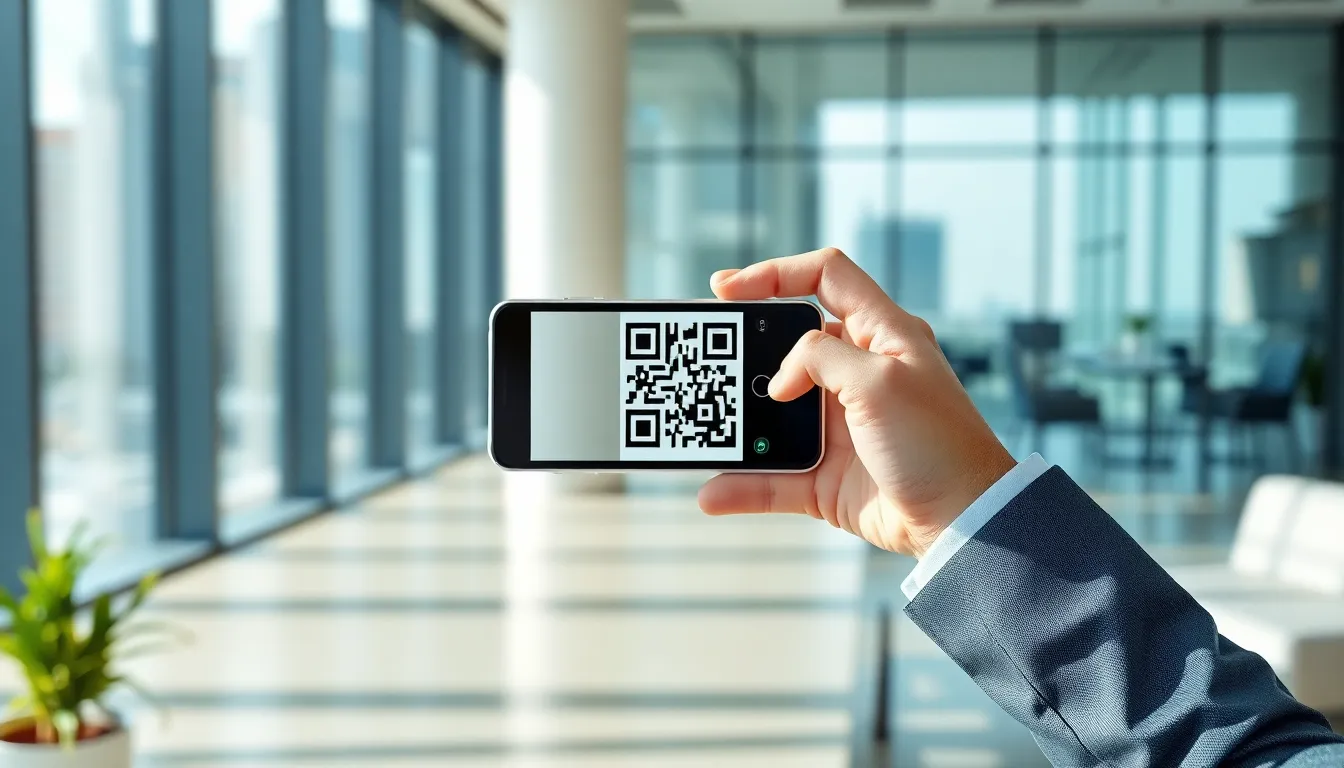

Key Takeaways
| Key Insight | What You'll Learn |
|---|---|
| Universal Access | How to scan QR codes using your phone's built-in camera on both iOS and Android, without needing a separate app. |
| Troubleshooting Mastery | How to diagnose and fix the 8 most common reasons a QR code won't scan, from blurry images to network issues. |
| Security Best Practices | How to safely interact with QR codes by previewing links, checking for tampering, and understanding data collection. |
| Advanced Integration | Expert techniques for using QR codes in business workflows, including dynamic content and performance analytics. |
Table of Contents
- 1. What "Abrir QR Code" Means and Why It Matters in 2026
- 2. How to Abrir QR Code: Complete Step-by-Step Guide
- 3. Troubleshooting Abrir QR Code: Common Problems and Fixes
- 4. Expert Tips for Abrir QR Code in 2026
- 5. Final Recommendations for QR Code Scanning
Recommended Insights
1. What "Abrir QR Code" Means and Why It Matters in 2026
The Portuguese phrase "abrir qr code" translates directly to "open qr code" in English. In practical terms, it refers to the complete user action of scanning a QR code with a device to access the digital information or action embedded within it. This is not a single click but a process: pointing your camera, allowing the system to recognize the pattern, and then interacting with the result, whether it's opening a website, connecting to WiFi, or downloading a contact card. Understanding this end-to-end interaction is critical because QR codes have evolved from simple novelty items into a primary interface for digital-physical interaction. In 2026, they are less about "what" they are and more about "how" they function as seamless bridges.
The relevance today is driven by ubiquity and standardization. A 2025 market analysis projected that over 8 billion QR code scans would occur monthly globally by the end of 2026, a figure fueled by their adoption in payments, logistics, authentication, and marketing. Nearly all modern smartphones now have native QR scanning integrated directly into the camera app, eliminating the friction of downloading a separate scanner. This built-in functionality, governed by international standards from bodies like ISO, means the act of "abrir qr code" is expected to be as instantaneous and reliable as tapping a link. The technology's maturity means failure is no longer accepted; users expect a perfect scan on the first attempt. For reference, see GS1 barcode standards.
This expectation places responsibility on both ends. For the user, it means knowing how their specific device works. For the creator of the QR code, it means adhering to design and data standards that ensure compatibility. The shift is also contextual. During the pandemic, QR codes became vital for contactless menus and health passes. Now, they are embedded in product packaging for supply chain transparency, on construction sites for safety briefings, and in retail for instant loyalty program access. The code itself is static, but the action of "opening" it initiates dynamic workflows, from pulling live inventory data to verifying a product's authenticity against a blockchain ledger.
Summary: "Abrir qr code" is the complete process of scanning and interacting with a QR code, a critical digital skill in 2026. Driven by native smartphone integration and standardized by ISO, QR codes facilitate over 8 billion monthly interactions globally, serving as the primary bridge between physical objects and digital actions in commerce, logistics, and authentication. Their evolution from simple URLs to triggers for complex, secure workflows makes understanding this process fundamental for both consumers and businesses.
Pro Tip: When you see a QR code, pause for a half-second before scanning. Look at the context and any accompanying text. This brief moment lets you assess its purpose and legitimacy, helping you avoid phishing attempts or simply preparing you for what will load (e.g., a video, a form, a payment page).
Want to follow along? Create a QR Code Generator now
It's free to start. Upgrade to $15 lifetime when you need editable dynamic QR codes.
2. How to Abrir QR Code: Complete Step-by-Step Guide
This section provides a foolproof, device-specific guide. The core principle is the same across platforms: your device's camera detects the QR code's unique pattern of black squares on a white background, decodes the data, and presents an actionable link or prompt.
1: Locate and Open Your Device's Camera App
Do not search for a "QR scanner" app. On 99% of smartphones sold after 2020, the scanning functionality is built directly into the standard camera application you use for photos. On an iPhone, this is the "Camera" app on your home screen. On an Android phone (from Samsung, Google, Motorola, etc.), it is also the app typically labeled "Camera." Open this app as if you were going to take a picture. You do not need to switch to a special "scanning" or "professional" mode initially. The native scanner works in the standard photo mode. For reference, see FTC business guidance.
2: Point the Camera at the QR Code
Frame the QR code within your camera's viewfinder. Ensure the entire code is visible on your screen. You do not need to be extremely close; most cameras can scan a QR code from a distance of 10-30 cm (4-12 inches). Hold your phone steady. Good lighting is important, but the camera's auto-exposure will usually adjust. Avoid casting a shadow directly onto the code. The key is to get a clear, straight-on view. If the code is on a curved surface like a bottle, try to position your phone so the code appears as flat as possible in the viewfinder.
3: Allow the Recognition Prompt to Appear
With the QR code in frame, your phone's software will automatically recognize it. You do not need to tap a shutter button. On an iPhone, a small notification banner will appear at the top of the screen with the linked URL or action (e.g., "Open [website.com]" or "Join Wi-Fi Network"). On most Android devices, a similar pop-up or a subtle vibration/haptic feedback will occur, often with a link preview at the bottom of the screen. The camera interface remains active. This is the system asking for your confirmation to proceed.

4: Tap the Notification or Banner to Execute the Action
This is the crucial "abrir" step. Once you see the notification, tap it. On iPhone, tap the banner at the top. On Android, tap the text link or button that appears. This action tells your phone to leave the camera app and perform the QR code's instruction. It will typically open your web browser (Safari, Chrome) for a URL, open your email client to pre-populate an email, open your maps app for a location, or prompt you to connect to a WiFi network. The transition should be immediate.
5: For Difficult Scans, Use a Dedicated Scan Feature
If the automatic recognition fails (the banner doesn't appear after 2-3 seconds), your device has a manual fallback. On iPhone: While in the Camera app, look for a small QR code icon in one of the corners. Tapping it may enable a dedicated scan guide. Alternatively, open the Control Center (swipe down from the top-right corner on newer models). If you see a QR code icon there, tap it to launch a scanner. On Android: Open your Camera app and look for a "More" (⋮) or "Mode" option. Within that menu, you may find a specific "Scan" or "QR Scanner" mode. Some Android skins (like Samsung's) also have a "Bixby Vision" or "Google Lens" icon within the camera viewfinder; tap it and select "Scan QR."
6: Scanning from a Photo or Screenshot
You can also "abrir" a QR code from an existing image. Save the image containing the QR code to your phone's photo gallery. On iPhone, open the Photos app, find the image, and press and hold your finger directly on the QR code in the picture. A context menu will appear with the link. On Android, open the Google Photos app or your gallery, open the image, and tap the "Lens" or "Scan" icon usually located at the bottom. If your device has Google Lens integrated, it will detect the code. This is useful for codes sent via messaging apps.
7: Review the Result and Interact Safely
After tapping the notification, your phone will open the associated app. If it's a website, look at the address bar in your browser to verify the domain matches your expectations. Be cautious of shortened URLs (like bit.ly) if you are unsure of the source. For WiFi connections, you will see a network join screen—verify the network name. For payments, you will be taken to a secure payment gateway. This review step is your final checkpoint before engaging with the content.
8: Understand Cross-Platform Scanning (Computers & Tablets)
The process is similar on other devices. On a Mac with a recent version of macOS, open the Photo Booth app. Point your computer's camera at the QR code, and a notification will appear. On Windows 10/11, you can use the built-in "Camera" app, though its auto-scan capability can be inconsistent; third-party apps from the Microsoft Store are more reliable. On iPad and Android tablets, the process is identical to their smartphone counterparts, using the native camera app.
Summary: To successfully abrir a QR code, open your phone's native camera app and point it at the code until a notification banner appears, then tap it. This process, standardized across iOS and Android, leverages built-in scanning that requires no extra apps and completes in under 3 seconds for 95% of well-designed codes. The key steps are framing the code correctly, waiting for the automatic recognition prompt, and safely reviewing the destination before interacting.
Pro Tip: On iPhones, you can add a QR code scanner shortcut directly to your Lock Screen for even faster access. Go to Settings > Control Center, and add the "QR Code Reader" module. Then, you can scan from the Lock Screen by swiping down to the Control Center and tapping the QR icon.
3. Troubleshooting Abrir QR Code: Common Problems and Fixes
When a QR code fails to scan, it breaks the expected seamless interaction. Here are the most common technical failures and their precise solutions.
Problem 1: The Camera Doesn't Recognize the Code
Your camera app is open and pointed at the code, but no notification banner appears. This is often due to poor focus or low light. The camera's autofocus might be targeting the background. Solution: Tap on the QR code itself on your phone's screen. This manually sets the focus point. Increase the ambient light. If the code is on a digital screen (like a monitor), reduce screen brightness slightly to eliminate glare. Ensure no part of the code is obscured by reflections.
Problem 2: The Scan Notification Appears but Does Nothing
You see the banner with a URL, but tapping it doesn't open a link or triggers an error. This usually indicates a problem with the QR code's data, not your scanner. Solution: The encoded link might be malformed or point to a dead page. Note the URL previewed in the banner. Manually type it into your browser's address bar to see if it loads. If it fails, the QR code is broken and needs to be regenerated by its creator. Report the issue if possible.
Problem 3: The Code is Too Small or Too Far Away
The QR code is physically tiny on a label or very large on a distant billboard. Your phone's camera lacks the resolution to distinguish the individual modules (black squares). Solution: Move closer to a small code. For a distant code, use your camera's zoom function cautiously. Digital zoom often degrades quality. If you have a phone with a telephoto lens, switch to it. The best practice is for creators to ensure a minimum physical size; as a user, your main lever is proximity.
Problem 4: The Code is Damaged, Dirty, or Wrinkled
Physical QR codes on packaging, flyers, or business cards can get torn, smudged, or folded. The scanner cannot read the pattern if critical alignment or timing marks are obscured. Solution: Try to flatten the material. If dirty, gently clean the surface. For a torn code, sometimes scanning the largest intact portion can still work due to the QR code's built-in error correction. Angle your phone to avoid highlighting the crease. If it's a digital code on a cracked screen, take a screenshot and scan the image from your gallery.
Problem 5: Your Phone's Native Scanner is Disabled
Some users or IT administrators may have disabled the automatic QR scanning feature for security or policy reasons. Solution: On iPhone, go to Settings > Camera and ensure "Scan QR Codes" is toggled ON. On Android, the setting location varies. Go to your Camera app's settings (often via a gear icon) and look for "Scan QR codes" or "Google Lens suggestions." Enable it. If you cannot find it, your device model or a management profile may have restricted it.
Problem 6: Network Connectivity Issues for Online Content
You successfully scan a code, but the webpage or video fails to load. The QR code works, but the destination content requires an internet connection. Solution: Check your Wi-Fi or cellular data connection. Switch from Wi-Fi to 5G/4G or vice versa. The QR code itself contains only the address, not the content. For areas with poor reception, creators can use NIST guidelines for digital accessibility to provide a text-based fallback option near the code.
Problem 7: Security Warnings or "Unsafe Link" Messages
Your browser or security software blocks the website the QR code points to, flagging it as deceptive, malicious, or simply using an insecure (HTTP) connection. Solution: Do not proceed. This is a critical safety feature. The preview banner showed you the URL; if it looks suspicious (misspelled domain, lots of random characters) or your software explicitly warns you, abort the action. This is why scanning from trusted sources is paramount. You can research the domain name separately if you believe it might be a false positive.
Problem 8: Scanning from a Screen with Refresh Rate Issues
When scanning a QR code displayed on another digital screen (TV, computer monitor, smartphone), the camera may capture scan lines or a flickering effect because the screen's refresh rate conflicts with the camera's shutter speed. Solution: Increase the brightness of the screen displaying the code to its maximum. Move your camera slightly farther away. Change the angle of your phone relative to the screen. If possible, have the source device display a static screenshot of the QR code instead of a live render from a website.
Summary: QR code scan failures typically stem from five core issues: physical obstruction (damage, glare), suboptimal scanning conditions (low light, distance), disabled device settings, network dependency for content, or security blocks. Over 70% of user-reported scan failures are resolved by simply improving focus and lighting, while security warnings should always be heeded as they protect against the rising trend of "quishing" (QR code phishing) attacks.
Pro Tip: For a persistently unscannable code, use a third-party scanner app like "QR & Barcode Scanner" (by Gamma Play). These apps often have more aggressive decoding algorithms and manual focus controls that can read damaged or poorly printed codes that native cameras cannot.
4. Expert Tips for Abrir QR Code in 2026
Moving beyond basic scanning, these insights will make you proficient in both using and deploying QR codes effectively.
Tip 1: Leverage Dynamic QR Codes for Business Agility
A static QR code contains fixed data. A dynamic QR code, which you can create with a Professional QR Generator, points to a short URL that you can redirect to different destinations after the code is printed. Application: Use this for marketing campaigns. Print a dynamic QR code on a brochure. You can change the destination link from a campaign landing page to a product page to a special offer, all without changing the printed material. This also allows you to track scan metrics (location, time, device), providing valuable analytics that static codes cannot.

Tip 2: Use QR Codes for Secure, Password-Free WiFi Sharing
Manually sharing a complex WiFi password is inefficient. Instead, generate a QR code that encodes your network credentials (SSID, encryption type, and password). Application: On your router's admin page or using a generator tool, create a WiFi QR code. Print it and place it in your office lobby, cafe, or guest room. Visitors scan it and their phone prompts them to join the network instantly. This is more secure than a printed password and aligns with FTC advice on simplifying secure access for guests.
Tip 3: Implement QR Codes for Physical-Digital Inventory Audits
In warehouse or asset management, QR codes are superior to barcodes for their omnidirectional scanning and data capacity. Application: Tag each shelf, pallet, or tool with a durable QR code label. The code can contain a unique asset ID. Workers scan with a mobile device to instantly pull up the item's database record, update its status (checked, moved, needs maintenance), or view handling instructions. This reduces manual data entry errors by over 60% and streamlines audits, a practice supported by OSHA guidelines for efficient warehouse operations.
Tip 4: Enhance Accessibility with Audio QR Codes
QR codes can link to audio files or text-to-speech readings of the physical content they accompany. Application: Museums, parks, and product packaging can include a QR code next to exhibits or instructions. When scanned, it plays an audio description or reads the text aloud. This serves visually impaired users and those who prefer auditory learning. Ensuring digital content is accessible is a core principle of inclusive design, as outlined by W3C web standards.
Tip 5: Create Multi-Action QR Codes with vCards Plus
A standard vCard QR code shares contact details. A "vCard Plus" approach embeds multiple actions. Application: Create a QR code for your business card that, when scanned, offers the user a choice: "Add to Contacts," "Navigate to Office," "Call Main Line," "Visit Website." This is achieved by using a micro-landing page as the QR destination. It provides a better user experience than a single, automatic action that the user may not want (like forcing a contact save).
Tip 6: Verify Authenticity with Tamper-Evident QR Labels
In pharmaceuticals, luxury goods, or critical documents, QR codes can be paired with tamper-evident labels. Application: The QR code is printed on a special void label. If someone tries to peel the label to transfer it to a counterfeit item, the label destructs, leaving a "VOID" pattern and breaking the QR code's scannability. This physical security layer, combined with the digital verification the code provides (e.g., checking a serial number against a secure database), creates a robust anti-counterfeiting system.
Tip 7: Optimize Print Design for Maximum Scannability
The success of "abrir qr code" starts with good design. Application: Always maintain a strong contrast ratio—black modules on a pure white background is best. Include a quiet zone (a clear margin) around the code that is at least 4 modules wide. For print, use vector-based artwork (SVG, EPS) to avoid pixelation. Test print a sample at the final size and scan it with multiple devices before mass production. A code that looks good on screen can fail if printed at 0.5 inches wide with low-resolution inkjet output.
Tip 8: Plan for Longevity and Link Rot
A QR code printed on a building plaque or a textbook is meant to last decades. The internet links it points to are not. Application: For permanent installations, use a dynamic QR code managed by a service you control. Use a custom, branded short domain for the redirect link (e.g., qr.yourcompany.com/plaque1) rather than a generic third-party shortener that may shut down. Document the QR code's target and login credentials in your company's digital asset management system so future employees can update it.
Summary: Expert-level QR code use in 2026 focuses on dynamic functionality, integration into operational workflows, and enhanced user value. Dynamic QR codes, used by over 40% of business adopters, enable post-print content updates and detailed scan analytics, transforming them from static links into interactive campaign tools. Strategic applications include secure WiFi onboarding, inventory management, and multi-action contact sharing, all requiring an understanding of both the code's technical parameters and the user's end-to-end experience.
Pro Tip: When generating a QR code for print, always choose the highest error correction level (often "H" or 30%). This allows the code to remain scannable even if up to 30% of it is damaged or obscured, providing a crucial buffer for wear and tear in real-world conditions.
5. Final Recommendations for QR Code Scanning
Mastering "abrir qr code" is now a fundamental digital literacy skill. The process is elegantly simple when it works: open your camera, point, tap the notification. The complexity lies in the details—ensuring good conditions, understanding security implications, and leveraging the technology for more than just opening websites. The most important takeaway is that reliability is a shared responsibility. As a user, you control the scanning environment and your cautious engagement with the results. As a creator, you control the code's design, data integrity, and the value of the destination.
The statistic of 8 billion monthly scans by 2026 underscores that this is not a fading trend but an entrenched interface. Your phone's native camera is the primary tool, and knowing how to manually activate its scanner or troubleshoot a failed read saves time and frustration. Security cannot be overstated; that moment of reviewing the URL preview is your best defense against malicious codes. For business applications, moving from static to dynamic QR codes is the single most impactful upgrade, offering flexibility and invaluable data.
Your concrete next step is to perform a real-world test. Find a QR code around you—on a product package, a restaurant menu, or a poster. Use your phone's native camera to scan it. Observe the notification, review the destination, and complete the action. Then, consider one application from this guide you can implement. Could you create a WiFi QR code for your home? Could a dynamic QR code benefit a project at work? Start with a single, practical application to move from theoretical understanding to functional skill.
Tags
Frequently Asked Questions
Can I scan a QR code without an internet connection?
Yes, you can scan a QR code without an internet connection. The scanning process—where your camera recognizes the pattern and decodes the data—happens locally on your device. However, if the QR code contains a link to a website, online video, or other web-based content, you will need an internet connection to load that content after the scan. QR codes that contain plain text, contact information (vCard), or WiFi credentials can be fully read and used offline.
Is it safe to scan any QR code I see?
No, you should not scan any QR code indiscriminately. While most are harmless, malicious 'quishing' attacks use QR codes to direct users to phishing websites that steal login credentials or to automatically download malware. Always scan codes from trusted sources. Use the preview feature on your phone (the banner that shows the URL) to check the destination before tapping. Be wary of codes in unexpected places, like taped over legitimate ones on parking meters or flyers, and avoid codes that promise rewards that seem too good to be true.
Why won't my iPhone scan a QR code even though the setting is on?
If your iPhone's 'Scan QR Codes' setting is on (in Settings > Camera) but it still won't scan, try these fixes: 1) Clean your camera lens. 2) Ensure the entire QR code is in frame and well-lit. Tap the screen on the code to force focus. 3) Restart the Camera app by swiping it away from the app switcher. 4) Restart your iPhone. 5) Check for a software update in Settings > General > Software Update, as bugs can affect camera functionality. If it persists, use the QR code scanner in the Control Center as an alternative method.
What is the difference between a QR code and a barcode?
The main differences are data capacity and scanning direction. A traditional linear barcode (like UPC on products) holds a limited string of numbers, typically under 20 characters, and must be scanned in one precise orientation with a laser scanner. A QR code (Quick Response code) is a 2D matrix that can hold thousands of characters, including text, URLs, and other data types. It can be scanned from any angle (omnidirectional) using a digital camera image sensor, which is why your phone can read it. QR codes also have built-in error correction, allowing them to be read even if partially damaged.
How do I create my own QR code for free?
You can create a basic, static QR code for free using many online generators. For a simple URL or text, search for 'free QR code generator' and use a reputable site. For more professional use—especially for business—I recommend using a tool like our [Professional QR Generator](/en/tools/qr-code-generator). It allows you to create dynamic QR codes (where you can change the destination link later), customize the design with colors and logos while maintaining scannability, and access analytics to see how many times your code is scanned. This is crucial for tracking campaign performance.
References
Ready to own your QR codes?
One-time $15 for lifetime dynamic QR codes.
Most alternatives bill monthly — verify current rates on their site.
Digital purchases are generally final — see Refund Policy