Apple Pay QR Codes: Accept Contactless Payments Easily
Quick Answer
Learn how to use QR codes with Apple Pay for contactless payments. Practical tips for small businesses, events, and marketing to streamline transactions.
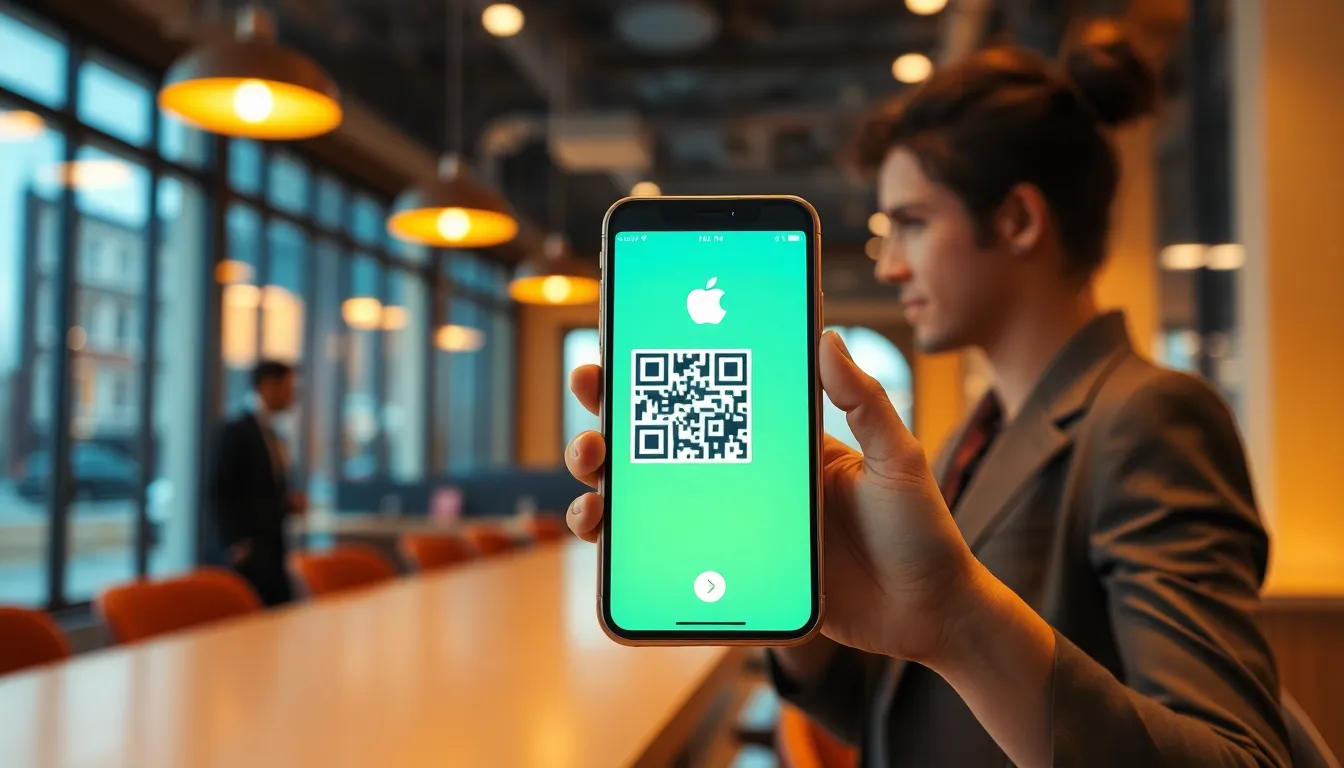
Apple Pay QR Codes: A Simple Way to Accept Contactless Payments
Contactless payments have changed how businesses handle transactions. Apple Pay, combined with QR codes, offers a straightforward solution for accepting payments without physical card readers. This approach works well for small businesses, market stalls, event organizers, and service providers who want to reduce setup costs and improve customer convenience.
How Apple Pay QR Codes Work
Apple Pay uses NFC technology for tap-to-pay transactions, but QR codes provide an alternative method. Here's the basic process:
- You generate a QR code linked to your payment information
- Customers scan the code with their iPhone camera or Wallet app
- Apple Pay processes the payment securely
- Funds transfer directly to your account
This method doesn't require special hardware. Customers only need an iPhone with Apple Pay set up, which many already have.
Practical Applications for Different Businesses
QR code payments with Apple Pay fit various scenarios. Consider these examples:
For Small Retailers and Market Vendors
If you sell at farmers markets, craft fairs, or pop-up shops, printed QR codes can replace bulky payment terminals. Create a code for fixed amounts (like $10, $20) or a dynamic code that lets customers enter custom amounts. Display the codes clearly at your checkout area.
For Event Organizers
At conferences, festivals, or workshops, QR codes speed up ticket sales, merchandise purchases, and donation collection. Place codes at entry points, vendor booths, and information desks. Attendees can pay quickly without handling cash.
For Service Providers
Freelancers, consultants, and home service businesses can include QR codes on invoices, proposals, or service completion forms. Clients scan to pay immediately, reducing payment delays.
For Restaurants and Cafes
Add QR codes to tables, menus, or receipts. Customers can pay without waiting for a server to bring a card machine, especially useful for outdoor seating or busy periods.
Want to follow along? Create a QR Code Generator now
It's free to start. Upgrade to $15 lifetime when you need editable dynamic QR codes.
Creating Effective Payment QR Codes
To make your QR codes work well, follow these tips:
- Test before using: Always scan your codes with different devices to ensure they work correctly.
- Provide clear instructions: Add text like "Scan to pay with Apple Pay" near your code.
- Consider size and placement: Make codes large enough to scan easily (at least 2x2 inches). Place them where lighting is good and surfaces are clean.
- Use high contrast: Black codes on white backgrounds scan best. Avoid decorative elements that might interfere with scanning.
- Have a backup plan: Keep traditional payment options available for customers without Apple Pay.
Generating Your Payment QR Codes
You can create QR codes for Apple Pay payments using various tools. For a reliable option, try OwnQR's QR code generator. It lets you create static or dynamic codes that link directly to payment pages compatible with Apple Pay. The process is simple: enter your payment link, customize the design if needed, and download the code. OwnQR offers clear pricing at $15 for essential features, making it accessible for small businesses.
When choosing a generator, look for one that supports secure HTTPS links, provides analytics to track scans, and allows design customization to match your branding.
Security and Best Practices
Apple Pay includes built-in security features like tokenization and biometric authentication. To maintain safety with QR codes:
- Use trusted payment processors (like Stripe or Square) that support Apple Pay
- Regularly update your codes if payment links change
- Avoid using public Wi-Fi when setting up payment systems
- Monitor transactions for any unusual activity
Remember that QR codes themselves don't store payment data. They simply direct customers to a secure payment page.
Comparing with Other Payment Methods
Apple Pay QR codes have specific advantages:
- Lower cost: No monthly fees for card readers, though payment processors may charge per transaction
- Easy setup: Print codes or display them digitally without technical installation
- Customer familiarity: Many iPhone users already know how to use Apple Pay
However, they only work for customers with Apple devices. For broader reach, consider also accepting Google Pay or traditional card payments. Some businesses use tools like Bitly for link shortening or Beaconstac for QR management, but verify their current terms and pricing.
Getting Started
To begin accepting Apple Pay via QR codes:
- Set up a business account with a payment processor that supports Apple Pay
- Generate your payment link or page
- Create a QR code using a tool like OwnQR
- Print or display the code at your point of sale
- Train staff to assist customers with the process
Start with a small test, perhaps at a single event or with regular customers, before rolling it out widely.
Apple Pay QR codes offer a modern, efficient way to accept payments. They reduce equipment costs, speed up transactions, and meet growing customer preference for contactless options. With proper setup and clear communication, they can become a valuable part of your payment system.
Tags
Ready to own your QR codes?
One-time $15 for lifetime dynamic QR codes.
Most alternatives bill monthly — verify current rates on their site.
Digital purchases are generally final — see Refund Policy