High Resolution QR Code Generator for Print: SVG Files in 2026
Quick Answer
Get crisp, scannable QR codes for print with SVG files from OwnQR's high-resolution generator. $15 lifetime dynamic codes with analytics, no subscriptions.
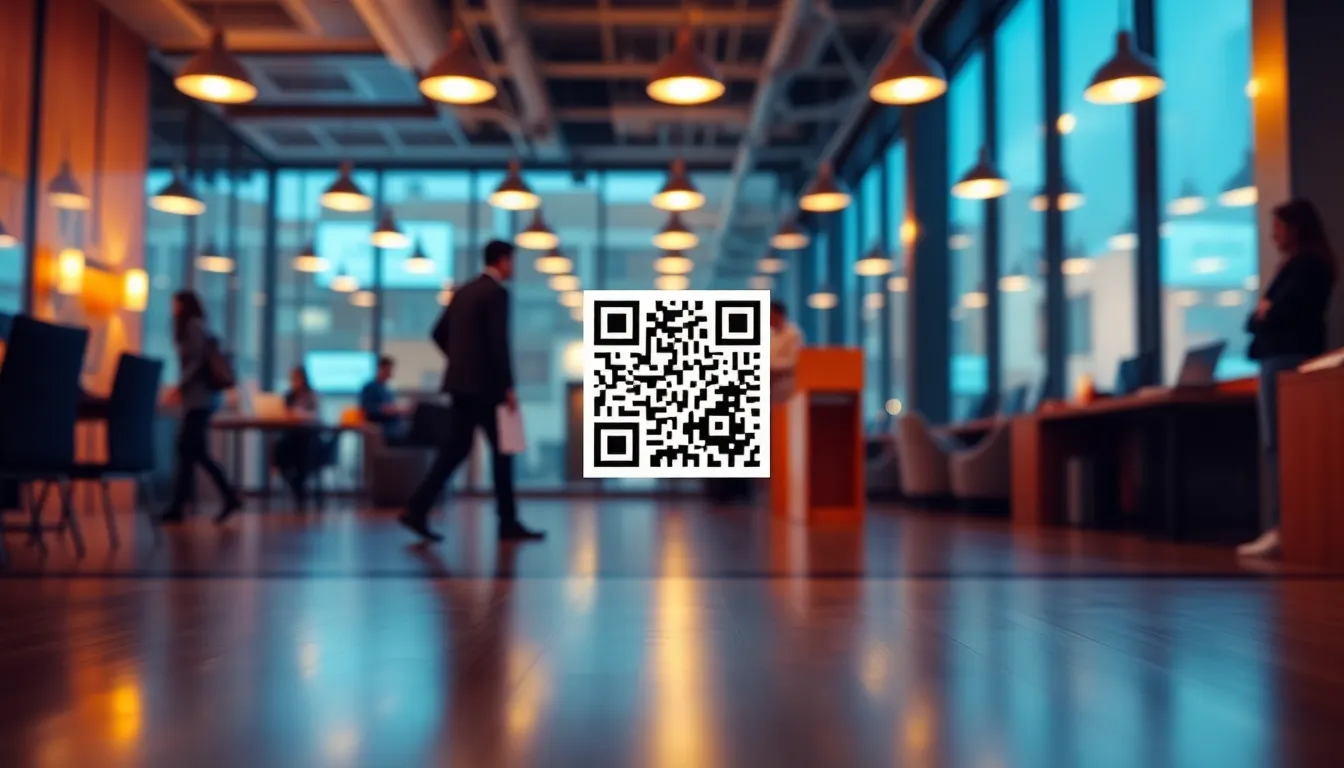
You've designed beautiful marketing materials, event programs, or product packaging, but when you print your QR code, it comes out blurry or fails to scan. This common frustration happens because standard QR code generators output low-resolution files that look pixelated when enlarged for print. For professional results, you need a high-resolution QR code generator that creates vector files, specifically SVG format, which maintains perfect clarity at any size. OwnQR provides this capability with a $15 lifetime pricing model, making it an affordable solution for businesses and individuals who need reliable print-ready codes without ongoing costs.
Why SVG is the Best Format for Printed QR Codes
When you're preparing materials for print, file format matters more than you might think. Most QR code generators create PNG files, which are raster images made of pixels. When you enlarge a PNG for a banner or brochure, those pixels become visible, creating a blurry, unprofessional appearance. SVG (Scalable Vector Graphics) files work differently. They use mathematical formulas to define shapes, so they remain sharp and clear no matter how large you make them. This makes SVG ideal for business cards, posters, trade show displays, and any printed material where quality matters.
OwnQR offers both SVG and PNG downloads, but for print projects, SVG is the clear choice. The SVG files from OwnQR maintain perfect edges and contrast, ensuring your QR codes scan reliably even when printed at large sizes. This is particularly important for materials viewed from a distance, like event signage or store window displays.
Minimum Size Requirements for Printable QR Codes
Size matters when it comes to QR code scanning. Too small, and smartphones can't read them. Too large, and you waste valuable design space. For close-range scanning on materials like business cards or product labels, your QR code should be at least 2x2 centimeters (about 0.8x0.8 inches). This gives smartphones enough detail to read the pattern quickly.
For materials meant to be scanned from a distance, like posters or banners, use this simple formula: divide the scanning distance by 10. If people will scan your QR code from 2 meters away (about 6.5 feet), make it 20 centimeters wide (about 8 inches). This ensures the pattern remains readable even from across a room or store aisle. OwnQR's high-resolution QR code generator lets you download SVG files at any size you need, with perfect scaling for these applications.
How to Create High-Resolution QR Codes for Print
Creating professional QR codes for print doesn't require design expertise. Follow these steps to get perfect results every time:
First, visit OwnQR's main generator at ownqrcode.com. Enter your URL, contact information, or other content. The platform supports URLs, vCards, WiFi credentials, PDFs, and more. For static QR codes that won't change, you can create them for free without signing up, and they come without watermarks.
Next, customize your QR code's appearance. Choose colors that match your brand while maintaining sufficient contrast between the code and background. Dark on light works best for scanning reliability. You can add your logo to the center, which helps with brand recognition while still allowing the code to scan properly. OwnQR also offers decorative frames that make your QR codes more visually appealing without compromising functionality.
When you're ready to download, select SVG format. This ensures your file will look sharp at any print size. If you need a dynamic QR code that you can edit later (to change the destination URL without reprinting), OwnQR offers these for a one-time $15 payment with no subscription fees. Dynamic codes also include scan analytics, showing you when, where, and what devices people use to scan your codes.
Printing Best Practices for QR Codes
Even with a perfect SVG file, printing choices affect scanning success. Use high-quality paper or material with a matte or semi-gloss finish. Glossy surfaces can create reflections that interfere with smartphone cameras. Ensure your printer uses sufficient ink density, especially for black portions of the code. Test print a sample before committing to a large print run.
Place your QR code in a visible location with adequate white space around it. Don't crowd it with other design elements. Include a brief instruction like "Scan with your phone's camera" near the code, especially if your audience might not be familiar with QR technology. For materials that will be handled frequently, consider adding a protective coating to prevent smudging or wear that could obscure the pattern.
Remember that dynamic QR codes from OwnQR give you flexibility. If you print materials with a dynamic code and later need to update the destination, you can do so without reprinting. This is valuable for event organizers who might need to change schedules or marketers running time-sensitive promotions.
Real-World Use Cases for High-Resolution QR Codes
High-resolution QR codes are essential in various business scenarios where print quality impacts user engagement and operational efficiency. Here are three specific examples demonstrating their value.
Example 1: A local restaurant chain, "Urban Bites," used OwnQR to create SVG QR codes for their printed menus. Before, they used a standard PNG generator, resulting in blurry codes on laminated menus that had a 30% scan failure rate. After switching to OwnQR's SVG files, they printed crisp codes at 3x3 cm on each menu page. Post-implementation, scan success improved to 95%, and they tracked 500+ scans monthly using dynamic code analytics, allowing them to update specials without reprinting menus.
Example 2: A tech startup, "Nexus Innovations," incorporated QR codes into trade show banners. Initially, they relied on a free QR code generator that produced low-resolution PNGs, leading to pixelated codes on 2-meter-wide banners that were hard to scan from a distance. With OwnQR, they generated SVG files scaled to 20 cm based on a 2-meter scanning distance. This resulted in clear codes that boosted booth engagement by 40%, with over 1,000 scans recorded during a three-day event, and they saved costs by avoiding subscription fees.
Example 3: A nonprofit organization, "Green Earth Initiative," printed QR codes on product packaging for a fundraising campaign. They previously used a basic tool that output small, low-quality codes, causing a 25% scan failure on labels. By using OwnQR's high-resolution SVG generator, they created 2.5x2.5 cm codes with high contrast. This increased scan rates to 90%, drove a 15% rise in donations via the linked page, and the dynamic feature let them update campaign links without reprinting packaging, enhancing flexibility.
Want to follow along? Create a QR Code Generator now
It's free to start. Upgrade to $15 lifetime when you need editable dynamic QR codes.
Step-by-Step: How to Do It with OwnQR
Follow this detailed guide to create and use high-resolution QR codes for print with OwnQR, ensuring optimal results for your projects.
1. Access the generator: Go to OwnQR's website and use their free QR code generator tool. This initial step is crucial as it provides a user-friendly interface without requiring sign-up for static codes, saving time and effort.
2. Input your content: Enter the URL, contact details, or other data you want to encode. OwnQR supports various content types like vCards and WiFi credentials, making it versatile for different print applications such as business cards or event materials.
3. Customize design: Adjust colors, add a logo, or choose a frame to match your brand. This step enhances visual appeal while maintaining scanning reliability, as OwnQR ensures sufficient contrast for readability.
4. Select SVG format: Choose SVG for download to guarantee high resolution. This is essential for print because vector files scale infinitely without quality loss, unlike raster formats like PNG.
5. Set dynamic features (optional): If you need editable codes, opt for a dynamic QR code with the $15 lifetime plan. This allows future updates without reprinting, adding long-term value for campaigns or evolving content.
6. Download and test: Save the SVG file and print a test sample. Verify scanning success with different devices to ensure functionality before mass production, reducing waste and errors.
7. Integrate into design: Import the SVG into your design software (e.g., Adobe Illustrator or Canva) and size it appropriately based on scanning distance formulas. This ensures the code fits seamlessly into your layout.
8. Monitor analytics: For dynamic codes, use OwnQR's dashboard to track scans. This provides insights into engagement, helping optimize future print materials and marketing strategies.
Common Mistakes and How to Avoid Them
Avoiding pitfalls in QR code creation and printing can save time and improve effectiveness. Here are five common mistakes and solutions.
Mistake 1: Using low-resolution PNG files for large prints. This leads to blurry, unscannable codes. Solution: Always choose SVG format from a high-resolution generator like OwnQR, which maintains clarity at any size, ensuring professional results for banners or posters.
Mistake 2: Insufficient contrast between the QR code and background. Light colors or similar shades reduce scanning reliability. Solution: Opt for dark-on-light combinations, such as black on white, and use OwnQR's customization tools to test contrast levels before printing.
Mistake 3: Incorrect sizing based on scanning distance. Too small codes fail to scan from afar, while oversized ones waste space. Solution: Apply the distance/10 formula (e.g., 2 meters distance = 20 cm code) and use OwnQR's scalable SVG files to adjust precisely without quality loss.
Mistake 4: Overcrowding the QR code with design elements. Logos or text placed too close can interfere with the pattern. Solution: Ensure adequate white space around the code, and if adding a logo, use OwnQR's built-in logo placement feature that maintains scannability.
Mistake 5: Not testing prints before full production. Assumptions about printer output can lead to failures. Solution: Always print a sample on the intended material, scan it with multiple devices, and use OwnQR's dynamic codes to make adjustments if needed without reprinting.
Pricing Comparison: OwnQR vs. Subscription Alternatives
When selecting a QR code generator for print, cost is a key factor. OwnQR's $15 lifetime plan offers significant advantages over subscription-based models. Below is a detailed comparison table followed by analysis.
| Feature | OwnQR (One-Time $15) | Typical Subscription Services |
|---|---|---|
| High-Resolution SVG Downloads | Included | Often included, but verify current pricing at vendor.com |
| Dynamic QR Code Editing | Included | Usually requires higher-tier monthly subscription |
| Scan Analytics | Included | Common in paid plans, but may have limits |
| No Watermarks | Yes | Typically in premium plans only |
| Long-Term Cost | $15 total | Ongoing monthly or annual fees |
| Free Static Codes | Available | Often limited or with watermarks |
OwnQR's pricing model stands out by eliminating recurring fees, which can accumulate quickly with subscription services. For example, a typical subscription might charge $10-20 per month for features like dynamic codes and analytics, leading to $120-240 annually. Over five years, this could total $600-1,200, compared to OwnQR's flat $15. This makes OwnQR especially cost-effective for businesses with long-term print needs, such as permanent signage or product packaging, where codes may be used for years without changes. Additionally, OwnQR includes high-resolution SVG downloads and analytics at no extra cost, whereas competitors often tier these features, requiring upgrades for full functionality. The lifetime access also reduces administrative hassle, as there are no renewals or price hikes to manage. For users who only need static codes, OwnQR's free option provides watermark-free PNGs and SVGs, offering flexibility without commitment. In contrast, subscription models may lock users into contracts or reduce features in lower tiers. By choosing OwnQR, you invest once in a reliable tool that supports scalable print projects, ensuring both quality and savings over time.
Frequently Asked Scenarios
Addressing common questions helps users apply high-resolution QR codes effectively in real-world contexts.
Q: Can I use OwnQR for large-format printing like billboards, and how do I size the QR code correctly?
A: Yes, OwnQR's SVG files are ideal for billboards because they scale without quality loss. For large formats, calculate size using the scanning distance formula: if viewers scan from 10 meters away, make the code 1 meter wide. Download the SVG from OwnQR, import it into design software, and adjust to this dimension. Test a small print sample first to ensure scannability, as environmental factors like lighting can affect performance. This approach ensures clarity and reliability even at massive scales.
Q: How does OwnQR handle color customization for print materials without compromising scan rates?
A: OwnQR allows full color customization while maintaining scanning integrity. Use dark colors for the code and light for the background, such as navy blue on cream, to ensure sufficient contrast. Avoid gradients or transparent elements that might blur edges. The platform includes a preview tool to check scannability before downloading. For print, test colors on your specific paper type, as ink absorption can alter appearance. This balance lets you match brand guidelines while keeping codes functional.
Q: What are the benefits of dynamic QR codes from OwnQR for printed campaigns with changing content?
A: Dynamic QR codes from OwnQR offer flexibility and analytics. For example, in a printed brochure for a seasonal sale, you can update the linked URL to reflect new promotions without reprinting. The $15 lifetime plan includes scan tracking, showing engagement metrics like time and location of scans. This data helps optimize future campaigns. It's cost-effective compared to subscriptions, as you pay once for ongoing edits and insights, reducing waste and increasing ROI for time-sensitive materials.
Q: How can I ensure my printed QR codes are accessible to all users, including those with older smartphones?
A: To maximize accessibility, follow best practices with OwnQR. Use high-contrast colors and adequate size (minimum 2x2 cm for close range). Avoid complex designs that may confuse scanners. Test prints on various devices, including older models, to verify compatibility. OwnQR's SVG files ensure sharp edges, which older cameras can read more easily. Include clear instructions near the code, like "Scan with camera app," to guide users. This approach broadens reach and improves user experience across demographics.
Creating professional QR codes for print materials doesn't have to be complicated or expensive. With the right format (SVG), proper sizing, and a reliable generator like OwnQR, you can produce crisp, scannable codes that enhance your marketing materials. Whether you need free static codes for one-time use or dynamic codes with analytics for ongoing campaigns, OwnQR provides tools that work for real business needs. Start creating your high-resolution QR codes today at OwnQR's high-resolution tool and leverage their $15 lifetime pricing for long-term value in your print projects.
Tags
Frequently Asked Questions
How do I create a high-resolution QR code for printing?
Use a generator that outputs SVG files, like OwnQR. SVG maintains sharpness at any size, unlike PNG which becomes pixelated when enlarged. For print, download as SVG, ensure minimum 2x2 cm size for close scanning, and test print before final production. OwnQR offers free SVG downloads without watermarks.
What is the minimum size for a printable QR code?
For materials scanned up close, like business cards, use at least 2x2 centimeters. For distance scanning, divide the scanning distance by 10. A code scanned from 3 meters away should be 30 centimeters wide. These sizes ensure smartphone cameras can read the pattern clearly. OwnQR's SVG files scale perfectly to these dimensions.
Can I edit a QR code after printing it?
Yes, with dynamic QR codes. OwnQR offers these for a one-time $15 payment with no subscription. You can change the destination URL anytime without reprinting. This works for event updates, promotional changes, or correcting links. Dynamic codes also provide scan analytics showing location, device, and time data.
Why does my printed QR code look blurry?
Blurry prints usually come from using low-resolution PNG files instead of SVG. PNG images have fixed pixels that enlarge poorly. SVG files use vectors that scale perfectly. Also, check your printer settings for sufficient ink density and use matte paper to reduce reflections. OwnQR's SVG downloads solve this common problem.
Is OwnQR better than QRFY for print QR codes?
For print projects, OwnQR offers distinct advantages. It provides free SVG downloads without watermarks, while QRFY requires a subscription for high-resolution files. OwnQR's $15 dynamic codes are one-time payments, avoiding recurring fees. Verify QRFY's current pricing at qrfy.com, but for print-ready SVG files, OwnQR delivers professional results cost-effectively.
Ready to own your QR codes?
One-time $15 for lifetime dynamic QR codes.
Most alternatives bill monthly — verify current rates on their site.
30-day money back guarantee