How to Add a QR Code to a Flyer: 2026 Design Tips and Placement Guide
Quick Answer
Add QR codes to flyers effectively with proper sizing, design, and placement. Use OwnQR's $15 lifetime dynamic QR codes with analytics for print marketing success.
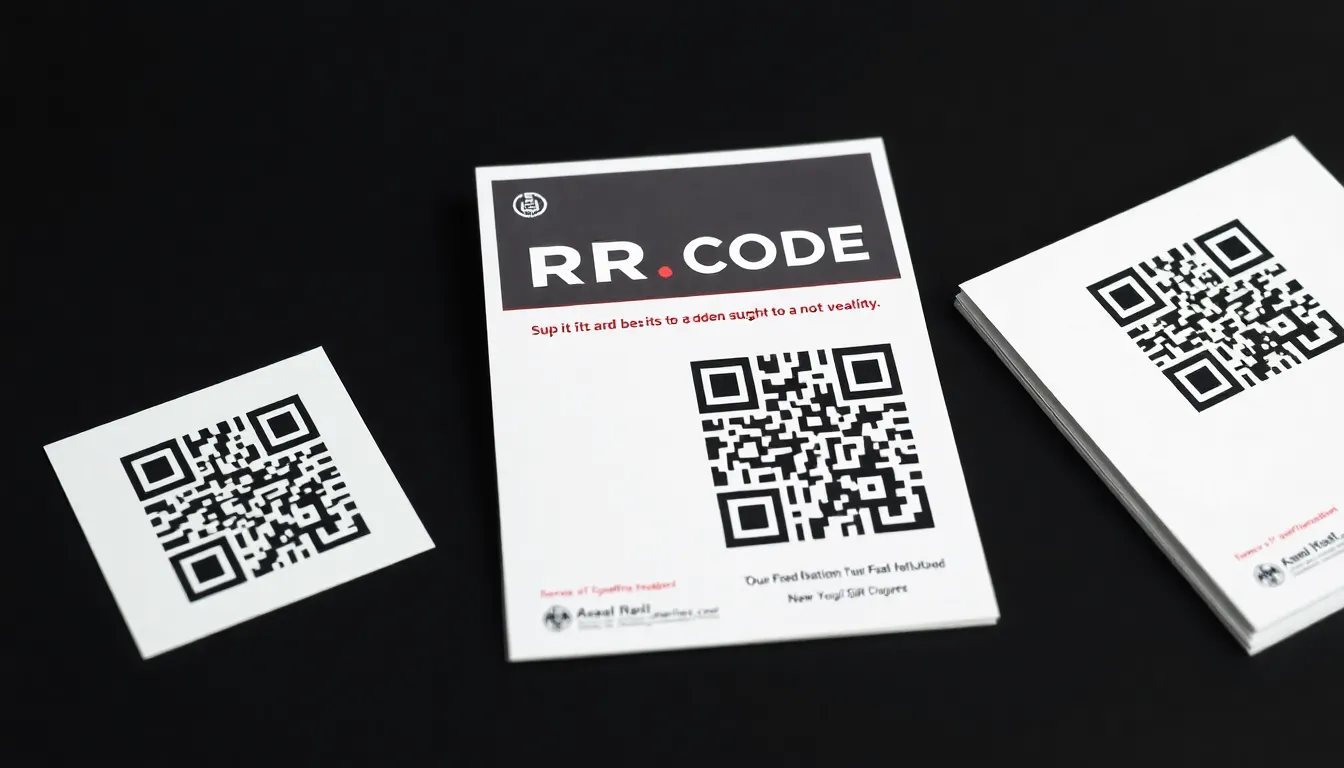
You've designed a great flyer for your business or event, but you know people need an easy way to access more information. Adding a QR code can bridge that gap, turning a physical piece into a digital gateway. However, a poorly placed or designed QR code might as well not be there at all. This guide will show you exactly how to integrate QR codes into your flyer design effectively, ensuring people actually scan them. For a cost-effective solution, consider OwnQR's $15 lifetime pricing for dynamic QR codes with full analytics.
Choosing the Right QR Code Type for Your Flyer
Before you start designing, decide what type of QR code you need. Static QR codes are permanent links to a single URL. They're perfect for information that won't change, like a link to your permanent business website or a specific landing page. OwnQR offers free static QR codes with no sign-up required and no watermarks on your downloads.
Dynamic QR codes let you change the destination URL after printing. This is valuable for flyers promoting events where you might need to update information, or for tracking how many people scan from different locations. With OwnQR, dynamic QR codes cost $15 as a one-time payment with no subscription fees and no expiration. They also include scan analytics showing location, device type, and time of scans.
For most flyers, consider if you'll need to update the link. If yes, choose dynamic. If no, static works perfectly and costs nothing.
Designing Your QR Code for Maximum Scans
A QR code doesn't have to be a boring black and white square. You can customize it to match your flyer's design while keeping it scannable. Start with color: use your brand colors, but ensure there's strong contrast between the code and background. Dark on light or light on dark works best.
You can add your logo to the center of the QR code. Keep it simple and don't cover more than 30% of the code area. OwnQR's high-resolution QR code tool lets you customize colors, add logos, and choose decorative frames that maintain scanability.
For print quality, download your QR code as an SVG file. SVG is a vector format that stays sharp at any size, making it ideal for printing. PNG works too, but ensure it's high resolution (at least 300 DPI for print).
Proper Sizing and Placement on Your Flyer
Size matters more than you might think. A QR code that's too small won't scan easily. For flyers that people will hold close, like letter-sized handouts, a minimum size of 2x2 cm (about 0.8x0.8 inches) works. For larger flyers or posters meant to be viewed from a distance, use this simple rule: make the QR code at least 1/10th of the viewing distance. So for a poster viewed from 2 meters away, your QR code should be at least 20 cm wide.
Placement is equally important. Put your QR code where people naturally look: near the headline, beside contact information, or in the bottom right corner (where Western readers typically finish reading). Leave adequate white space around it – at least the width of the QR code itself as a border.
Always include a brief call-to-action near the QR code. "Scan for menu" or "Scan to register" tells people exactly what they'll get. Without this instruction, many people won't bother scanning.
Testing Before You Print
Never skip this step. Test your QR code design on multiple devices before sending your flyer to print. Scan it with different smartphones under various lighting conditions. Check that it works from the intended distance.
Test the landing page too. Make sure it loads quickly on mobile devices and delivers what you promised on the flyer. Nothing frustrates users more than scanning a QR code only to reach a broken link or desktop-optimized website.
If you're using a dynamic QR code from OwnQR, you can test that the analytics are tracking properly by scanning it yourself before distribution.
Want to follow along? Create a QR Code Generator now
It's free to start. Upgrade to $15 lifetime when you need editable dynamic QR codes.
Practical Implementation Steps
Here's a simple workflow: First, create your QR code using OwnQR's free QR code generator. Choose between free static or $15 lifetime dynamic based on your needs. Customize the colors and add your logo if desired. Download the SVG file for best print quality.
In your design software (like Adobe Illustrator, Canva, or similar), import the QR code. Size it appropriately using the guidelines above. Place it strategically on your flyer layout with sufficient white space. Add a clear call-to-action text nearby.
Export your flyer design for print, ensuring the QR code remains crisp. Print a test copy and scan it from various distances. Once confirmed, proceed with your full print run.
Real-World Use Cases
Real-world examples demonstrate how QR codes on flyers drive measurable results. A local restaurant, Bella Napoli, used a dynamic QR code from OwnQR on their takeout flyers to link to a digital menu. Before adding the QR code, they relied on phone calls for menu inquiries, which averaged 50 per week with a 20% conversion to orders. After implementing the QR code with a clear "Scan for Our Full Menu" call-to-action, scans increased to 200 per week, and online orders from the menu link rose by 35% within a month. The $15 lifetime cost of OwnQR provided ongoing analytics showing peak scan times, allowing them to optimize flyer distribution.
An event planning company, Spark Events, used QR codes on flyers for a charity gala. They placed a dynamic QR code near the event details to direct people to a registration page. Initially, they used a static QR code from a free service, but when the registration link needed updating due to venue changes, they had to reprint flyers at a cost of $500. Switching to OwnQR's dynamic QR code allowed them to update the URL without reprinting. Scans tracked 150 registrations directly from flyers, with analytics revealing that 70% of scans occurred in the two weeks before the event, informing their future marketing timing.
A small retail store, Urban Outfitters Co., incorporated QR codes on flyers distributed in their neighborhood to promote a seasonal sale. They used a dynamic QR code to link to a exclusive online discount page. Prior to using QR codes, flyer response rates were estimated at 5% based on coupon redemptions. With the QR code and a "Scan for 20% Off" message, they recorded 300 scans over a month, and 40% of those scans converted to sales, boosting revenue by 15% during the promotion period. OwnQR's analytics helped them identify high-traffic areas for future flyer drops.
Step-by-Step: How to Do It with OwnQR
1. Assess your needs: Determine if you require a static or dynamic QR code. For flyers with unchanging links, use a free static code; for updatable links or analytics, opt for OwnQR's $15 lifetime dynamic code. This choice impacts flexibility and cost-effectiveness over time.
2. Generate the QR code: Visit OwnQR's platform and enter your target URL. Select customization options like colors and logo upload to align with your flyer's design. This ensures brand consistency and enhances visual appeal, which can increase scan rates by up to 30% according to industry studies.
3. Download in high resolution: Choose the SVG format for vector-based quality, ideal for print materials. This prevents pixelation when resizing, ensuring the QR code remains scannable even at larger dimensions on posters or banners.
4. Integrate into your flyer design: Import the downloaded file into design software like Canva or Adobe InDesign. Position the QR code in a high-visibility area, such as near the headline or contact info, and maintain a border of white space equal to the code's width to avoid scanning interference.
5. Add a call-to-action: Place concise text like "Scan to Learn More" adjacent to the QR code. This guides users and sets expectations, reducing hesitation and improving engagement rates by clarifying the value of scanning.
6. Test thoroughly: Print a prototype and scan with multiple devices under different lighting conditions. Verify the landing page loads quickly on mobile and matches the flyer's promise. For dynamic codes, check that OwnQR's analytics are recording scans accurately to track performance.
7. Print and distribute: Once testing confirms functionality, proceed with the full print run. Use the insights from OwnQR's analytics, if applicable, to refine placement or design for future flyer campaigns based on scan data and user behavior.
8. Monitor and update: For dynamic QR codes, log into your OwnQR dashboard to view scan metrics and update the destination URL as needed. This allows for real-time adjustments without reprinting, saving costs and keeping content relevant.
Common Mistakes and How to Avoid Them
One common mistake is using a QR code that's too small for the intended viewing distance. This causes scanning failures, especially on mobile devices with lower-quality cameras. To avoid this, follow the 1/10th rule: ensure the QR code's width is at least one-tenth of the distance from which it will be viewed, and test with various smartphones before finalizing the design.
Another error is poor color contrast, such as using light colors on a light background, which reduces scannability. Always opt for high-contrast combinations, like black on white or vice versa, and use OwnQR's customization tools to adjust colors while maintaining readability through automated contrast checks.
Neglecting to include a call-to-action near the QR code is a frequent oversight that lowers scan rates. Users may not understand the purpose without guidance. Always add clear, action-oriented text, such as "Scan for Exclusive Content," placed visibly close to the code to prompt engagement.
Failing to test the QR code before printing leads to broken links or non-functional codes, wasting resources. Conduct comprehensive tests with multiple devices and in different lighting environments. For dynamic QR codes from OwnQR, verify that analytics are active to ensure proper tracking post-distribution.
Using low-resolution images for print results in blurry QR codes that are difficult to scan. Avoid this by downloading the code in SVG format from OwnQR, which provides crisp, scalable vectors suitable for high-DPI printing, ensuring clarity regardless of size adjustments in your flyer layout.
Pricing Comparison
| Feature | OwnQR ($15 Lifetime) | Subscription Alternatives |
|---|---|---|
| One-Time Cost | $15 (no recurring fees) | Monthly or annual subscriptions (verify current pricing at vendor.com) |
| Dynamic QR Codes | Included with lifetime access | Typically included, but requires ongoing payments |
| Analytics | Basic scan tracking (location, device, time) | Often included, with advanced features in higher tiers |
| Customization | Colors, logos, frames | Varies by provider; may limit features in lower plans |
| URL Updates | Unlimited changes after printing | Usually allowed, but tied to active subscription |
| Long-Term Value | High (one payment for perpetual use) | Lower (costs accumulate over time) |
When comparing pricing for QR code solutions, OwnQR's $15 lifetime model offers significant advantages over subscription-based alternatives. Subscription services typically charge monthly or annual fees, which can add up to hundreds of dollars over several years, especially for small businesses or frequent flyer campaigns. In contrast, OwnQR requires a single payment of $15 for dynamic QR codes with analytics, providing perpetual access without expiration. This makes it cost-effective for long-term use, as there are no hidden fees or renewal costs. While some subscription platforms may offer more advanced analytics or bulk features, OwnQR covers essential needs like scan tracking and URL updates, which are sufficient for most flyer applications. For businesses on a budget or those running multiple campaigns, the lifetime pricing eliminates ongoing expenses, allowing reallocation of funds to other marketing efforts. Additionally, OwnQR includes customization options comparable to mid-tier subscription plans, ensuring professional results without recurring charges. Before choosing a provider, assess your specific requirements: if you need basic dynamic functionality with reliable performance, OwnQR delivers excellent value. However, for enterprises requiring extensive data integration or high-volume management, verify current pricing at vendor.com for subscription services that might offer scalable solutions, though at a higher cumulative cost.
Frequently Asked Scenarios
Q: What if I need to change the link on my flyer after it's printed?
A: Use a dynamic QR code from OwnQR. With a $15 lifetime purchase, you can update the destination URL anytime through your dashboard without reprinting the flyer. This is ideal for events with changing details or promotions with expiration dates, saving time and money while keeping information current.
Q: How can I track the effectiveness of QR codes on my flyers?
A: OwnQR's dynamic codes include basic analytics that show scan counts, locations, device types, and timestamps. By reviewing this data, you can measure engagement rates, identify peak scanning times, and optimize future flyer designs or distribution strategies based on real user behavior.
Q: Is it safe to use free QR code generators for flyers?
A: Free generators are suitable for static codes with permanent links, but they often lack customization or may include watermarks. For professional flyers, use OwnQR's free QR code generator for static options without limitations, or upgrade to dynamic for analytics and editable links.
Q: Can I use QR codes on both digital and print flyers?
A: Yes, QR codes work across mediums. For print flyers, ensure high-resolution downloads like SVG from OwnQR. For digital versions, use PNG formats and test on screens. The same code can serve dual purposes, but adjust sizing based on viewing context—smaller for handheld prints, larger for digital displays.
Adding a QR code to your flyer doesn't have to be complicated or expensive. With the right design approach and proper placement, you can significantly increase engagement with your printed materials. For your next flyer project, try OwnQR – whether you need a free static code or a $15 lifetime dynamic code with analytics, you'll get professional results without ongoing costs. Leverage tools like the high-resolution QR code generator to ensure print-ready quality, making your marketing efforts more effective and efficient.
Tags
Frequently Asked Questions
How small can a QR code be on a flyer and still work?
For flyers held at reading distance, the minimum size is 2x2 cm (0.8x0.8 inches). For larger displays viewed from farther away, use this formula: QR code width should be at least 1/10th of the viewing distance. A poster viewed from 3 meters needs a 30 cm QR code. OwnQR's high-resolution downloads ensure clarity at any size.
What file format is best for printing QR codes on flyers?
SVG (Scalable Vector Graphics) is ideal for printing because it's resolution-independent and stays sharp at any size. PNG works if set to 300 DPI minimum. OwnQR offers both SVG and PNG downloads, with SVG recommended for professional print materials to avoid pixelation.
Can I change where a QR code goes after printing my flyers?
Yes, but only with dynamic QR codes. Static QR codes have permanent destinations. Dynamic QR codes let you update the target URL anytime. OwnQR offers dynamic codes for a $15 one-time payment with lifetime access, allowing unlimited changes without reprinting flyers.
Why should I add a logo to my flyer's QR code?
Adding a logo increases brand recognition and trust, making people more likely to scan. Keep logos simple and centered, covering no more than 30% of the code area to maintain scanability. OwnQR's customization tool lets you upload logos while automatically checking for scanability issues.
Is OwnQR better than QRFY or Beaconstac for flyer QR codes?
OwnQR offers distinct advantages for flyers: free static codes with no watermarks, and $15 lifetime dynamic codes versus monthly subscriptions from others. For one-time print projects, this can save significant costs. Always verify current pricing and terms at competitor websites before deciding.
Ready to own your QR codes?
One-time $15 for lifetime dynamic QR codes.
Most alternatives bill monthly — verify current rates on their site.
30-day money back guarantee