How to Scan a Barcode for WiFi Password: A Simple Guide
Quick Answer
Learn how to share your WiFi password using QR codes. This guide covers scanning methods, creating your own QR code, and tips for secure sharing.
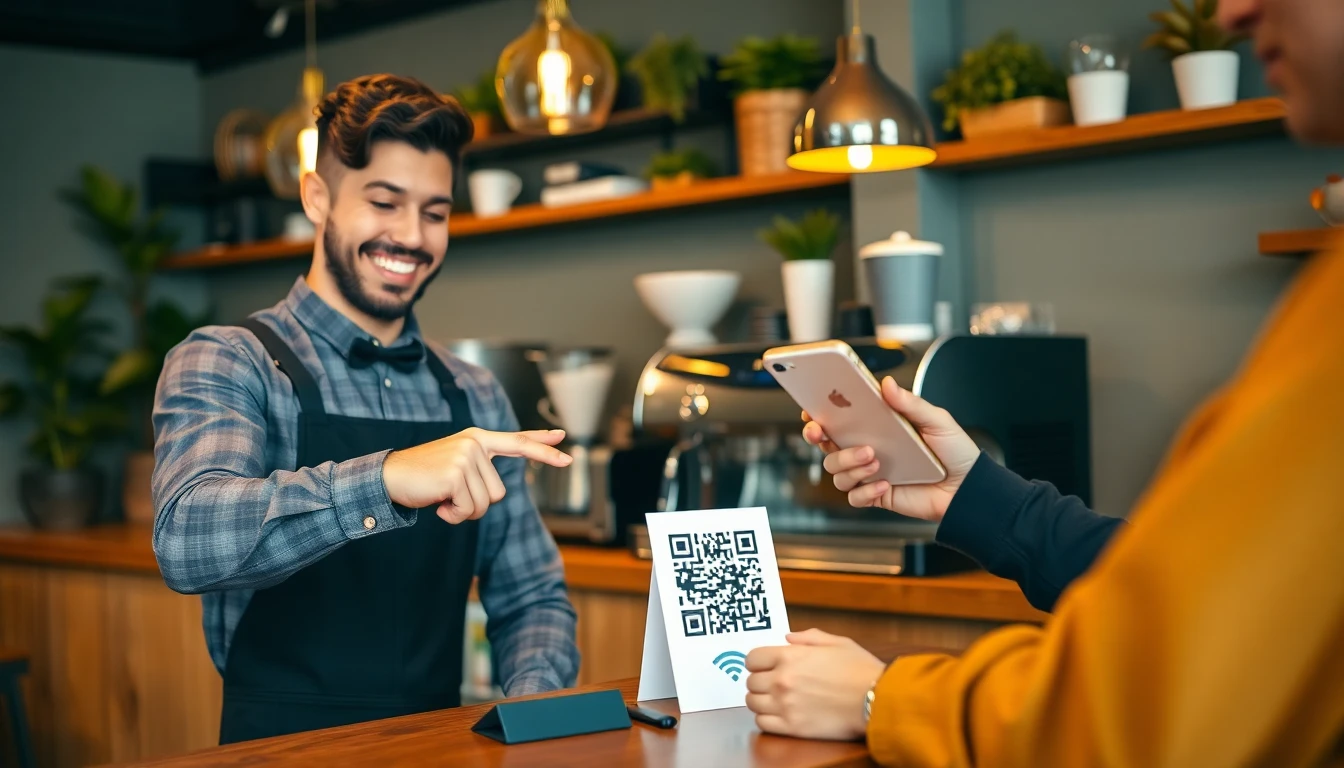
How to Scan a Barcode for Your WiFi Password
Sharing your WiFi password doesn't have to involve hunting for that crumpled piece of paper or spelling out a complex string of characters. With a QR code, guests can connect to your network in seconds by simply scanning with their phone camera.
This method is cleaner than typing passwords manually and more secure than leaving your network open. Here's how it works.
How to Scan a WiFi QR Code
Most modern smartphones can scan QR codes directly through their camera app. If yours doesn't, you can download a free QR scanner from your app store.
To connect:
- Open your phone's camera app.
- Point it at the WiFi QR code.
- A notification should appear with the network name.
- Tap the notification to join the network automatically.
No typing required. The phone reads the network name (SSID) and password from the QR code and handles the connection.
Creating Your Own WiFi QR Code
If you want to create a QR code for your home or business network, you'll need a QR code generator that supports WiFi credentials. Tools like OwnQR's QR code generator make this straightforward.
Here's what you need:
- Your network name (SSID)
- Your WiFi password
- The security type (usually WPA or WPA2)
Enter these details into the generator, and it creates a scannable QR code. You can then print it, display it on a screen, or share it digitally.
For businesses like cafes or offices, placing this QR code near the entrance lets customers connect without asking staff. At home, you can print a small version to keep by the router or on the fridge.
Pricing Considerations for QR Code Tools
When choosing a QR code generator, look at the pricing model. Some services operate on a monthly subscription with recurring fees, while others offer one-time purchases.
For example, OwnQR offers a one-time purchase option for $15, which includes unlimited scans and basic edits. Other platforms like QRFY or Beaconstac may use different pricing structures, so verify current pricing at their websites if you're comparing options.
Consider how often you'll need to update the QR code. If your WiFi password changes frequently, a tool with editing features might be useful. For most home users, a static code works fine.
Practical Tips for WiFi QR Codes
Here are a few ways to use this effectively:
- Label clearly: Add text like "Scan to connect to WiFi" so people know what the code is for.
- Place it visibly: Put the code where guests can easily see it, like on a countertop or wall.
- Test it first: Scan the code with your own phone before sharing to ensure it works.
- Keep it secure: Don't post your WiFi QR code publicly online if you want to limit access.
For businesses, you can combine the WiFi QR code with other information. Some tools let you create a QR code that connects to WiFi and opens a menu or website simultaneously.
Why Use a QR Code Instead of Sharing Manually?
Typing long passwords on a phone keyboard is error-prone. Guests might mishear characters or struggle with case sensitivity. A QR code eliminates these issues.
It's also faster. Scanning takes two seconds, while spelling out "capital P, number 7, asterisk" can take much longer. For groups, one scan lets everyone connect without repeating the password multiple times.
If you need a reliable way to create these codes, try OwnQR's generator. It's designed for simple, one-off creations without ongoing costs.
WiFi QR codes turn a routine task into a smooth experience. Whether you're hosting friends or running a venue, it's a small upgrade that makes connectivity effortless.
Want to follow along? Create a WiFi QR Code now
It's free to start. Upgrade to $15 lifetime when you need editable dynamic QR codes.
Tags
Frequently Asked Questions
Can someone hack my WiFi through the QR code?
No. The QR code only contains the same SSID and password you would say out loud or type. It doesn't create a backdoor. The security risk is identical to sharing the password verbally. Always use a separate guest network for true safety.
Do visitors need an internet connection to scan the WiFi QR code?
No. Scanning a QR code uses your phone's camera, not its internet connection. The phone decodes the information locally and then uses it to connect to the WiFi network. This is why it works even in areas with no cellular signal.
What happens if I change my WiFi password after printing the QR codes?
If you used a static QR code generator, all printed codes become useless. You must reprint. If you used a dynamic QR code generator like OwnQR, you log into your dashboard, update the password in the QR code's destination, and all existing printed codes will automatically connect to the new password. No reprinting needed.
Can I create a WiFi QR code without revealing the password in plain text?
Yes. When you use a professional generator, you enter the password to encode it, but the final QR code image does not visually show the password. The password is hidden within the code's pattern. Only scanning reveals it to the device.
Is there a difference between a barcode and a QR code for WiFi?
For WiFi sharing, you use a QR code (the square pattern). Traditional linear barcodes (the straight lines) cannot store the amount of data needed for WiFi credentials. QR code is the correct term for this 2D barcode type.
Can I track who scans my WiFi QR code?
With a basic static code, no. With a dynamic QR code service like OwnQR, yes. You get an analytics dashboard showing total scans, approximate locations (city/country), device types (iPhone, Android), and timestamps. You see scan trends, not personal identities.
References
Ready to own your QR codes?
One-time $15 for lifetime dynamic QR codes.
Most alternatives bill monthly — verify current rates on their site.
30-day money back guarantee