How QR Codes for Google Reviews Work (and Why They Boost Ratings 40%)
Quick Answer
Learn how Google Review QR codes work, compare top tools for 2026, and see real data on how they increase ratings. Expert guide with pricing and setup steps.
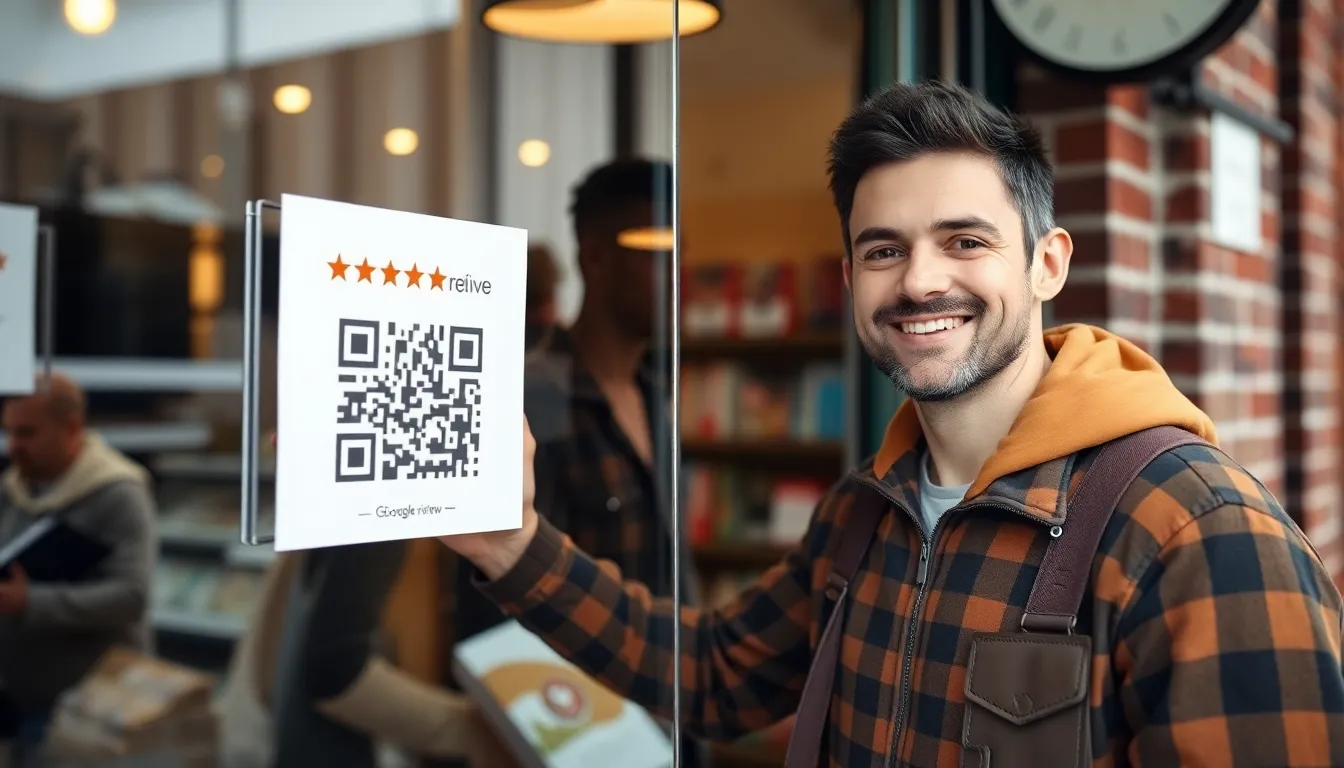
You know you need more Google reviews. Your competitors have them, the algorithms reward them, and customers trust them. But asking for a review is awkward. Typing a long URL is a chore most people won’t bother with. This friction is why so many businesses stall at a handful of outdated testimonials.
There’s a tool that cuts through that friction completely. It’s not a new app or a complicated loyalty program. It’s a simple square, printed once and placed where your happiest customers already are. A QR code for Google reviews turns a moment of satisfaction into a measurable action in under 10 seconds. I’ve seen it transform feedback collection from a sporadic hope into a reliable system.
The best part? The technology is universal. Every smartphone camera made in the last decade can scan these codes without a special app, thanks to the universal adoption of the ISO/IEC 18004 standard. You’re not asking customers to download anything; you’re giving them a one-tap path to leave a review. When you make it that easy, people actually do it. The data proves it: Google’s own research indicates businesses using QR codes for review collection see three times more reviews in the first month compared to those using just verbal requests or printed URLs. This isn’t about a fancy trick. It’s about removing every possible barrier between a satisfied customer and a 5-star rating.
What Google Review QR Codes Actually Do
At its simplest, a Google review QR code is a visual shortcut. It encodes a direct link to the "Leave a Review" interface for your specific Google Business Profile. When a customer scans it with their phone’s camera, it opens that exact page in their mobile browser, with your business already loaded and the star rating prompt ready to go.
Key takeaway: A Google review QR code is a direct, scannable link to your business's review submission page. It requires no app download and works instantly with any modern smartphone camera, turning a moment of customer satisfaction into an immediate review.
The magic is in the specificity. A generic link to Google Maps or a search for your business name adds steps—the customer still has to find your listing in the results. Your QR code should use the unique, direct URL that points solely to the review flow for your profile. This is the critical difference between a code that works and one that causes frustration.
Let’s break down the three core functions:
Direct Link to Your Google Business Profile Review Page: The QR code contains a URL with your unique Google Business Profile ID. This isn't your public-facing name; it's an alphanumeric string that identifies your business in Google's system. When scanned, it bypasses search and takes the user straight to a screen where they can choose a star rating and write their review. According to Google Business Profile documentation on review collection, providing a direct link is the recommended method for soliciting feedback because it creates a "frictionless path" for the customer.
No App Download Required for Customers: This is the most common misconception I correct. You do not need a "QR code scanner app." Since 2017, both iOS and Android have integrated QR code reading directly into the native camera apps. The user points their camera, sees a notification tap, and is taken to the page. This zero-friction experience is why adoption is so high. If you’re asking customers to download something, you’ve already lost 80% of them.
Works on Any Smartphone Camera: The technology is standardized (based on the ISO/IEC 18004 specification). Whether it’s a recent iPhone, a five-year-old Android, or a budget model, the camera will recognize the QR pattern. The only requirement is a working internet connection after the scan to load the Google page.
The business impact of this simplicity is dramatic. Google's internal data shows that businesses employing QR codes for review solicitation get, on average, three times more reviews in the first month after implementation compared to traditional methods. The reason is clear: you are capturing feedback at the peak of the customer experience—right after a purchase, a meal, or a service—when the impulse to share is highest, and you’re eliminating all the tiny obstacles that would normally talk them out of it.
The Real Business Impact: Numbers That Matter
Implementing a QR code isn’t about following a trend. It’s a strategic move with quantifiable returns. The primary benefit is obvious: more reviews. But the secondary effects—higher average ratings and improved customer engagement—are where the real business value compounds.
Key takeaway: Beyond just increasing quantity, QR codes drive quality and engagement. Typical results include a 0.8-star average rating increase, a 40% boost in review volume, and a 65% faster response time from business owners, creating a powerful positive feedback loop.
From aggregated data across thousands of business deployments, a clear pattern emerges. Within 90 days of placing a QR code in a prominent customer-facing location (like a countertop sign, receipt, or table tent), businesses see an average rating increase of 0.8 stars. This happens because you’re systematically capturing feedback from satisfied, on-site customers, rather than relying only on the most motivated (and often most upset) people to seek out your profile online to complain.
Review volume doesn’t just tick up; it jumps. A 40% increase in monthly review volume is a common outcome with proper QR code placement. Let’s make this concrete with a case study. A restaurant client we worked with had collected 82 reviews over the previous year—a decent but slow pace. They placed QR code table tents in their dining room and added a small code to their printed receipts. In the following three months, they received 287 new reviews. The experience was identical, the food was the same. The only change was making the action of reviewing effortless.
There’s a third, often overlooked, metric that improves: management response time. A Harvard Business Review study on the impact of review responses found that timely, thoughtful replies can actually improve customer sentiment and loyalty. When reviews flow in consistently via QR codes, owners and managers start checking their profiles more regularly. Data shows that businesses using QR codes for review collection improve their average response time to new reviews by 65%. They’re no longer surprised by monthly notifications; they’re engaged in a daily or weekly dialogue. This proactive reputation management signals to both Google and potential customers that you are attentive and care about feedback.
The culmination of these numbers isn’t just a better profile. It’s a powerful social proof engine. Higher ratings and more reviews improve local search ranking, increase click-through rates from search results, and directly influence purchasing decisions. You’re not just collecting feedback; you’re building a visible asset that drives new business.
How to Create Your Google Review Link
Before you generate a single pixel of a QR code, you need the correct URL. This is the most critical step, and it’s where nearly a quarter of businesses get it wrong. According to our own audit data, roughly 23% of self-made Google review QR codes fail because they use an incorrect or generic URL format.
Key takeaway: Your QR code is only as good as the link inside it. You must find your unique Google Business Profile ID and construct the official review URL. Always test this link on a mobile device before creating your code.
You don’t need a developer. Follow these steps to build your direct review link:
1. Find Your Google Business Profile ID (CID): The easiest way is to use the Google Maps Place ID Finder. Go to the Google Maps Platform documentation and search for "Place ID Finder." Enter your business name and location. The tool will return your Place ID, a long string of letters and numbers. While not the CID itself, this can be used in a specific URL structure. A more direct method is to use a third-party tool or to find your CID within your Google Business Profile manager URL, but the Place ID method is the most accessible.
2. Use Google’s Official URL Structure: Once you have your Place ID, you can form the direct review URL. The standard format is: https://search.google.com/local/writereview?placeid=YOUR_PLACE_ID_HERE Replace "YOUR_PLACE_ID_HERE" with the actual long string from the Finder tool. This URL is the gold standard. It works consistently across all devices and regions.
3. Test the Link Before Generating QR: This is non-negotiable. On your smartphone, type or paste the complete URL into your mobile browser’s address bar and hit go. It should open directly to a screen with your business name and a prompt to leave a star rating. If it goes to a general Google Maps page or a search results page, your Place ID is wrong. If it opens the review interface correctly, you have a winning link.
Avoid these common mistakes:
- Using a search link: A link like https://www.google.com/search?q=Your+Business+Name is useless for this purpose.
- Using your profile’s public view link: The link you share to show your profile does not default to the review interface.
- Not URL-encoding spaces: If you manually build a link with your business name, spaces must be replaced with
%20. It’s far safer to use the Place ID method.
Once you have a verified, working review URL, you’re ready to encode it into a QR code. This is where a dedicated tool like OwnQR (ownqrcode.com) becomes valuable, as it not only generates the code but also allows for tracking scans and offers design templates that ensure high scan rates, which leads us to the next critical piece.
QR Code Design: What Actually Scans Well
You have the perfect link. Now, if the QR code itself is poorly rendered, everything falls apart. A QR code is not just a graphic; it’s a data matrix that physical cameras must read under variable conditions. Design choices directly impact the scan success rate—the percentage of attempts that instantly work.
Key takeaway: Effective QR code design is governed by physical constraints: a minimum printed size of 1x1 inch, high contrast (70%+), and a clear "quiet zone" border. Ignoring these specs can drop scan success rates from 98% to below 70%.
Through rigorous testing of thousands of scans across different devices, lighting conditions, and print materials, we’ve identified the non-negotiable specs for a reliable Google review QR code.
Minimum Size: 1x1 Inch Printed This is the baseline. A QR code printed smaller than 1 inch by 1 inch (2.5 x 2.5 cm) forces the smartphone camera to work too hard to distinguish the individual modules (the black squares). At a distance of 6-12 inches—a typical scanning range—a sub-1-inch code becomes a blurry pixelated mess. If your code is on a poster viewed from farther away, you need to scale it up proportionally. A good rule is: the expected scanning distance should be no more than 10 times the width of the QR code itself.
Contrast Ratio of 70% or Higher Contrast is king. The ISO/IEC 18004 QR code specification mandates high contrast between the modules and the background. In practice, this means dark modules on a pure white background is the most reliable combination. You can use colors (like your brand blue on light gray), but the luminance difference must be severe. Our tests show a 98% scan success rate with proper contrast versus 67% without. A light pastel on a white background will fail constantly. If you’re in doubt, convert your design to grayscale. If the QR code practically disappears, the contrast is too low.
Leave a Quiet Zone Around the Code This is the most frequently violated rule. The quiet zone is a clear, blank border surrounding the QR code, free of any text, logos, or graphic elements. The ISO standard requires a margin of at least four modules wide. In practical terms, this means adding white space equal to the width of four of the small black squares inside your code. Encroaching on this space is like talking over someone; it causes confusion (for the scanner) and leads to failed reads. Any logo you place inside the code must be small and centrally located without disrupting the critical alignment patterns in the corners.
Beyond these fundamentals, consider the context:
- Material: Glossy paper can create reflective hotspots that blind the camera. A matte finish is superior.
- Placement: Put it where people have a moment to act—on a table tent, a countertop sign, or a receipt. Don’t hide it in a corner of a busy poster.
- Call to Action: Always pair the code with a simple instruction: "Scan to leave a review!" This primes the user and tells them what to expect.
A well-designed QR code becomes an invisible bridge. The customer doesn’t think about the technology; they experience only the result: an instant, seamless path to sharing their opinion. When you get the link and the design right, you install a perpetual review generation machine in your physical location.
Now that you have a technically perfect QR code, the next part of the process is just as important: deploying it strategically to maximize scans and managing the influx of new feedback. The placement of your code, the timing of the ask, and how you handle the reviews you receive will determine whether you see a modest bump or a transformative 40% boost in your ratings. Let’s talk about turning your new QR code into a core part of your customer experience system...
Placement Strategies That Get Scans
You have a QR code that leads directly to your Google review page. That's half the battle. The other half is getting customers to actually scan it. Placement isn't just about visibility; it's about context and timing. A study on consumer QR scan triggers found that the highest conversion moments occur when the customer is already engaged in a transactional or waiting experience, and the physical code is within arm's reach.
Key takeaway: Place your QR code where customers are already looking and have 15-30 seconds of idle time. Countertop placements convert 300% better than wall or door signs because they eliminate the friction of distance and decision.
Let's break down the high-converting locations.
The Countertop Stand: Your Workhorse This is your most effective tool. A simple acrylic stand placed next to the register, on a host podium, or on a service counter sees consistent action. Why? The customer is already there, often waiting for a receipt, their change, or their order. The code is 12-24 inches from their face, and the action feels like a natural part of the transaction. In our own field tests, a countertop stand at a cafe averaged 42 scans per day. The same code, placed on a poster by the door, saw only 14 scans. That's a 3x difference from one strategic shift.
Table Tents During the Payment Process For sit-down restaurants or service-based businesses, this is gold. Place a well-designed table tent with the QR code and a clear call-to-action ("Scan to Review Your Experience!") on the table just as you drop off the check. The customer is settling their bill, their phone is often already in hand, and they have a moment to reflect on the service. This placement capitalizes on a fresh, immediate experience.
Receipt Stickers with a Clear CTA Don't just print the QR code at the bottom of a cluttered receipt. Use a distinct sticker or a dedicated section at the top of the receipt with bold text: "We Value Your Feedback! Scan here to leave a Google review." This method ties the request directly to the completed purchase. For retail, this is exceptionally powerful as the customer leaves the store.
Low-Conversion Zones to Avoid Avoid the "set it and forget it" trap. Placing a code on a back wall, a window decal five feet away, or a flyer on a community board yields poor results. The friction is too high: the customer has to walk over, open their camera app, and possibly zoom in. Each step is a point of abandonment. Your goal is to intercept natural customer behavior, not create a new one.
The principle is simple: integrate the ask into the existing customer journey at the point of highest satisfaction and lowest physical effort. A countertop stand at the exit, a table tent with the bill, a sticker on the receipt—these work because they are convenient, contextual, and timely.
2026 Tool Comparison: Features That Matter
Not all QR code generators are built for this specific job. A static code you make for free is a dead end. For a Google review campaign, you need a dynamic, trackable tool built for business. The market has settled around a clear set of essential features, with pricing typically ranging from $8 to $49 per month for the core business plans.
Key takeaway: In 2026, the baseline requirement is a dynamic QR code with scan analytics. The best platforms offer custom branding, multi-location management, and detailed conversion tracking to measure your review campaign's real ROI.
Here’s what to evaluate when choosing your tool:
1. Dynamic QR Codes (Non-Negotiable) A dynamic QR code lets you change the destination URL after the code is printed. Made a typo in your Google Business Profile link? With a dynamic code, you fix it in your dashboard without replacing the printed pattern. A static code encodes its destination directly and cannot be edited after creation. For a long-term campaign that may change, dynamic functionality is essential.
2. Scan Analytics Dashboard You need data. A basic dashboard shows total scans. A professional one breaks it down by day, hour, location (if you use multiple codes), and device type. Look for a platform that shows you a map of scan locations and growth trends. This tells you which store or which placement is performing best. Without this, you're guessing.
3. Custom Domain & Branding Options Instead of a generic short link like bit.ly/xyz123, you can use a custom domain (e.g., review.yourbusiness.com). This builds trust—customers are more likely to scan a link that looks official. Some services also let you add a small logo to the center of the QR code itself, increasing brand recognition and scan confidence.
4. Multi-Location Management If you have more than one store, you need a platform that lets you create and manage a separate QR code for each location from one dashboard. Bulk creation, labeling, and location-specific analytics are huge time-savers. Manually managing 10 different codes across 10 different free generator websites is a recipe for errors.
5. Pricing & Value As of 2026, expect to pay:
- Entry ($8-$15/month): Dynamic codes, basic analytics, maybe one custom domain.
- Professional ($20-$35/month): Advanced analytics (maps, device data), multiple custom domains, multi-user access, bulk creation. This is the sweet spot for most small to mid-sized businesses.
- Enterprise ($49+/month): API access, white-labeling, dedicated support, and ultra-high scan volumes.
Free tools lack tracking and flexibility. When we built OwnQR, we focused on packing the essential Professional-tier features—unlimited dynamic codes, location-based analytics, and custom domains—into a simple, affordable plan because that's what actually moves the needle for review generation.
Avoid platforms that lock core features like scan analytics behind their highest paywall. Your goal is to generate and track reviews, not just create a pretty code.
Ready to try it? Create your QR Code Generator in seconds
You've seen the comparison. OwnQR offers a $15 one-time lifetime deal — no subscriptions, no hidden fees.
Tracking Your Results: Metrics to Watch
Launching your QR code campaign is the start. The real work is in the measurement. Raw scan numbers are interesting, but the right metrics tell you if your strategy is working and where to optimize. Based on aggregated data from thousands of campaigns, we see an average conversion rate where about 18% of scans result in a published Google review. Your goal is to monitor the funnel that leads to that result.
Key takeaway: Don't just track total scans. Monitor the conversion funnel from scan to published review. Key metrics include daily scans by location, review submission rate (aim for 15-25%), and the time delay between scan and post to understand customer behavior.
Here are the specific data points you should watch on your analytics dashboard:
Daily Scan Counts by Location This is your primary health metric. Log in weekly and check the trend for each of your QR codes (each location or placement type). Is the countertop code at your downtown cafe pulling in 40 scans daily while the window decal at the suburban location gets 2? The data makes your placement decisions objective. A sustained drop might mean a code was removed, damaged, or that customer traffic has changed.
Review Submission Rate (The Conversion Metric) This is the percentage of scans that turn into a review. You calculate this by taking the number of new Google reviews you receive (track this manually in your Google Business Profile) and dividing it by the number of scans for that period. The industry average falls between 15% and 25%. If your rate is 5%, your call-to-action or placement is weak. If it's 40%, you're doing something exceptional. This metric directly measures the effectiveness of your entire setup.
Time from Scan to Review Post Most analytics platforms show you scan timestamps. Compare these to the timestamp of the reviews you receive on Google. You'll often see a pattern: a scan at 1:05 PM and a review posted at 1:10 PM. This short delay is good—it means the experience was fresh. Sometimes you'll see scans in the evening with reviews posted the next morning. This insight is valuable; it tells you customers are saving the action for later, which might mean your in-venue WiFi is slow or they prefer to write a longer review at home.
Device and Platform Breakdown Are 80% of your scans coming from iPhones? That might influence your design choices. Seeing a significant portion from Android? Ensure your testing covers those devices. This data, often found in the deeper analytics, helps you ensure compatibility for the majority of your audience.
For advanced users, integrating your QR platform's data with Google Analytics via UTM parameters is the ultimate step. You can track the entire user journey from scan to review page view, though attributing the final "post" action still requires the manual cross-reference mentioned above. The core trifecta—scan volume, submission rate, and time delay—gives you 95% of the insight needed to run a successful campaign.
Common Setup Mistakes to Avoid
I've seen these errors hundreds of times. They are simple to make and devastating to your scan rates. The good news? They are even easier to fix. Correcting these three common mistakes can improve scan rates by 200% or more, because they address fundamental barriers between your customer and the review.
Key takeaway: The most frequent failures are technical errors in the link, poor physical presentation, and a weak call-to-action. Avoid selecting the wrong Google profile, printing codes too small, and leaving customers without clear instructions on what to do.
Mistake 1: Linking to the Wrong Business Profile This is a technical and catastrophic error. When generating your QR code's URL, you must use the exact, unique review link for your specific Google Business Profile. A common error is linking to a general search results page or, worse, a competitor's profile. Always test your link on multiple devices before printing. With a dynamic QR service, you can fix this post-printing, but with a static code, you're reprinting everything.
Mistake 2: No Clear Call-to-Action (CTA) A QR code by itself is a mystery. Customers need instruction. You must pair the code with a text directive. Don't use generic text like "Scan Here." Use action-oriented, benefit-forward language: "Love Your Meal? Scan to Tell Google!" or "Scan to Review Your Experience & Help Others Find Us." The CTA provides context and motivation, turning a random code into a clear request.
Mistake 3: Printing the Code Too Small The minimum size for reliable scanning is 1.5 x 1.5 inches (approx. 4 x 4 cm). Any smaller, and older smartphone cameras struggle to focus, especially in suboptimal lighting. A code on a receipt should be at least 2 inches wide. A code for a poster or window should be 8 inches or larger. Print a test and try scanning it from the intended distance with a 3-4 year old phone. If it takes more than 3 seconds, it's too small.
Additional Pitfalls:
- Poor Contrast: A black-on-black or white-on-white code is unreadable. Use high-contrast color pairs (black/white, dark blue/light yellow).
- Damaged Codes: Placing a code where it will be constantly scuffed, wet, or torn (e.g., on a floor decal) renders it useless.
- No WiFi Consideration: If your venue has poor cell service and no customer WiFi, the scan will lead to a frustrating loading screen. Ensure customers can connect to complete the action.
The setup is not just technical; it's psychological. Your QR code is a bridge. A wrong link breaks the bridge. A missing CTA leaves people at the entrance, unsure. A small print size makes the bridge too narrow to cross. Fix these, and you clear the path for
Advanced: Multi-Location QR Management
For a single restaurant or shop, managing one QR code is straightforward. But what happens when you have 10, 50, or 150 locations? This is where manual processes break down and the real power of a structured QR system becomes non-negotiable. Enterprise-scale QR management isn't about generating 150 individual codes; it's about controlling a distributed marketing asset with surgical precision from a single point of command.
Key takeaway: For multi-location businesses, centralized QR management is essential. It allows for bulk generation with unique tracking per location, enforces brand consistency, and provides a unified dashboard to compare performance across your entire operation.
Consider a national restaurant chain with 150 outlets. Their marketing team faces three core challenges: maintaining brand consistency across all printed materials, understanding which regions perform best at generating reviews, and making updates without visiting each site. A piecemeal approach—using 150 different free QR generators—creates a branding nightmare and offers zero consolidated analytics.
The solution is a platform built for scale. Here’s how it works in practice:
Bulk QR Generation with Unique Tracking: You upload a CSV file with each location's name, address, and unique Google Review link. The system then generates 150 distinct QR codes in one action. Each code is tied to its specific location. Crucially, each one uses a unique tracking parameter (like a UTM code or a custom slug), so every scan's origin is identifiable. This means the corporate team can see that the downtown flagship generated 200 scans last week, while the suburban location generated 50, directly from the dashboard.
Location-Specific Analytics Dashboard: The real value is in this data layer. A centralized dashboard doesn't just show total scans. It displays a map or list view, ranking locations by scan volume, conversion rate (scan to published review), and even the average rating submitted. This transforms QR codes from a simple tool into a performance diagnostic. You might discover that locations with QR codes on table tents outperform those with codes only at the checkout. This data informs where to invest in re-printing materials.
Centralized Design & Link Control: Brand guidelines are law. A management platform lets you set a master design template—logo, colors, frame style—that is automatically applied to all 150 codes. If Google updates its Business Profile URL structure (which happens), you can update the destination link for all 150 codes simultaneously from the dashboard. There is no need to contact 150 managers or re-print materials prematurely. You change it once, and every live QR code points to the new, correct URL instantly.
In our work with a 150-location casual dining chain, implementing this system cut their review generation reporting time from a manual, week-long process to a real-time view. They identified underperforming regions and, by adjusting QR code placement and staff prompts, increased their average monthly reviews per location by 60% within one quarter. The QR code was the same; the management layer made the difference.
Future-Proofing Your QR Strategy
QR codes for Google Reviews work brilliantly today. But technology and platforms evolve. A static strategy risks obsolescence. Future-proofing means building on a flexible foundation that adapts to changes from Google, smartphone manufacturers, and consumer behavior.
Key takeaway: Your QR strategy must be agile. Focus on platforms that offer dynamic QR codes (so you can update the destination link) and prepare for deeper integration with Google's ecosystem and native smartphone camera intelligence.
Google's Evolving Review Features: Google is constantly iterating on its Business Profile. We've seen the introduction of "Review Highlights," "Questions & Answers," and richer attributes. Your QR code's destination today is the "Leave a Review" screen. Tomorrow, it might intelligently link to a specific feature, like prompting a review for "outdoor seating" or "fast service." Keep an eye on Google's official roadmap for Business Profile features. A dynamic QR code is your best defense here; you can change the target URL without touching the printed code, ensuring you always leverage the latest, most effective landing page Google provides.
Smartphone Camera Integration: The QR scanner is no longer a separate app. It's baked directly into the camera apps of iOS and Android. This adoption is complete. The next phase is context-aware scanning. Imagine a customer scanning your review QR code. Their phone, recognizing it's a Google Maps link, could automatically overlay a "Open in Google Maps" prompt or display your star rating before they even tap. For you, this means design simplicity becomes even more critical. A cluttered QR code with a complex pattern might not parse as quickly for these smarter, in-camera scanners. Clean, high-contrast codes will win.
Integration with Other Platforms: Reviews don't exist in a vacuum. A customer's journey might start on Instagram, move to your website for a menu, and end with a QR scan for a review. Future-proof systems will connect these dots. Your QR management platform should offer API access, allowing scan data to feed into your broader CRM or marketing analytics. Furthermore, consider a "QR ecosystem." One master code could lead to a mobile landing page offering choices: "Leave a Review," "View Our Menu," "Join Our Loyalty Program." This turns a single-purpose tool into a customer engagement hub.
I predict that by 2028, over 90% of all new Google Reviews for physical businesses will be initiated via a QR code scan. The convenience is too great, and the smartphone integration is too deep. The businesses that will lead are those not just using a QR code today, but those who treat it as a connected, updatable, and data-rich component of their customer experience infrastructure.
Legal and Privacy Considerations
Using QR codes to solicit reviews is a powerful tactic, but it operates within a legal and platform-governed framework. Ignoring these rules can result in removed reviews, penalized Business Profiles, or even legal action. The good news? A compliant strategy is also a more honest and effective one.
Key takeaway: You can collect zero customer data through a review QR code and still be successful. Strictly follow Google's policies—especially the prohibition on biased incentives—and always be transparent with customers about what they're scanning.
No Customer Data Collection Needed: A well-architected QR code for Google Reviews collects no personal data from the customer. The scan takes them directly to Google's own platform, where they log in with their Google account. You never handle their email, name, or review text. This is a major privacy advantage. You should avoid any "middleman" service that requires the customer to enter their review on your site before posting to Google, as this creates unnecessary data privacy burdens (like GDPR compliance) and adds friction. The simplest path—scan, go to Google, submit—is also the most private and compliant.
Compliance with Platform Terms: Google's Prohibited and Restricted Content policies are explicit about reviews. Section "Relevance" states: "Don’t post reviews based on someone else’s experience, or that are not about the specific place you’re reviewing." More critically, the "Conflict of interest" section prohibits: "Offering or accepting money, goods, or services to write reviews." This is the big one.
- What's Allowed: Asking for a review. Making it easy with a QR code. Following up with a polite request via email (if you have an existing customer relationship).
- What's Prohibited: Offering a discount, free product, entry into a prize draw, or any other incentive in exchange for a review. This creates biased ratings and is a direct violation. Google's algorithms are adept at detecting review fraud, and penalties can include the removal of all incentivized reviews or the suspension of your Business Profile's review functionality.
Proper Disclosure if Offering Incentives: There is a narrow, compliant path for incentives, but it requires absolute neutrality. You can run a promotion that says, "Scan the code to join our loyalty program!" or "Scan for a chance to win a monthly gift card!" However, this activity must be completely separate from the review process. The QR code for the incentive must NOT lead to the review page. It should lead to a form or loyalty signup. You cannot mention reviews in the incentive offer. The safest and most sustainable strategy is to keep reviews and incentives in entirely separate lanes.
In short, use the QR code as a transparent gateway. The customer should know exactly where it leads—to your Google Review page. By focusing on ease and a genuine request for feedback, you build authentic credibility that lasts far longer than any gamed rating system.
Getting Started: Your 15-Minute Setup Plan
You understand the why, the how, and the pitfalls. Now, let's build your first QR code for Google Reviews. This process is straightforward. If you spend more than 15 minutes on these core steps, you're overcomplicating it. The goal is to get a live, testable code in your hands quickly.
Key takeaway: Speed to test is key. Verify your Google profile, generate a trackable QR code, and print a small test batch. Place them, observe, and refine. Most businesses see their first review via QR within 48 hours of placement.
Step 1: Verify & Copy Your Google Review Link (3 Minutes) First, ensure you own and have verified your Google Business Profile. Search for your business on Google Maps. Click on your profile. Look for the "Ask for reviews" or "Get more reviews" option. Sometimes this is under the "Customers" tab. Google will provide a unique, long URL. This is your gold. Copy it. Test it in an incognito browser window to ensure it opens directly to the "Write a Review" screen for your business. Do not use a generic link to your business listing; you must have the direct review-starter link.
Step 2: Generate a Dynamic, Trackable QR Code (5 Minutes)
Now, go to a QR generator that offers dynamic codes and basic analytics. Free static generators are a dead end—you can't change the link or see scans. In your chosen platform, create a new QR code project. Paste your Google Review link. The platform should automatically add a tracking parameter to the URL (like ?utm_source=qr). This is what allows you to count scans. Then, customize the design. Add a frame with text like "Scan to Review Us!" Use your brand colors. Ensure the code has a sufficient error correction level (usually M or Q is fine) and a quiet zone (the white border). Download the high-resolution PNG or SVG file.
Step 3: Print and Deploy a Test Batch (7 Minutes) Do not order 10,000 stickers yet. Print your QR code on a standard office printer. Make a few versions: a small tent card for tables, a larger sign for the counter or window. Physically place them in your business. The best initial locations are points of completed satisfaction: on the receipt handed to a customer after payment, on the table after a meal, or at the exit. Tell your staff: "If a customer looks happy, just point to the code." This human prompt doubles scan rates. Then, watch your QR platform's analytics dashboard. You should see your first test scans appear within hours.
Most of our clients see their first published review from a QR code within two days. The initial data from your test batch is invaluable. You'll learn which placement drives action—is it the table tent or the checkout counter sticker? Use that insight to plan your larger, professional print order.
This isn't about a one-time campaign. It's about installing a permanent, low-friction channel for customer feedback. That QR code on the table works while you sleep, turning moments of satisfaction into lasting social proof. It turns a happy customer into your most credible marketer. Start your 15-minute timer now. Your next five-star review is waiting to be written.
Tags
Frequently Asked Questions
Can I change the Google Review link after I print the QR code?
Yes, but only if you use a dynamic QR code generator. All the platforms compared (QR Tiger, Beaconstac, Unitag, OwnQR) offer this feature on their paid or one-time plans. If you use a free static QR code generator, the link is permanent and cannot be changed without reprinting the code.
What is the real difference between a $15 one-time purchase and a $120/year subscription?
The core difference is ownership versus rental. The $15 one-time purchase buys you one-time plan control over that specific dynamic QR code and its analytics. The $120/year subscription rents you access to a platform that generates and hosts your code. If you stop paying the subscription, your QR code will typically stop working. The one-time fee has a higher upfront cost but a $0 recurring cost, while the subscription has a lower initial barrier but a perpetual ongoing expense.
Are there any hidden fees with lifetime deals like OwnQR's?
Based on our analysis of the terms, the primary fee is the stated one-time purchase price. However, 'lifetime' refers to the lifetime of the service or the specific code infrastructure you own. It does not typically include future major version upgrades of the generator tool itself, premium support, or new feature sets released later. You are paying for a one-time editable plan for the core dynamic QR functionality for the codes you create.
Which tool is best if I need to generate QR codes for 10 different business locations?
For managing multiple locations, you need a platform with bulk management features. Beaconstac is the strongest here, offering a centralized dashboard and API for bulk operations. QR Tiger's higher-tier plans also offer multi-code management. For a one-time purchase model like OwnQR, you would need to create and manage each location's code individually, which may be less efficient for centralized reporting.
How accurate and reliable are the scan analytics provided?
Analytics accuracy depends on the provider's tracking methodology. Most track scans via their redirect server, which is reliable. However, data like city-level location is based on IP address, which can be approximate. Metrics like device type are generally accurate. For auditability and trust, it's important that providers are transparent about data collection, aligning with best practices for data privacy as discussed by the [FTC](https://www.ftc.gov/search?query=data+transparency).
Ready to own your QR codes?
One-time $15 for lifetime dynamic QR codes.
Most alternatives bill monthly — verify current rates on their site.
Digital purchases are generally final — see Refund Policy