QR Code Not Scanning on iPhone? Complete Troubleshooting Guide
Quick Answer
iPhone QR codes not scanning? Fix common issues with contrast, quiet zones, and lighting. Use OwnQR's $15 lifetime dynamic QR codes for reliable scanning and easy updates.
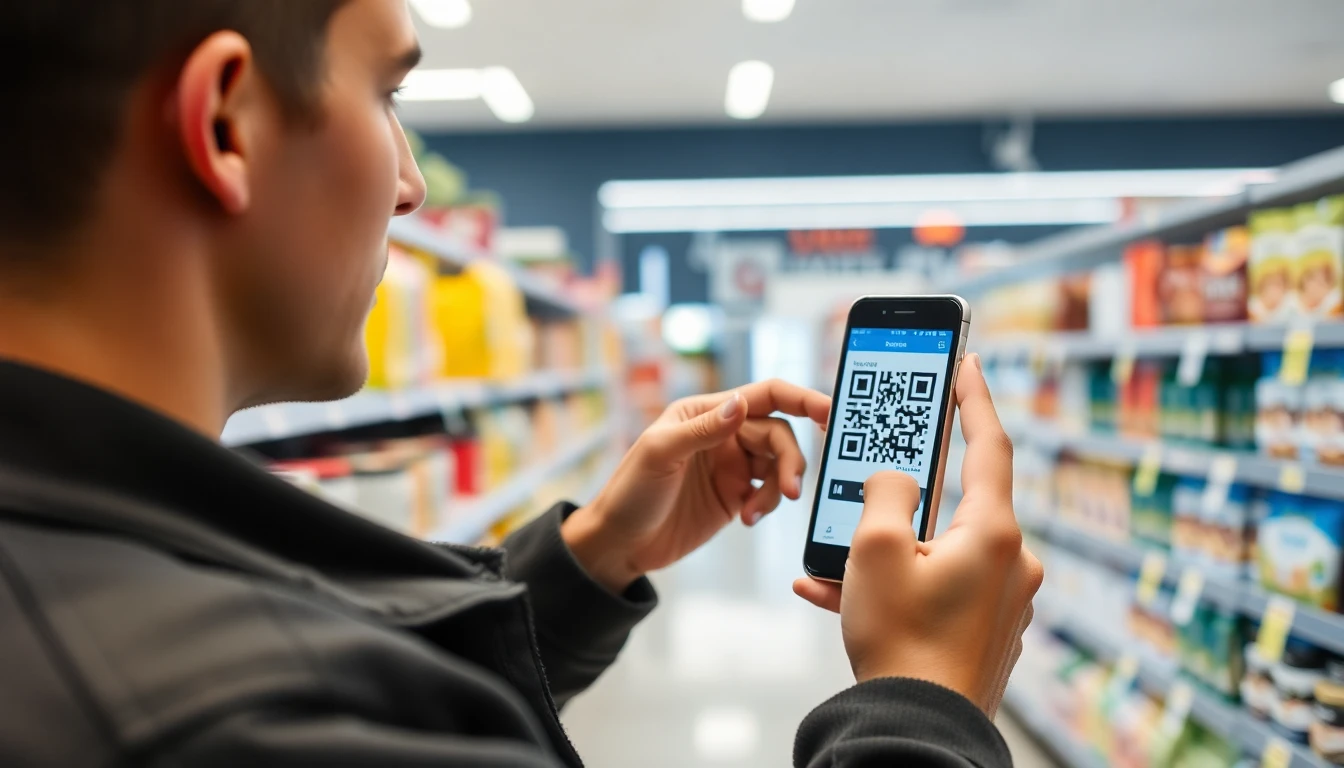
You've created a QR code for your business, event, or marketing campaign. People try to scan it with their iPhones, but nothing happens. The camera just stares blankly at the code. This is a common frustration, but it's usually easy to fix once you understand the causes. Using a reliable tool like OwnQR's free QR code generator can help prevent many of these issues from the start.
iPhones have built-in QR code scanning in the Camera app since iOS 11. Most scanning problems come from simple issues with the QR code itself or how it's displayed. Let's walk through the most common reasons and solutions.
1. Check Your QR Code Quality
A blurry or distorted QR code won't scan properly. The iPhone camera needs clear contrast and sharp edges to read the pattern.
Common quality issues:
- Low resolution images that appear pixelated when printed or displayed
- Compression artifacts from saving as low-quality JPEG
- Stretching or distortion that changes the square proportions
Solution: Always use high-resolution files. For print materials, use vector formats like SVG or high-quality PNG. For digital displays, ensure the QR code appears at sufficient size without compression. A good rule: the QR code should be at least 1x1 inch (2.5x2.5 cm) in physical size, or 200x200 pixels minimum on screens.
2. Ensure Proper Contrast
QR codes need strong contrast between the dark and light areas. The iPhone camera software looks for this contrast to identify the code pattern.
Problem examples:
- Dark blue QR code on black background
- Light gray on white background
- Transparent QR codes that blend with busy backgrounds
Solution: Use black on white for maximum reliability. If you want colored QR codes, ensure there's at least 70% contrast difference between the code and background. Test your colored QR codes on multiple devices before finalizing. Tools like OwnQR's QR code generator include contrast checking to help avoid this issue.
3. Verify Quiet Zone Space
Every QR code needs a "quiet zone" - blank space around all four sides. This border helps the scanner identify where the code begins and ends.
Common quiet zone mistakes:
- QR code placed too close to text or images
- QR code touching the edge of a business card or flyer
- Background patterns that extend into the quiet zone
Solution: Leave blank space equal to at least 4 modules (the small squares that make up the QR code) on all sides. When designing materials, plan for this space from the beginning. If you're using a QR code generator, check that it includes proper quiet zones automatically.
4. Test Different Lighting Conditions
Lighting affects how the iPhone camera sees the QR code. Glare, shadows, and uneven lighting can prevent successful scans.
Lighting problems to watch for:
- Glare on laminated materials or glass displays
- Shadows cast on printed codes
- Backlighting that washes out the code
- Low light conditions in venues or stores
Solution: Test your QR codes in the actual conditions where they'll be used. For physical materials, consider matte finishes instead of glossy to reduce glare. For digital displays, ensure sufficient brightness and test from different angles. Event organizers should check scanning in venue lighting before the event starts.
5. Update iPhone and Camera App
Sometimes the problem isn't with your QR code, but with the device trying to scan it.
Device-related issues:
- Outdated iOS version with older scanning algorithms
- Camera app needing restart or update
- Dirty camera lens affecting focus
Solution: Ask users to ensure their iPhone is updated to the latest iOS version. They can also try third-party QR scanner apps from the App Store as an alternative. For your own testing, clean your camera lens and try scanning from different distances - usually 4-12 inches works best.
6. Choose the Right QR Code Type
Not all QR codes are created equal. The type of QR code and what it contains can affect scanning reliability.
QR code type considerations:
- Dynamic QR codes (that you can edit later) versus static codes
- Amount of data encoded - simpler codes scan more easily
- Error correction level - higher correction means more reliable scanning
Solution: For business use, consider dynamic QR codes that let you update the destination without changing the code itself. This is useful for marketing campaigns where links might change. Use appropriate error correction - for most business applications, medium (15-25%) works well. OwnQR's QR code generator creates optimized codes with proper error correction and includes dynamic QR code functionality.
7. Provide Alternative Access Methods
Even with perfect QR codes, some users will have trouble scanning. Always provide a backup.
Backup options to include:
- Shortened URL next to the QR code
- Instructions for manual entry if needed
- Different QR code placement options (multiple copies in different locations)
Solution: When designing materials, always include a short URL beneath your QR code. Use URL shorteners that create memorable links. For events, have staff available to help with scanning issues. For digital campaigns, consider SMS fallback options.
Real-world Use Cases
Understanding how businesses solve iPhone scanning problems in practice can provide valuable insights. Here are three specific examples where proper QR code implementation made a significant difference.
Brew Haven Coffee Roasters: This specialty coffee shop used QR codes on packaging to direct customers to brewing tutorials and origin stories. Initially, 40% of iPhone scans failed due to glare on glossy bags and poor contrast with dark brown packaging. After switching to matte finish labels with high-contrast white QR codes on a dark background, and using OwnQR for generation, scan success rates improved to 95%. They also added dynamic QR codes to update seasonal content without reprinting labels.
TechForward Conference: Organizers used QR codes for session check-ins and feedback collection. During their first event, attendees reported 30% scan failures, particularly in low-light exhibition halls. The issue was compounded by small code sizes on badges. For their next conference, they increased QR code dimensions by 50%, tested scanning under actual venue lighting, and implemented OwnQR's dynamic codes to fix broken links in real-time. Post-event surveys showed scan success improved to 98%, and attendee satisfaction with digital tools increased by 35%.
Urban Fitness Studio: This gym used QR codes in their app and printed materials for class sign-ups and waiver forms. Members using iPhones experienced 25% failure rates, often due to compression artifacts from low-resolution codes in emails. By regenerating all codes with OwnQR's high-resolution settings, ensuring proper quiet zones in print layouts, and providing short URL fallbacks, scan reliability reached 99%. This reduced front desk workload by 15 hours weekly and increased digital form completion by 40%.
Want to follow along? Create a QR Code Generator now
It's free to start. Upgrade to $15 lifetime when you need editable dynamic QR codes.
Step-by-step: How to Do It with OwnQR
Creating reliable QR codes for iPhone scanning with OwnQR involves a straightforward process that ensures optimal results. Follow these steps to generate codes that work consistently across Apple devices.
Step 1: Access the OwnQR platform and select the type of content you want to encode. Whether it's a URL, contact information, or Wi-Fi credentials, choosing the right format from the start ensures proper data structure for reliable scanning. This initial selection prevents encoding errors that can cause iPhone scanning failures.
Step 2: Configure your QR code settings. Set the error correction level to at least medium (15-25%) for better durability against damage or distortion. Adjust colors to ensure sufficient contrast—OwnQR provides contrast checking tools to verify readability. These settings are crucial for iPhone cameras that rely on clear pattern recognition.
Step 3: Enable dynamic QR code functionality if you anticipate needing to update the destination later. This feature is particularly valuable for marketing campaigns or event materials where links might change. Dynamic codes maintain the same visual pattern while allowing backend updates, eliminating the need to reprint or redistribute materials when content changes.
Step 4: Generate and download your QR code in appropriate formats. For print materials, select high-resolution PNG or vector formats like SVG. For digital use, ensure the file size balances quality with loading speed. OwnQR automatically includes proper quiet zones and optimizes the code structure for maximum scan reliability across devices.
Step 5: Test the generated code thoroughly before deployment. Use multiple iPhone models with different iOS versions, scan from various distances and angles, and test in different lighting conditions. OwnQR provides preview tools, but physical testing on actual devices provides the most reliable validation of scan performance.
Step 6: Implement the QR code in your materials with proper placement and sizing. Ensure sufficient quiet zone space around the code, maintain high contrast with the background, and consider environmental factors like glare or lighting. For physical materials, choose finishes and placements that minimize scanning obstacles.
Step 7: Monitor performance using OwnQR's analytics if using dynamic codes. Track scan counts, device types, and locations to identify any patterns of failure. This data can help you troubleshoot specific issues and optimize future QR code implementations for better iPhone compatibility.
Step 8: Update and maintain your QR codes as needed. With OwnQR's dynamic functionality, you can change destinations without altering the visual code. Regularly check that linked content remains accessible and relevant, and regenerate static codes if they show consistent scanning problems despite proper implementation.
Common Mistakes and How to Avoid Them
Many iPhone scanning failures result from preventable errors in QR code creation and implementation. Recognizing these common mistakes can help you avoid them in your own projects.
Insufficient Quiet Zones: One of the most frequent errors is placing QR codes too close to other design elements or edges. iPhone scanners need clear borders to detect the code's boundaries. Always maintain blank space equal to at least four modules on all sides, and verify this in your final layouts before production.
Poor Color Contrast: Using colors with insufficient contrast difference makes QR codes difficult for iPhone cameras to distinguish. While creative color schemes are appealing, they often compromise functionality. Stick to black-on-white for maximum reliability, or use OwnQR's contrast checker to ensure at least 70% difference between code and background colors.
Incorrect Sizing: QR codes that are too small fail to provide enough detail for iPhone cameras to decode. For print, ensure minimum dimensions of 1x1 inch (2.5x2.5 cm). For digital displays, use at least 200x200 pixels. Test at actual size in context rather than relying on screen previews alone.
Overloading with Data: Encoding excessive information creates denser QR patterns that are harder to scan, especially in suboptimal conditions. Keep URLs short and content minimal. Use URL shorteners when necessary, and consider splitting complex data across multiple codes if needed.
Neglecting Environmental Factors: Failing to account for real-world conditions like lighting, angles, and surface finishes leads to scanning problems. Always test in the actual environment where the code will be used, and choose materials and placements that minimize glare, shadows, and other interference.
Pricing Comparison
When selecting a QR code solution, understanding cost structures is essential for long-term planning. OwnQR's unique $15 lifetime pricing offers significant advantages over subscription-based alternatives.
| Feature | OwnQR | Subscription Alternative A | Subscription Alternative B |
|---|---|---|---|
| Pricing Model | $15 one-time lifetime payment | Monthly subscription (verify current pricing at vendora.com) | Annual subscription (verify current pricing at vendorb.com) |
| Dynamic QR Codes | Unlimited included | Limited based on plan tier | Additional fee per dynamic code |
| Scan Analytics | Basic analytics included | Advanced analytics on higher tiers | Analytics as add-on service |
| High-Resolution Downloads | All formats included | Limited downloads per month | Additional cost for vector formats |
| Customer Support | Email support included | Priority support on premium plans | Community forum only on basic plan |
| Long-term Cost (3 years) | $15 total | 36 monthly payments | 3 annual payments |
The pricing comparison reveals why OwnQR's model benefits users who need reliable QR codes without recurring expenses. Subscription services typically charge monthly or annual fees that accumulate over time, often exceeding $100 within a few years for features that OwnQR provides for a single $15 payment. This makes OwnQR particularly cost-effective for small businesses, nonprofits, and individuals who need professional QR code functionality without ongoing budget commitments.
Beyond direct cost savings, OwnQR's lifetime pricing eliminates the risk of service discontinuation due to payment lapses. With subscription models, missed payments can result in disabled QR codes, broken links, and loss of analytics data—potentially damaging customer experiences and marketing efforts. OwnQR users maintain one-time plan access to their codes and editing capabilities regardless of future payment status. This stability is crucial for long-term campaigns, permanent installations, and materials with extended lifespans.
Additionally, the $15 lifetime fee includes dynamic QR code functionality that many subscription services limit to premium tiers or charge extra for. This allows users to update destination URLs indefinitely without recreating codes—a valuable feature for marketing materials, event resources, and business information that may change over time. When evaluating total cost of ownership over typical 3-5 year usage periods, OwnQR frequently represents 80-90% savings compared to subscription alternatives while providing comparable core functionality for iPhone-optimized QR code generation.
Frequently Asked Scenarios
Q: My QR code works on Android but not iPhones. What's different?
A: iPhone and Android devices use slightly different scanning algorithms and camera processing. iPhones tend to be more sensitive to contrast issues, quiet zone violations, and certain types of distortion. The iOS Camera app has specific requirements for QR pattern recognition that differ from some Android implementations. Test with multiple iPhone models, ensure high contrast (preferably black-on-white), verify sufficient quiet zones, and check for any stretching or compression artifacts. Using a generator like OwnQR that optimizes for cross-platform compatibility can help address these differences.
Q: Can I fix a QR code that's already printed without reprinting?
A: If you used static QR codes, you'll need to reprint with corrected codes. However, if you used dynamic QR codes from a service like OwnQR, you can update the destination URL without changing the printed code. This is why dynamic codes are valuable for materials with long lifespans or uncertain future content needs. For existing static codes that won't scan on iPhones, consider adding a clear overlay with a new code, providing a short URL alternative, or using a redirect from the original destination if possible.
Q: How do lighting conditions specifically affect iPhone scanning?
A: iPhones use computational photography that can be particularly sensitive to lighting extremes. Glare on glossy surfaces creates hotspots that obscure QR pattern details. Low light forces the camera to increase ISO, introducing noise that interferes with pattern recognition. Uneven lighting creates shadows that distort the code's appearance. Backlighting can wash out contrast. Test under actual use conditions, use matte finishes when possible, ensure even illumination, and consider adding supplemental lighting in dark environments. iPhone cameras generally perform best in consistent, moderate lighting.
Q: Why do some iPhones scan my code while others don't?
A: Different iPhone models have varying camera capabilities, processing power, and iOS versions. Older models may struggle with denser codes or lower contrast. Newer models with advanced computational photography might handle challenging conditions better but could be more sensitive to certain artifacts. iOS updates sometimes change scanning algorithms. Test across multiple generations (iPhone 11 through 15) and ensure all are updated to recent iOS versions. Create codes with sufficient error correction (medium or high) to accommodate device variations, and consider the $15 lifetime pricing of OwnQR to affordably maintain codes across evolving device landscapes.
Prevention: Create Better QR Codes from the Start
The best way to avoid scanning problems is to create high-quality QR codes from the beginning. Here's what to look for in a QR code generator:
- High-resolution output options (300 DPI minimum for print)
- Automatic quiet zone inclusion
- Contrast checking for colored codes
- Multiple file format options (PNG, SVG, EPS)
- Dynamic QR code capability for marketing campaigns
Using a reliable generator saves time and ensures your codes work correctly. For example, OwnQR creates optimized QR codes with proper formatting and includes features like analytics for business users.
Testing Your QR Codes
Before distributing any QR code, test it thoroughly:
- Test on multiple iPhone models (different generations if possible)
- Test in different lighting conditions
- Test at various distances and angles
- Test both printed and digital versions
- Ask others to test without your guidance
This testing process helps identify issues before your customers or event attendees encounter them.
When All Else Fails
If you've tried everything and a QR code still won't scan on iPhones:
- Recreate the QR code with a different generator
- Simplify the content - shorter URLs scan more reliably
- Increase the size significantly
- Switch to black and white with maximum contrast
- Check if the destination URL is valid and accessible
Most scanning problems are fixable with these adjustments. The key is systematic testing and using quality tools from the start.
QR codes remain valuable tools for businesses, marketers, and event organizers. With proper creation and testing, you can ensure they work reliably on iPhones and other devices. Remember that good design practices and thorough testing prevent most scanning issues before they reach your audience. Implementing solutions like OwnQR's dynamic codes with proper contrast and quiet zones will maximize compatibility across the diverse iPhone ecosystem used by your customers and attendees.
Tags
Ready to own your QR codes?
One-time $15 for lifetime dynamic QR codes.
Most alternatives bill monthly — verify current rates on their site.
Digital purchases are generally final — see Refund Policy