What Is a Random QR Code? A 2026 Security and Scanning Guide
Quick Answer
Learn what a random QR code is, why you might encounter one, and how to safely scan and verify it. This 2026 guide provides step-by-step instructions, troubleshooting, and expert security tips for handling random QR codes.
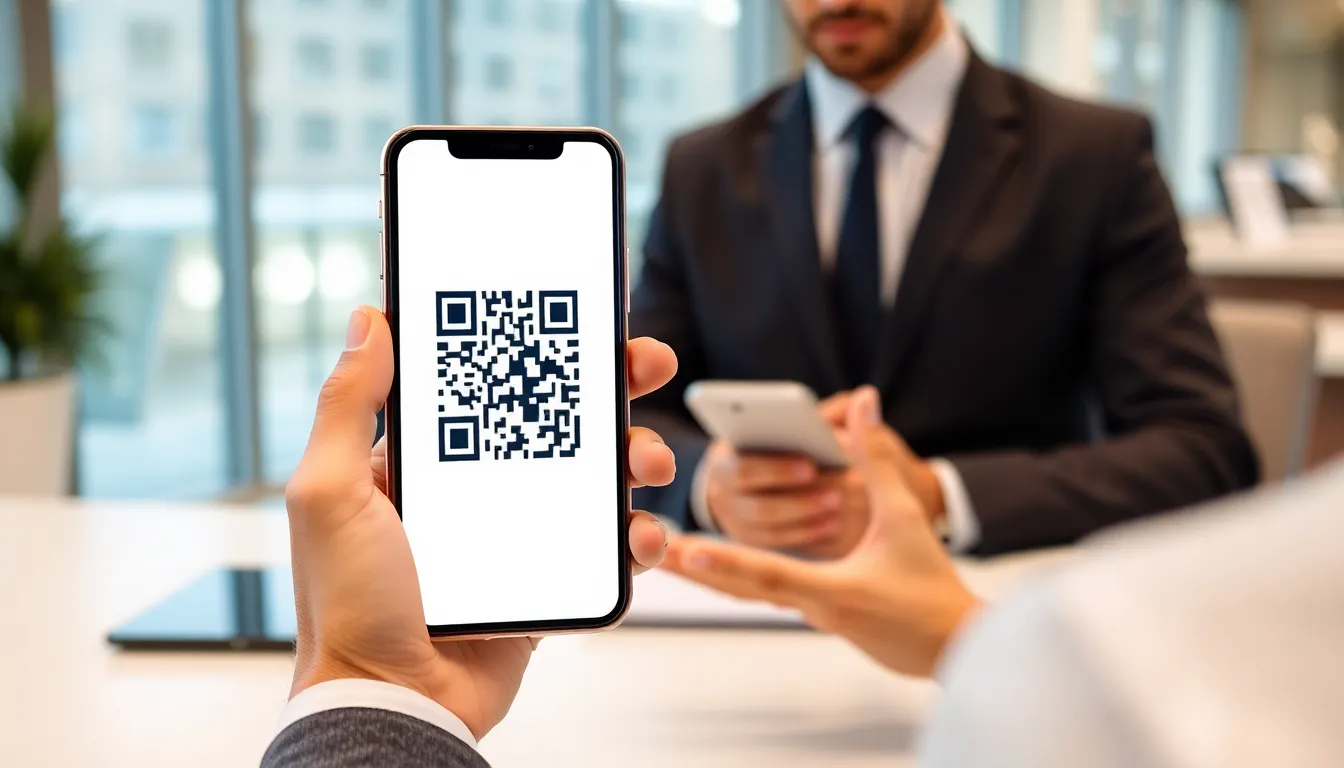

Key Takeaways
| Key Insight | What You'll Learn |
|---|---|
| A random QR code is any unverified code you encounter in public, posing potential security risks. | How to identify and safely interact with random QR codes using modern device features. |
| Scanning a random QR code can lead to phishing, malware, or unwanted data collection. | A detailed 7-step protocol to scan, preview, and verify a code before taking any action. |
| New 2026 smartphone OS features provide built-in security layers for QR interactions. | How to use native iOS and Android scanners, link previews, and privacy settings effectively. |
| Businesses use legitimate random codes for marketing, but verification is non-negotiable. | Expert tips to distinguish promotional codes from malicious ones and protect your data. |
Table of Contents
- What Is "Random QR Code" and Why It Matters in 2026
- How to Safely Handle a Random QR Code: Complete Step-by-Step Guide
- Troubleshooting Random QR Codes: Common Problems and Fixes
- Expert Tips for Random QR Code Security in 2026
- Final Verification: The Smart User's Protocol
Recommended Insights
1. What Is "Random QR Code" and Why It Matters in 2026
A "random QR code" refers to any Quick Response code you encounter in an unverified or unexpected context. You did not generate it, you were not explicitly sent it by a trusted source, and its destination is unknown until you scan it. Common examples include codes stuck to lampposts, printed on flyers left on cars, displayed on posters in public transit, or embedded in unsolicited emails. The core characteristic is the lack of immediate context or trust. In 2026, understanding this concept is critical because QR codes have evolved from simple URL redirectors to powerful triggers for complex digital actions, making random codes a primary vector for digital threats.
The relevance today is driven by scale and sophistication. An estimated 89 million US households will scan a QR code in 2026, according to market projections. This massive adoption has been accompanied by a parallel rise in "quishing," or QR code phishing. The FTC Consumer Protection division has issued alerts about scams where malicious codes direct users to fake login pages to steal credentials. Unlike a suspicious email link, a QR code is opaque; you cannot hover over it to see the destination URL. This opacity is what scammers exploit. The code itself is just a pattern of black and white squares; the risk lies entirely in the action it initiates upon being scanned. For reference, see GS1 barcode standards.
From a market perspective, the proliferation of random codes represents both a consumer trend and a competitive gap. The trend is the normalization of QR scanning for everything from restaurant menus to product authentication. The gap is the general lack of user education on secure scanning practices. Most users still point their camera and tap the notification without a second thought. This behavior creates a significant vulnerability. In physical retail and marketing, legitimate businesses use "random" placement (e.g., on product packaging, in magazines) for campaigns, but this legitimate use is visually indistinguishable from a malicious sticker placed over it. Therefore, the skill of 2026 is not just scanning, but contextual verification.
The technology itself is neutral. A QR code can store a plain text message, a contact card, WiFi credentials, or a payment request. The random code on a museum exhibit might provide exhibit details, which is helpful. The same type of code on a parking meter could initiate a payment to a fraudulent account. The difference is the trustworthiness of the source, which is not encoded in the QR pattern. This is why the operating systems on iPhones and Android devices have integrated more robust scanning and preview features directly into their camera apps, adding a crucial layer of security between the scan and the action. Understanding how to use these built-in tools is the first line of defense against the risks posed by random QR codes.
Summary: A random QR code is an unverified code encountered in public, representing a significant security vector in 2026 due to widespread "quishing" scams. With 89 million US households projected to scan codes this year, the risk of encountering a malicious code is high. These codes are visually identical to legitimate ones but can trigger actions like credential theft or malware downloads. The critical skill for users is shifting from simple scanning to systematic source verification before interacting with any link or action prompted by the code.
Pro Tip: Before you even lift your phone, perform a physical context check. Is the QR code printed on official, branded material, or is it a cheap sticker placed over something else? Check for tampering, especially on parking meters, electric vehicle chargers, or public utility items where payment scams are common.
Want to follow along? Create a QR Code Generator now
It's free to start. Upgrade to $15 lifetime when you need editable dynamic QR codes.
2. How to Safely Handle a Random QR Code: Complete Step-by-Step Guide
This guide provides a security-focused protocol for interacting with any random QR code. The goal is to see the destination without committing to the action, giving you a chance to abort safely.
1: Use Your Device's Native Camera App
Do not download a third-party QR scanner app from an unverified source, as these can themselves be malicious. Both iOS and Android have scanners built directly into the camera. On an iPhone, simply open the Camera app and point it at the code. A yellow notification banner will appear at the top of the viewfinder. On most Android devices, the Google Lens visual search is integrated; point your camera and a small Lens icon or notification will pop up. Using the native tool ensures the scan is handled by your device's secure operating system, which includes safety features like link previews. For reference, see FTC business guidance.
2: Let the Scan Complete, But Do Not Tap Yet
Hold your phone steady until the camera recognizes the QR code. You will see a visual highlight around the code and a clickable notification (e.g., "Open [URL]" on iPhone, a link preview on Android). This is the critical decision point. Your instinct may be to tap immediately to see where it goes. Resist that instinct. The notification itself often shows part of the web address. Look at this text carefully. Does the domain name look legitimate, or is it a jumble of letters trying to mimic a real site (e.g., "amaz0n-login.secure-update.com")?
3: Access the Link Preview for Full Inspection
This step is your most powerful security tool. On an iPhone, press and hold the notification banner that appears. Do not just tap it. A context menu will slide up showing the full URL. On Android, after the scan, you may need to tap the Google Lens result to see a larger preview card that displays the URL. This preview action does not open the link in your browser; it merely shows you the destination. Inspect this URL meticulously. Look for "https://" which indicates encryption, but remember, scammers also use HTTPS. The important part is the domain name.
4: Analyze the Destination URL for Red Flags
Examine the full URL revealed in the preview. Legitimate companies use clear, simple domain names. Be wary of the following in a random QR code's URL: misspellings of common brands (e.g., "paypai.com"), excessive use of hyphens or numbers, subdomains that don't match the brand (e.g., "apple.security-verify.othersite.net"), or domains that end with unfamiliar extensions like ".xyz" or ".top". Also, look for URL shortening services (like bit.ly or tinyurl.com). While sometimes used legitimately, they completely hide the final destination, adding risk.

5: Verify the Source Context Against the URL
Cross-reference the URL with the physical context of the QR code. If the code is on a poster for "Local Coffee Shop," the URL should logically point to something like "localcoffeeshop.com/menu" or their verified social media page. If the poster is for a coffee shop but the URL points to a generic survey site, a cryptocurrency exchange, or a file download (.exe, .apk), it is almost certainly malicious. This step connects the digital intent (the URL) with the physical intent (the poster's message). A mismatch is a strong indicator to stop.
6: If in Doubt, Manually Navigate
If the QR code claims to be for a well-known entity like your bank, a government office, or a utility company, do not use the QR code link. Even if the URL looks correct, it could be a sophisticated spoof. Instead, close the camera app, open your web browser manually, and type in the organization's official website address yourself. Then navigate to the specific page or login portal from there. This completely bypasses the risk of the QR code redirecting you to a fake site. For a local business, you can search for their official site or social media to confirm the offer.
7: Decide on Action or Abort
Based on your inspection, make a conscious choice. If the URL is clearly legitimate and matches the context (e.g., a museum's site for exhibit info), you can proceed by tapping the notification. If you see any red flags—strange domain, mismatch with context, or a request for immediate login or download—abort the process. Simply close your camera app or swipe away the notification. On some devices, you can also take a screenshot of the QR code and its context for reporting, which we will cover in the expert tips section.
Summary: Safely handling a random QR code requires a 7-step verification protocol centered on using your phone's native camera scanner and mandatory link preview. The critical action is pressing and holding the scan notification to reveal the full destination URL without opening it. Users must then analyze this URL for misspellings, odd domains, or mismatches with the code's physical context. If any doubt exists, the safest action is to manually type a known official website address into a browser instead of using the QR code link.
Pro Tip: On many Android devices, you can long-press the link preview itself to copy the URL. You can then paste this text into a notes app for further analysis or to share with a tech-savvy friend for a second opinion before deciding to visit it.
3. Troubleshooting Random QR Codes: Common Problems and Fixes
Problem 1: Camera App Won't Recognize the QR Code
Your phone's camera focuses but no notification pops up. This is often due to poor lighting, glare, a damaged code, or the code being too small or far away. First, ensure you have adequate, even light on the code. Turn on your phone's flashlight. If there's glare from a plastic coating or glass, change your angle. Move your phone closer until the code fills a good portion of the viewfinder. If the code is physically scratched or faded, it may be unreadable. Some third-party scanner apps claim to read damaged codes better, but be cautious about which app you install.
Problem 2: The Scan Opens a Browser Instantly, Bypassing Preview
This happens with some older Android devices or certain third-party apps that prioritize speed over security. The moment the code is recognized, it launches your browser. To regain control, go into your device settings. On Android, look for "Google Lens" or "Camera" settings and disable "Open links automatically." On any device, consider using a dedicated, reputable scanner app that has a "preview before open" setting. More importantly, develop the reflex to look at the address bar the instant the browser opens. If the URL looks suspicious, close the tab immediately without interacting. For reference, see SBA business resources.
Problem 3: The Link Preview Shows a URL Shortener (e.g., bit.ly)
URL shorteners mask the final destination, which is a security risk. Do not tap the shortened link. Some previews offer a "preview" function for the short link. If not, you can use online expander tools, but this requires copying the shortened URL. A safer method is to use a browser extension like "URL Expander" (for desktop) or visit a reputable expansion site like checkshorturl.com. Paste the short link there to see the final destination before deciding to visit it on your phone. If the expansion reveals a suspicious site, do not proceed.
Problem 4: Scanning a Code on a Digital Screen Causes Glare/Lines
Scanning a QR code displayed on a TV, monitor, or another phone screen often fails due to screen refresh rates causing scan lines or glare. The fix is to adjust the brightness. Increase the brightness of the screen displaying the QR code to maximum. On your scanning phone, ensure the camera is not reflecting a light source off the screen. Hold your phone perfectly parallel to the display. If lines persist, ask the source to pause any screen animations or video playing behind the code. Taking a screenshot of the code on the source device and then scanning the static image can also work.
Problem 5: The Code Leads to a Demanding Login or Download Page
You've scanned and previewed a code. The URL seems semi-legitimate, but the page it leads to (after you choose to proceed) immediately asks for username/password or prompts a file download (.exe, .apk, .dmg). This is a major red flag. Legitimate public QR codes for marketing or info almost never require an immediate login. Do not enter any credentials. Do not download the file. Close the browser tab immediately. If you are on a public WiFi network, consider disconnecting as an extra precaution, as the site could be attempting a drive-by exploit.
Problem 6: The QR Code is for WiFi, But Connection Fails
A QR code can store WiFi network credentials (SSID and password). When scanned, your phone should prompt you to join the network. If it fails, the code may contain an error, the network may be down, or the password may have changed. First, verify you are in range of the WiFi network. Ask the venue staff for the network name and password to confirm. You can also use a tool like a Professional QR Generator to create a test WiFi code with known credentials to ensure your phone's scanner is working correctly for that function.
Summary: Common QR scanning failures include unreadable codes due to damage or glare, instant browser launches that bypass security previews, and masked destinations from URL shorteners. Solutions involve optimizing lighting and angle, adjusting device settings to force previews, and using online tools to expand shortened URLs before visiting. The most critical fix is user behavior: immediately closing any page that demands unexpected logins or downloads, as this is the hallmark of a quishing attack.
Pro Tip: If a QR code on a product or poster is consistently unreadable, it may be a sign of poor quality control by the creator. For your own business materials, always test print a sample QR code and scan it with multiple devices to ensure reliability.
4. Expert Tips for Random QR Code Security in 2026
Tip 1: Leverage Your Browser's "Sandbox" for Suspicious Links
If you must investigate a questionable link from a random QR code, use your browser's sandboxing feature. On desktop, open the link in a "private" or "incognito" browsing window. This prevents the site from accessing your main browser's cookies, saved logins, or extensions. Some browsers like Microsoft Edge have a dedicated "Application Guard" mode for enterprise that isolates the session completely. On mobile, consider using a separate, minimalist browser app (like Firefox Focus) for scanning random codes. This contains any potential malware or tracking to that isolated app.
Tip 2: Use a VPN When Scanning Codes on Public WiFi
Random QR codes are often found in public spaces where you might be using public WiFi. Scanning a code that leads to a malicious site could expose your device's data on the network. Using a reputable Virtual Private Network (VPN) app encrypts all traffic between your device and the internet, making it much harder for anyone on the same network to snoop on your activity or perform a "man-in-the-middle" attack, even if you accidentally visit a compromised site. Activate your VPN before scanning codes in airports, cafes, or hotels. For reference, see W3C accessibility guidelines.
Tip 3: Audit App Permissions for Any QR Scanner Apps
If you use a third-party QR scanner app, regularly audit its permissions. Go to your phone's Settings > Apps, find the scanner app, and check "Permissions." It should not need access to your contacts, SMS, call logs, or microphone. Its only necessary permissions are the Camera (to scan) and possibly Storage (to scan from saved images). If it has excessive permissions, it could be a data-harvesting app disguised as a scanner. Uninstall it and stick to your device's native camera or a highly reputable, well-reviewed alternative.
Tip 4: Report Malicious Physical QR Codes to Property Owners
If you find a clearly malicious sticker QR code (e.g., on a parking meter, over a legitimate poster), report it. Take a photo of the code and its location. Inform the property owner, building manager, or local authorities. For codes on public infrastructure like meters or EV chargers, contact the relevant city department or utility company. This civic action helps protect others. You can also report phishing URLs to the FTC Consumer Protection website and to the Anti-Phishing Working Group at reportphishing@apwg.org.
Tip 5: Bookmark Official QR Code Pages for Common Services
Preempt random code risks by bookmarking the official QR code landing pages for services you use frequently. For example, bookmark your airline's mobile boarding pass page, your favorite food delivery app's promo section, or your city's official parking payment portal. When you see a random code promising a discount or service from these entities, you can navigate to your bookmarked page directly and look for the offer there, rather than trusting the code. This ensures you are always on the legitimate site.
Tip 6: Understand the Data Embedded in Static vs. Dynamic Codes
This is a technical but crucial distinction. A static QR code has the information (like a URL) directly encoded. Once printed, it cannot be changed. A dynamic QR code redirects to a URL that can be updated by its creator. For random codes, dynamic ones are riskier because the destination can be switched from safe to malicious after the sticker is placed. You cannot tell them apart by looking. This underscores the need for constant vigilance—a code that worked safely yesterday could be dangerous today. For business use, dynamic codes offer great utility for tracking campaigns, but they require a trusted management platform.

Tip 7: Implement a "Scan Zone" for Your Business
If you are a business owner using QR codes for customer engagement, guide users to safety. Create a designated "Scan Zone" on menus, posters, or product packaging. Use clear branding and a brief instruction like "Scan here with your camera for our menu." This establishes context and trust, reducing the chance a customer will mistake your legitimate code for a random, malicious one. It also prevents confusion if a scammer places a fraudulent sticker nearby. Good design and clear communication are part of security.
Summary: Advanced security for random QR codes in 2026 involves using browser sandbox modes for suspicious links, always activating a VPN on public WiFi, and auditing third-party scanner app permissions. A key technical insight is the higher potential risk of dynamic QR codes, whose destinations can be changed after deployment. For businesses, creating trusted "Scan Zones" with clear branding mitigates customer risk by providing essential context, distinguishing legitimate codes from malicious random ones placed in the same environment.
Pro Tip: When generating QR codes for your own business, always use a platform that provides scan analytics. Seeing an anomalous spike in scans from a geographic location where you don't operate could indicate your code has been copied and repurposed for a scam.
5. Final Verification: The Smart User's Protocol
The most important lesson about random QR codes is that the risk is managed by your process, not by the code itself. You have learned to identify them as unverified triggers in your environment. You have a concrete, seven-step method to intercept the action between the scan and the outcome, using your device's built-in preview as a shield. You know how to troubleshoot common failures and when to walk away from a request for login or download.
The data point to remember is the projected 89 million households scanning QR codes in 2026. Within that massive volume, a small percentage of malicious codes can affect millions of people. Your protocol turns you from a passive target into an active verifier. The three core pillars are: Context Check (does this code belong here?), URL Preview (where does this really go?), and Manual Navigation (can I get there safely on my own?).
Your next step is not to avoid QR codes—they are too useful. Your next step is to perform a simple drill. Find a legitimate QR code you trust, like one on a product you own or a website you know. Practice the press-and-hold preview technique with your phone's native camera. Get familiar with what a safe URL looks like in that preview pane. Then, the next time you see a random sticker on a lamppost, you'll have the muscle memory to investigate safely instead of clicking blindly. Your security is now part of your routine.
Tags
Frequently Asked Questions
Can a random QR code hack my phone just by scanning it?
No, simply scanning a QR code with your camera app cannot hack your phone. The risk occurs only if you proceed to open the link or download a file it prompts. The scan itself only reads the encoded data (like a URL) and displays a preview. The hack requires you to take a further action, like entering credentials on a fake site or installing a malicious app. This is why the preview step is your critical defense.
Is it safe to scan QR codes on restaurant menus?
Generally, yes, as it is a common and legitimate practice. However, you should still follow the security protocol. Use your native camera app, preview the URL before opening, and check that the domain matches the restaurant's name or a known digital menu provider. Be cautious if the menu QR code is a sticker placed on the table rather than printed on the official menu, as it could have been swapped.
What should I do if I accidentally opened a suspicious QR code link?
Close the browser tab or app immediately. Do not enter any information. If you are on a public WiFi network, disconnect from it. Run a security scan with your phone's built-in security software (like Google Play Protect on Android). Change passwords for any accounts you may have accidentally entered, especially if you used the same password elsewhere. Monitor your financial accounts for unusual activity and consider reporting the URL to the FTC.
Why do some random QR codes lead to PDF or image downloads?
This can be legitimate (e.g., a code on a museum exhibit downloading a PDF guide) or malicious. A malicious actor might use a file download to bypass link previews that show URLs, hoping you will open the file. Never open downloaded files (.pdf, .exe, .apk) from an unverified source. If a download starts unexpectedly from a random code, cancel it. Legitimate public codes will more often link to a web page than force a direct download.
References
Ready to own your QR codes?
One-time $15 for lifetime dynamic QR codes.
Most alternatives bill monthly — verify current rates on their site.
Digital purchases are generally final — see Refund Policy