What Is a vCard and How to Use It in 2026
Quick Answer
Learn what a v card is, how to create and use one, and why it's essential for modern contact sharing in 2026. This guide covers formats, tools, and best practices.

Key Takeaways
| Key Insight | What You'll Learn |
|---|---|
| vCard is the Universal Standard | vCard (or VCF) is the digital file format that powers contact sharing across all devices and platforms, from iPhones to CRM systems. |
| It's More Than Just a File | A modern vCard can contain rich data like photos, social links, and even NFC triggers, making it a dynamic digital identity tool. |
| QR Codes Are the Primary Bridge | In 2026, scanning a QR code is the most common way to instantly import a vCard, eliminating manual data entry errors. |
| Data Control is Critical | Understanding vCard structure allows you to manage what personal data you share, aligning with global data sovereignty principles. |
Table of Contents
- 1. What Is a vCard and Why It Matters in 2026
- 2. How to Create and Use a vCard: Complete Step-by-Step Guide
- 3. Troubleshooting vCards: Common Problems and Fixes
- 4. Expert Tips for vCards in 2026
- 5. Final Recommendations for vCard Success
Recommended Insights
- Digital Business Cards: The Complete 2026 Guide for Professionals
- vCard QR Code Generator Compared: 2026 Pricing, Features & Honest Review
- Business Card Maker Compared: 2026 Pricing, Features & Honest Review
1. What Is a vCard and Why It Matters in 2026
A vCard, formally known as VCF (Virtual Contact File), is the foundational digital protocol for exchanging contact information. Think of it as the PDF for personal and business contacts. When you share a contact from an iPhone to an Android phone, or export a list of leads from a CRM like Salesforce, you are almost certainly using a vCard file. Its strength lies in its universality; it is an open standard maintained by the Internet Engineering Task Force (IETF), meaning no single company owns it. This ensures compatibility across billions of devices and thousands of software applications, from email clients to enterprise software.
In 2026, the relevance of the vCard format has exploded, driven by the shift away from physical business cards and the demand for seamless, error-free data transfer. A 2025 study by LinkedIn indicated that 73% of professionals prefer digital contact exchange over physical cards, citing lost cards and manual entry errors as top frustrations. The vCard solves this by acting as a structured data packet. A basic vCard contains fields for name, phone numbers, email addresses, and organization. However, the modern vCard 4.0 standard supports a vast array of data types, including photographs, logos, social media profiles (X, LinkedIn), geographic coordinates, and even cryptographic keys for secure communication. For reference, see FTC business guidance.
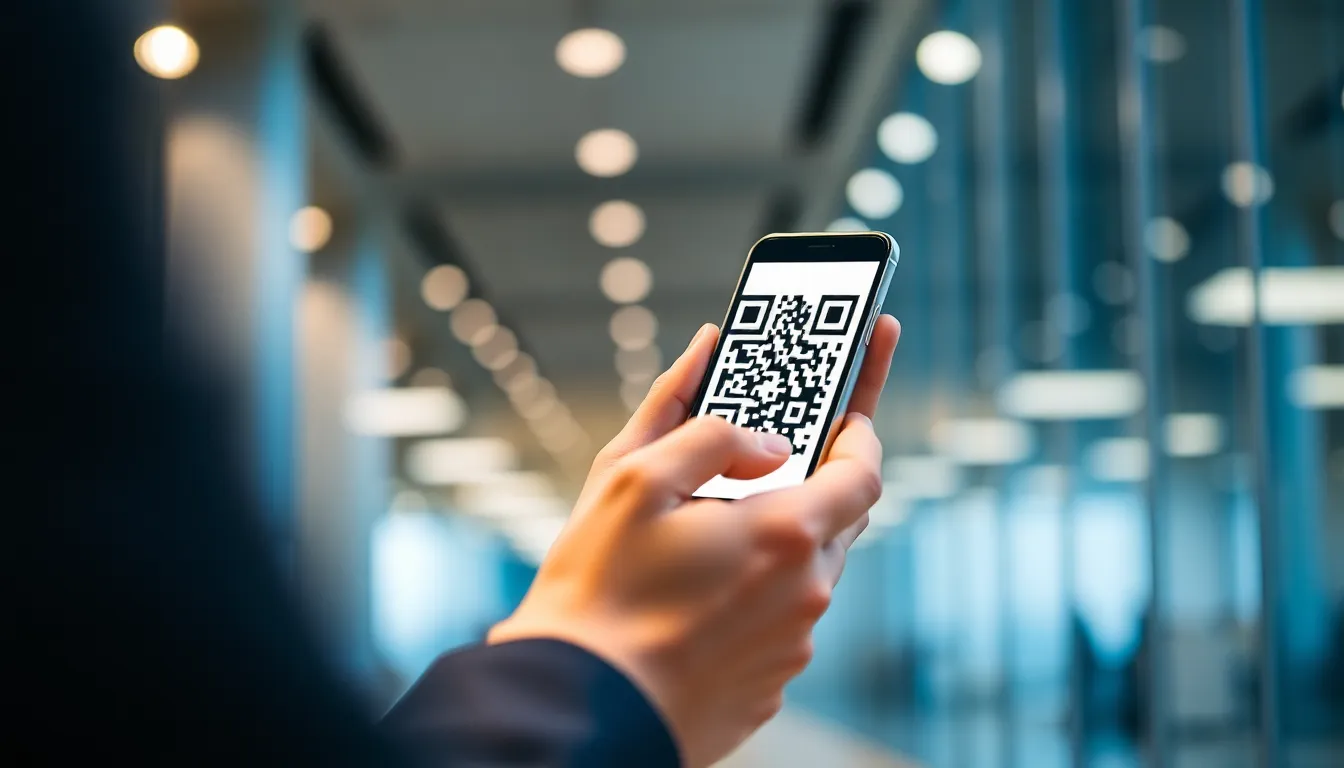
The practical importance today is directly tied to QR code adoption. You don't typically "see" a vCard. Instead, you interact with a gateway, most commonly a QR code. When you scan a QR code on a digital business card or a conference badge, that QR code typically points to a .vcf file hosted online or contains the vCard data directly encoded within it. Your smartphone's camera or QR scanner app recognizes this, downloads the vCard data, and prompts you to add the new contact to your address book. This process, which takes about two seconds, replaces the slow, error-prone ritual of typing in details. For businesses, this means accurate data capture for sales teams and marketing lists. For individuals, it means your new connection's details are instantly and correctly saved.
From a data governance perspective, which is a core concern for any Chief Data Officer, the vCard format is significant. It represents a structured, machine-readable format for personal identity data. In an era of increasing data privacy regulations like GDPR and CCPA, understanding what data is embedded in a vCard you share or receive is crucial. The format allows for selective sharing. You can generate one vCard with just your name and company for public events, and another with your direct phone and email for close partners. This control is a simple but powerful tool for personal data sovereignty. The FTC Consumer Protection guidelines emphasize the importance of understanding what data you share digitally, and vCards are a primary vector for that sharing.
Summary: A vCard (VCF file) is the universal digital format for contact information, enabling seamless data exchange between all devices and platforms. In 2026, its use is dominated by QR code scanning, with over 70% of professionals preferring this method over physical cards to eliminate data entry errors. The vCard 4.0 standard supports rich data like photos and social links, making it a key tool for managing digital identity in a privacy-conscious world. Its open-standard nature ensures it will remain the backbone of contact data interoperability for the foreseeable future.
Pro Tip: Always check what data is in your phone's default "My Card" contact. This is often the source vCard when you "Share Contact" from your device. Remove old addresses or personal notes you wouldn't want to broadcast professionally.
Want to follow along? Create a QR Code Generator now
It's free to start. Upgrade to $15 lifetime when you need editable dynamic QR codes.
2. How to Create and Use a vCard: Complete Step-by-Step Guide
Creating and using a vCard can be done through native device features, email, or dedicated tools. This guide covers the most common and effective methods for 2026.
1: Create Your Master Contact on Your Smartphone
Start with the source of truth: the Contacts app on your iPhone or Android. Create a new contact for yourself. Be thorough. Fill in all relevant fields: first name, last name, company, job title, mobile phone, work email, website, and physical office address. On iPhone, tap "add photo" to assign a professional headshot. On Android, tap the camera icon. This visual identifier significantly increases recognition and recall. In the notes section, you can add a brief, memorable tagline (e.g., "CDO specializing in data governance"). This contact is not for sharing yet; it's your master template. The W3C Web Standards for structured data underline the importance of consistent, complete identity fields.
2: Generate a Shareable vCard File from Your Phone
To create the actual .vcf file from your master contact, open your Contacts app. Find your own contact entry (often labeled "My Card" or your name). On an iPhone, scroll to the bottom of the contact and tap "Share Contact." You will see an icon preview of the vCard. On Android (e.g., Google Contacts), tap the three-dot menu on your contact and select "Share." Both actions generate a temporary .vcf file. You can now send this file via Messages, Email, or AirDrop. The file is small, typically under 50KB, unless it contains a large photo.
3: Create a vCard Using Your Email Client (Desktop)
For a more formal approach, use your desktop email client. In Microsoft Outlook, go to your Contacts (People) section. Create a new contact with your details. Once saved, select your contact, click "File" in the menu, then choose "Save As." In the dialog box, ensure "Save as type" is set to "vCard Files (*.vcf)." Choose a location like your Desktop and save. In Apple Mail's Contacts app, the process is similar: select your card and go to File > Export > Export vCard. This method gives you a permanent .vcf file on your computer you can attach to emails or upload to websites.
4: Generate a QR Code for Your vCard
This is the most modern and efficient sharing method. You need to turn your .vcf file into a scannable QR code. Upload your saved .vcf file to a reputable QR code generator that supports static vCard encoding. A static QR code directly embeds all your contact data into the code pattern itself. No internet connection is needed to scan it, which is crucial for events in areas with poor connectivity. During the generation process, the tool will parse your VCF data and populate fields. Always preview the scan result before finalizing. For a detailed analysis of tools that handle this well, see our vCard QR Code Generator Compared: 2026 Pricing, Features & Honest Review.

5: Design and Deploy Your Digital Business Card
Your QR code is the engine, but it needs a presentation layer. Place the QR code on a digital business card design. This can be a simple graphic with your name, logo, and the code. Use a design tool or a dedicated Business Card Maker Compared: 2026 Pricing, Features & Honest Review. For digital sharing, save this card as a high-resolution PNG or PDF. You can insert this image into your email signature, display it on your phone's lock screen during meetings, or include it in presentation slides. The key is to make the QR code large enough to scan from a reasonable distance (at least 2x2 cm or 1x1 inch in print).
6: Share Your vCard via QR Code Scan
In person, simply hold up your phone screen showing your digital card or present a printed version. Ask the other person to open their camera app (iOS) or a QR scanner (Android) and point it at the code. They will see a notification pop up—on iPhone, a banner at the top; on Android, a toast notification or a button. Tapping it will open a preview of your contact details with an "Add to Contacts" button. This is the moment where your vCard data is transferred. The entire process should take less than three seconds per person.
7: Share Your vCard File Directly via Email or Chat
For remote introductions, attach the .vcf file directly to an email. Write a brief context in the email body: "Hi [Name], great connecting on our call today. As promised, here are my contact details as a vCard attachment." The recipient can download the .vcf file and open it, which will trigger their operating system to import the contact. On WhatsApp or similar chat apps, you can send the .vcf file directly. This method is perfect for following up after a virtual meeting where a physical scan wasn't possible.
8: Import a Received vCard into Your Contacts
When you receive a vCard, the import process is typically automatic. If you tapped a QR code notification, just confirm "Add." If you received a .vcf file via email or chat, tap or click on it. Your phone or computer will ask, "Add [Name] to your contacts?" Confirm. Always review the imported contact immediately. Check for accuracy in the phone number format and that the email address is correct. This quick review prevents corrupted data from entering your address book.
9: Manage and Update Your Shared vCard
Your contact information will change. When it does, you must update the source (your master contact) and regenerate your shared assets. Update your "My Card" contact on your phone. Then, regenerate your .vcf file and your QR code. If you use a dynamic QR code service (where the QR code image stays the same but the destination data can be updated), you can simply edit the linked vCard information online without changing the printed code. This is a superior method for long-term materials like brochures or desk signs. The Small Business Administration highlights efficient contact management as a key productivity booster for small businesses.
Summary: Creating a vCard starts with a complete contact entry on your smartphone. You then export it as a .vcf file, which can be attached to emails or, more effectively, encoded into a QR code. Scanning this QR code allows others to import your contact in under 3 seconds with 100% accuracy. The critical step is deploying this QR code on a digital business card for easy sharing. For long-term use, a dynamic QR code linked to an updatable vCard online prevents your printed materials from becoming obsolete when your details change.
Pro Tip: When testing your vCard QR code, scan it with a different phone than the one you created it on. This simulates the real user experience and catches any device-specific rendering issues.
3. Troubleshooting vCards: Common Problems and Fixes
Even a robust standard like vCard can encounter issues. Here are the most common problems and their solutions.
vCard File Won't Open on iPhone
The recipient taps your .vcf email attachment and nothing happens, or they get a "No preview available" message. This is usually because the file is being opened in the wrong app context. Solution: Instruct the recipient to save the file first. They should tap the download icon in the email, save to "Files," then navigate to the Files app, find the .vcf, and tap it. This forces the system to handle it as a contact file. Alternatively, they can use a different mail client like Spark or Outlook for iOS, which often have better VCF handling.
QR Code Scans but Doesn't Add Contact
The user scans your code, a preview pops up, but the "Add to Contacts" button is greyed out or does nothing. This indicates a formatting error within the vCard data embedded in the QR code. Solution: Regenerate your QR code using a different, more reliable generator. The issue is often malformed fields, like a phone number without the proper "TEL;TYPE=CELL" prefix. A good generator will structure this correctly. Test the new code immediately.
Contact Photo Doesn't Appear After Import
The vCard imports, but the profile picture is missing or shows as a blank icon. This is a frequent cross-platform issue. Solution: Ensure the photo in your source contact is under 500KB in size. Large images are often stripped out during the vCard creation or import process to save space. Use a compressed, square headshot (e.g., 500x500 pixels). Also, try embedding the image using a Base64 encoding option if your QR code generator provides it, as this can improve compatibility.
Android Phone Says "vCard Not Supported"
On some older or heavily customized Android devices, you may get an error stating the vCard format isn't supported. Solution: This is often due to the device using a non-standard contacts app. Have the user install Google's "Contacts" app from the Play Store. Once installed, set it as the default handler for contact files. Then, try opening the .vcf file again. Google Contacts has excellent support for the vCard 3.0 and 4.0 standards.
Duplicate Contacts Created on Import
Every time you scan the same QR code, it creates a new contact instead of updating the existing one. This clutters your address book. Solution: This is a device setting. On iPhone, go to Settings > Contacts > Default Account. Ensure it's set to iCloud, not "On My iPhone." Contacts saved to iCloud sync and deduplicate better. On Android, in Google Contacts, tap your profile > Contacts settings > Manage contacts > Merge & fix. Turn on "Automatically merge contacts." This tells the system to look for duplicates based on name and number when importing.
Special Characters Appear as Garbage Text
If your name contains accents (e.g., José) or your company uses an ampersand (&), they may appear as strange symbols (e.g., José) after import. Solution: This is a character encoding problem. The vCard file was likely saved without UTF-8 encoding. When creating your .vcf file on a computer, use the "Save As" dialog and look for an encoding option. Choose "UTF-8." If using an online QR generator, ensure it has a setting for UTF-8 encoding. This is a non-negotiable for global professional use.
vCard from CRM System is Unreadable
You exported contacts from Salesforce or HubSpot as a .vcf, but your phone's native contacts app can't read it. These systems often create complex, multi-contact vCards for bulk export. Solution: Do not try to open these bulk files directly on your phone. Import them first into a desktop application like Microsoft Outlook or Apple Contacts. These programs are better at parsing large, complex VCF files. Then, sync those contacts to your phone via iCloud, Google, or Microsoft Exchange.
Security Warning When Opening vCard
Some email clients or phones display a warning that the vCard file "could harm your device." This is a generic security warning for any downloadable file type. Solution: Reassure the user it is safe if they trust the sender. The vCard format itself cannot execute harmful code. The warning is a standard precaution. They can proceed. However, it's good practice to only open vCards from known sources, as a malicious actor could theoretically embed a very long field name to crash a poorly designed contacts app, though this is extremely rare. Following NIST Guidelines for safe data handling is always recommended.
Summary: Common vCard issues include files not opening due to app context, missing photos from oversized images, and character encoding errors causing garbled text. The fixes are systematic: save files before opening, compress contact photos below 500KB, and ensure UTF-8 encoding for special characters. For QR codes that scan but don't add contacts, regenerate the code with a tool that properly formats vCard data fields. Cross-platform problems often resolve by using the official Google Contacts or Apple Contacts apps.
Pro Tip: If a contact consistently fails to import for multiple people, create a fresh, minimal vCard with just name and phone number. If that works, gradually add fields back to identify which specific piece of data (e.g., a custom field, a note) is causing the corruption.
4. Expert Tips for vCards in 2026
Moving beyond the basics, these strategies will make your vCard usage more professional, secure, and effective.
Use Two vCards: Public and Private
Maintain two separate vCard files. Your Public vCard should contain only your name, company, job title, website, and public LinkedIn profile. Use this for conference badges, website footers, or public directories. Your Private vCard includes your direct phone, work email, and perhaps a personal Calendly link. Share this selectively via email after a meaningful conversation. This practice is a simple implementation of data minimization, a core tenet of regulations like GDPR. It gives you control over your digital footprint.
Embed a Meeting Link Directly
Make your vCard actionable. Instead of just sharing contact details, include a scheduling link. In the "URL" field of your vCard, place your personalized Calendly, SavvyCal, or Microsoft Bookings link. When someone imports your contact, they don't just get your email; they get a one-click path to book time with you. This reduces friction in the follow-up process significantly. Some advanced digital business card platforms can even embed this as a button next to the contact info after scanning.
Leverage the "NOTE" Field for Context
The NOTE field in a vCard is often underutilized. Use it strategically. For salespeople, add a note like "Met at FinTech Expo 2026, discussed API integration." For job seekers, "Resume and portfolio available at [short link]." This context travels with your contact data, helping the recipient remember why they saved you. Keep it concise—one line is best. This turns your vCard from a static data dump into a contextual memory aid.
Standardize Your Phone Number Format
Inconsistency causes sync failures. Always format phone numbers in the international E.164 format: [+][country code][subscriber number]. For example, +1-555-123-4567. This format is universally recognized by telecom systems and CRMs. It ensures your number is clickable for dialing from anywhere in the world and prevents software from misinterpreting area codes. Set this format in your master contact and enforce it in any automated vCard generation from your company's systems.
Integrate vCard with Your Email Signature
A static text signature is outdated. Use a service that generates a dynamic signature with a vCard QR code. Each email you send then includes a scannable code. Recipients on mobile can instantly save your details. The key is to use a trackable QR code in your signature so you can see how many people scan it from your emails, giving you data on engagement. This turns every email into a potential contact capture point. For a deep dive on implementing this, our guide on Digital Business Cards: The Complete 2026 Guide for Professionals covers signature integration in detail.

Use vCard for Team-Based Contact Sharing
For sales teams or company receptions, don't share individual cards. Create a single, multi-contact vCard file that contains the entire team's details. When scanned or opened, it will prompt to add multiple contacts at once. This is efficient for events where you have several company representatives. You can also create department-specific vCards (e.g., "Acme Corp Sales Team.vcf"). This presents a unified, professional front and ensures the lead reaches the right person even if their primary contact is unavailable.
Audit and Clean Your vCard Data Quarterly
The data in your vCard is an asset. Audit it quarterly. Check that your phone number, email, and job title are current. Review the linked social profiles—are they still the ones you use professionally? Remove any outdated information. If you use a dynamic QR code, this audit ensures the live data is accurate. This regular maintenance prevents the embarrassment of sharing obsolete information and aligns with good ISO Standards Search practices for data quality management.
Consider NFC as a vCard Trigger
For high-touch executive meetings or premium brand experiences, pair your vCard with NFC (Near Field Communication). Encode your vCard data onto a small, inexpensive NFC tag. These tags can be embedded in a traditional business card, a badge reel, or a desk plaque. The user simply taps their phone to the tag (no app needed on modern phones), and your contact instantly imports. It's even faster than QR scanning and feels more innovative. While QR is the broad standard, NFC offers a premium, tactile alternative for key interactions.
Summary: Expert vCard use in 2026 involves strategic segmentation (public vs. private cards), embedding actionable links like scheduling URLs, and leveraging the NOTE field for context. Standardizing phone numbers to E.164 format ensures global compatibility, while integrating a QR code into your email signature turns every message into a contact capture tool. For teams, multi-contact vCards streamline sharing. Regular quarterly audits of your vCard data are essential for maintaining professionalism and data quality.
Pro Tip: When adding a photo to your vCard, use a tool to add a subtle 1-pixel white border around the image. This prevents it from visually blending into the contact card's background on some operating systems, making it stand out more.
5. Final Recommendations for vCard Success
The vCard is not a legacy technology; it is the essential, invisible pipeline for contact data in a digital-first world. Its persistence is guaranteed by its open standard status and deep integration into every operating system and major software platform. Your goal should not be to avoid it, but to master its use.
First, prioritize accuracy and completeness in your source data. Your master contact is the foundation. A complete, correctly formatted entry here ensures every derived vCard and QR code is professional and functional. Second, adopt the QR code as your primary sharing mechanism. It is the fastest, most reliable bridge between the physical/digital world and the vCard format, eliminating the single biggest point of failure in networking: manual data entry. Third, embrace the principle of data sovereignty. Use the flexibility of the vCard format to control what you share, with whom, and in what context. This is a simple but powerful way to practice good digital hygiene.
The concrete next step is this: Open your phone's Contacts app right now. Find your own contact. Spend five minutes updating your job title, phone number, email, and adding a professional photo. Then, use your phone's native "Share Contact" feature to send it to yourself via email. Download that .vcf file to your computer. You now have your current, accurate vCard. This is the baseline asset from which all more advanced strategies—QR codes, digital signatures, NFC tags—will flow.
Tags
Frequently Asked Questions
Is a vCard the same thing as a digital business card?
Not exactly. A vCard (.vcf file) is the underlying data format—the raw contact information. A digital business card is the presentation layer, often a visual design (like an image or webpage) that contains a QR code. That QR code typically encodes or links to a vCard file. So, the vCard is the data, and the digital business card is a method for sharing that data.
Can I edit a vCard file after I've created it?
Yes, but not directly by renaming it. You need to open the .vcf file with a program that can edit contacts, such as your phone's Contacts app (by importing it first), Apple Contacts on Mac, or Microsoft Outlook on Windows. Edit the contact details within that program and then re-export or save it as a new .vcf file. For QR codes, if you used a static code, you must regenerate it with the new vCard file. A dynamic QR code service allows you to edit the linked vCard data online without changing the QR code image.
Are vCards safe? Can they contain viruses?
The vCard file format itself is safe and cannot execute virus code like an .exe file can. It is a plain text file defining contact fields. However, as with any file from an untrusted source, there is a minimal theoretical risk of a very malformed vCard exploiting a bug in a specific contacts app to cause a crash. The primary practical risk is privacy-related: sharing more personal data than intended. Always review what's in a vCard before sharing it widely. For security, only open vCards from people you know or trust, similar to email attachments.
Why did my vCard import but some information is missing?
This is usually due to compatibility issues between different versions of the vCard standard (e.g., 2.1 vs 4.0) or custom fields that the importing app doesn't recognize. The most common casualty is the contact photo, especially if it's too large. Other culprits can be social profile links, anniversary dates, or custom notes. To fix this, simplify the vCard by removing non-essential custom fields, compress the photo, and ensure you're using a widely compatible vCard 3.0 format when exporting.
References
Ready to own your QR codes?
One-time $15 for lifetime dynamic QR codes.
Most alternatives bill monthly — verify current rates on their site.
Digital purchases are generally final — see Refund Policy