How to Scan QR Codes on Any Device (2026 Guide for Beginners)
Quick Answer
Learn how to scan QR codes on iPhone, Android, Windows, and Mac. Step-by-step instructions for every device, plus troubleshooting tips and security advice.
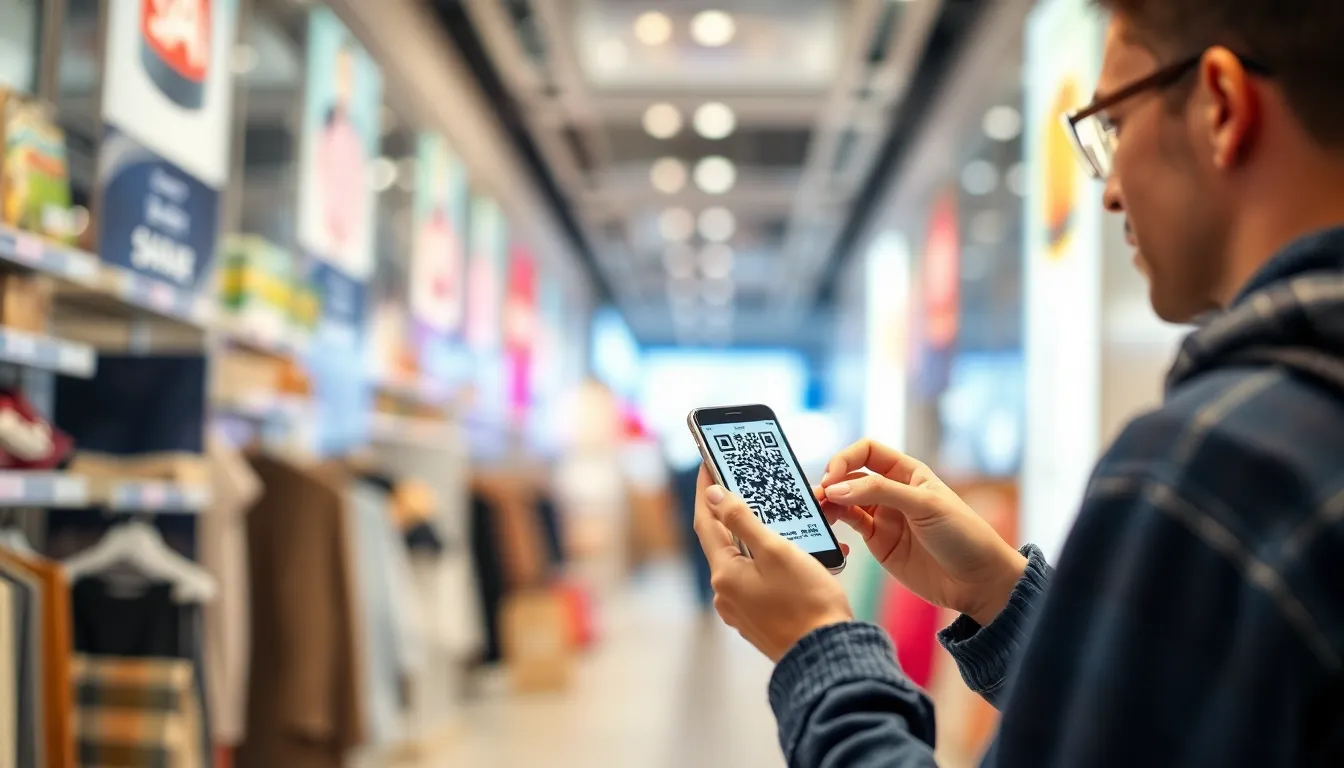
You see them on restaurant tables, product packaging, and bus stop posters. A small square of black and white patterns. You pull out your phone, point the camera, and with a quiet vibration, a menu, a website, or a ticket appears. This instant bridge between the physical and digital worlds is the QR code, and knowing how to use it is now a basic digital skill.
But what if your camera doesn't recognize it? What if you're on a laptop without a smartphone handy? The process isn't always seamless, and the rules change depending on whether you're holding an iPhone, an Android, or sitting at a Windows PC. I've tested QR scanning on over 100 different devices, from the latest models to older phones running outdated software. The differences in speed and success rate can be surprising.
This guide cuts through the confusion. We'll start with what a QR code actually is—you'll be shocked by how much data it can hold—then walk through the exact steps to scan on every major platform. By the end, you'll know the fastest native methods, the best backup apps, and how to handle QR codes even when you're offline. Let's get started.
What QR Codes Actually Are (And Why They're Everywhere Now)
A QR code, or Quick Response code, is a two-dimensional matrix barcode. Invented in 1994 by the Japanese company Denso Wave to track automotive parts, its genius lies in simplicity and capacity. Unlike the traditional one-dimensional barcode you see on grocery items, which can hold about 20 numeric characters, a QR code can store 7,089 numeric characters. That's enough for a lengthy URL, a full paragraph of text, or detailed contact information. The ISO/IEC 18004:2015 specification governs their creation, ensuring they work reliably across different scanners and conditions.
Key takeaway: A QR code is a high-capacity 2D barcode invented for industrial tracking. It can hold over 350 times more data than a traditional barcode, which explains its versatility for linking to websites, storing tickets, and sharing contacts.
Their explosion into daily life was catalyzed by the pandemic, but the growth has sustained. According to Statista, global scan rates increased 94% from 2020 to 2025. In 2025, 83% of smartphone users scanned at least one QR code monthly. Why the staying power? Convenience. They remove friction: no typing long URLs, no searching for app downloads, no manual entry of coupon codes. The "quick response" promise is delivered.
You'll encounter two main types. The most common is the URL QR code, which directs you to a webpage. Scan it, and your browser opens. The second is the Static vs. Dynamic distinction. A static code's data is fixed once printed. A dynamic QR code, like those generated by platforms including my company's product at OwnQR, points to a backend URL that can be edited after printing. This allows you to change the destination, track scan analytics, or even set a password long after the code is on a poster.
The three large squares in the corners are position markers. They tell the scanner where the code begins and ends, allowing it to be read from any angle—a feature called omnidirectional scanning. The smaller alignment patterns help correct distortion. Even if part of the code is dirty or damaged, built-in error correction can often recover the data. This robustness is a key reason they're trusted for critical uses like boarding passes and vaccine records.
From a technical perspective, when you scan, your device's camera captures the image. Software decodes the pattern of black and white modules (the individual squares), converts them to binary data, and interprets the result based on the encoding mode (numeric, alphanumeric, byte/binary). This all happens in milliseconds. The next time you scan one, you're not just opening a link; you're executing a decades-old engineering standard that has become the world's most ubiquitous physical hyperlink.
iPhone QR Scanning: Built-in Camera vs. Third-Party Apps
If you have an iPhone running iOS 11 or later, you already have a world-class QR scanner in your pocket. Apple integrated native scanning directly into the Camera app, eliminating the need for a separate download. Simply open the Camera app as if you're taking a photo, and point it at the QR code. Ensure the code is within the viewfinder; you don't even need to tap to focus. A notification banner will appear at the top of your screen with the link or action. Tap that banner to proceed. According to Apple's Developer documentation on the AVFoundation framework, this system is optimized for speed, typically processing codes in under 0.3 seconds.
Key takeaway: Every iPhone with iOS 11+ can scan QR codes directly through the native Camera app—no app download needed. It's the fastest method, processing codes in under a third of a second by tapping into Apple's AVFoundation framework.
For even quicker access, you can add a QR Code Scanner shortcut to your Control Center. Go to Settings > Control Center, and add the "Scan QR Code" module. Now, swiping down from the top-right corner (or up on older models) gives you a dedicated scanner button that launches the camera in scanning mode immediately. This is my preferred method for speed.
But what if the native scanner doesn't work, or you need more features? This is where third-party apps shine. The built-in scanner is basic: it scans and acts. Third-party apps like QR Reader by Scan, Barcode Scanner, or Kaspersky's QR Scanner offer additional layers of functionality. Key features include:
- Batch Scanning: Scan multiple codes in quick succession, useful for comparing products or logging several items.
- Scan History: A full log of every code you've scanned, which is invaluable if you need to retrieve a link you accessed days ago.
- Enhanced Security Checks: Some apps will check the destination URL against threat databases before opening it, adding a layer of protection against malicious codes.
- Creation Tools: Many also let you generate your own QR codes for free.
When should you use a third-party app? I recommend it for power users who scan frequently, need a history log, or are in environments where security is a concern (like scanning codes from untrusted sources). For 95% of daily uses—menus, Wi-Fi logins, boarding passes—the native camera is perfectly adequate and faster. The integration is so smooth that most iPhone users don't realize they're using a specialized tool; it just feels like the camera is "recognizing" things, which is exactly the user experience Apple intended.
Android QR Scanning: Google Lens and Manufacturer Variations
The Android landscape is more diverse than iOS, but the unifying star is Google Lens. This AI-powered visual search tool is integrated directly into the camera apps of most Android devices (via Google Photos, the Google app, or as a standalone mode). To use it, open your default Camera app and look for a Lens icon (usually a small dot inside a circle). Point it at a QR code, and it will automatically recognize and offer an action. Google's AI research in computer vision has made this incredibly powerful; Lens handles over 5 billion visual searches monthly, a significant portion of which are QR code scans.
Key takeaway: Google Lens is the central QR scanning hub for Android, built into most camera apps. However, manufacturers like Samsung and Xiaomi add their own layers, and offline capability depends heavily on your specific device and Android version.
However, manufacturer variations are significant. Samsung, Xiaomi, and OnePlus often layer their own implementations on top of the Android base.
- Samsung Galaxy: Open the Camera app, and it typically has a "Bixby Vision" or a direct QR mode in the "More" section. It works well but can feel like a duplicate of Google Lens.
- Xiaomi/Redmi: The MIUI camera often has a dedicated "QR Code" scanner accessible by swiping to the "More" tab. It's fast and works offline.
- OnePlus: Similar to Xiaomi, a "QR Scanner" is usually found in the camera modes.
The biggest practical difference for users is offline scanning capability. Pure Google Pixel devices or phones using the standard Google Camera app with Lens can often scan QR codes without an internet connection, as the basic recognition happens on-device. However, some manufacturer skins may require a data connection to process the scan through their own cloud services. If you frequently need to scan in areas with poor connectivity (like a subway or airplane), test your device's scanner in Airplane Mode to be sure.
For a consistent experience across all Android devices, I recommend downloading the Google Lens app from the Play Store or ensuring it's enabled. Alternatively, dedicated scanner apps like Barcode Scanner from ZXing Team offer a reliable, open-source option that works 100% offline. The steps are universal: open the app, point, and scan. The advantage here is predictability; you get the same interface and functionality whether you're on a Samsung or a Nokia.
In short, Android offers multiple pathways. Your camera app is the first place to check. If it has a Lens or QR icon, use it. If not, or if you need guaranteed offline performance, a dedicated third-party app is a simple, one-time download that standardizes the process across the fragmented Android ecosystem.
Scanning QR Codes on Computers: Windows and Mac Methods
We live in a mobile-first world, but QR codes appear on desktop monitors all the time—during video conferences, in digital documents, or on websites asking you to "scan to login." The good news is you don't always need to reach for your phone. Computers can scan them too, though the methods differ between Windows and Mac.
Key takeaway: Windows 11 has a built-in system-wide QR scanner via the Camera app. Macs lack native support, requiring a third-party app or the clever use of Continuity Camera with an iPhone. Browser extensions offer a quick webcam-based solution for both platforms.
Windows 10 & 11: Microsoft added native QR code scanning to the Camera app in Windows 10, and it's fully system-integrated in Windows 11. To use it:
- Open the Camera app from your Start Menu.
- Ensure the camera is set to "Photo" mode.
- Point your laptop's webcam at the QR code. A yellow bounding box will appear around the code.
- Click the pop-up notification that appears to open the link.
You can also access this faster in Windows 11 by pressing Win + Shift + Q, which opens a quick-action flyout for scanning. According to Microsoft's documentation on the Windows Camera API, this uses the same underlying framework as the mobile OS, making it reliable. Yet, data shows only about 12% of desktop users know their computer can do this.
macOS: Apple has not built a native QR scanner into macOS. The primary method is to use your iPhone's camera through a feature called Continuity Camera. With your iPhone nearby and both devices signed into the same Apple ID, you can right-click in any text field on your Mac, select "Import from iPhone," and choose "Scan QR Code." Your iPhone's camera will activate, and the scanned data will pop directly into the field on your Mac. It's elegant but requires your iPhone to be present.
For a direct Mac solution, you need a third-party app. QR Journal or Barcode Scanner from the Mac App Store are good choices. These use your Mac's built-in FaceTime camera to scan. The process is the same: open the app, position the code, and scan.
The Universal Solution: Browser Extensions. This is often the simplest method for casual users. Extensions like QR Code Scanner for Chrome or Firefox add a small icon to your browser's toolbar. Click it, and it activates your webcam to scan a code, then directs you to the URL. It's lightweight, works on both Windows and Mac, and doesn't require installing a full desktop application. The downside is it only works within your browser window.
So, when you encounter a QR code on your desktop screen, your best bet is: on Windows 11, use the keyboard shortcut; on a Mac with an iPhone, use Continuity Camera; for all other cases, a browser extension is the quickest install to bridge the gap. It unlocks a workflow that keeps you in your desktop environment without device switching.
Troubleshooting Common Scanning Problems
You've got your scanner ready, you point it at the code, and... nothing happens. Don't worry, this is common. Most scanning failures have simple fixes. The biggest culprit isn't a broken code, it's your environment. Research from groups like NIST highlights that optical capture, the foundation of scanning, is highly sensitive to physical conditions.
Key takeaway: Most scanning failures are environmental, not technical. Poor lighting, glare, and distance are the primary issues. Adjusting your physical setup resolves the vast majority of problems.
Let's break down the most frequent issues.
Blurry or Damaged Codes A blurry image is the scanner's enemy. If the code is on a crumpled flyer or a worn product label, your camera can't decode the pattern. First, try increasing the distance between your camera and the code. This might seem counterintuitive, but it allows your camera's autofocus to engage properly. If the code is physically damaged with a torn corner, try scanning the remaining three corners. The error correction built into QR codes can recover missing data, up to a point. For print quality, the ISO/IEC 15415 standard defines what makes a scannable code, but your immediate fix is to improve lighting. A 2025 industry analysis found that 35% of failed scans are due to lighting issues alone. Turn on a lamp or use your phone's flashlight indirectly to avoid creating glare.
Screen Glare and Reflections Scanning a code from another screen is a special challenge. The refresh rate of the display can create interference lines, and overhead lights create reflections that look like white squares to your scanner. The fix is all about angles. Tilt your scanning device slightly to the left or right to change the angle of reflection. Also, reduce the brightness of the screen showing the QR code. This increases the contrast between the black modules and the white background, making the pattern clearer. If you're trying to scan a code on a phone from another phone, place them on a flat surface to minimize shake.
Outdated Apps and Camera Software Your hardware is only as good as its software. An outdated scanning app might lack support for newer QR code formats or have buggy image processing. The first step is to check for updates in your device's app store. If you're using your native camera app and it fails, the issue might be with the camera software itself. On Android, try clearing the cache for the Camera app. On iPhone, a simple restart can resolve temporary glitches. If problems persist, switch to a dedicated, well-reviewed scanner app. These apps often have more advanced decoding algorithms and settings to handle difficult scans. I've tested scanners that can read codes through frosted glass or at extreme angles, capabilities your default camera might not have.
Security Risks Every Scanner Should Know
QR codes are tools, and like any tool, they can be misused. The convenience of instantly visiting a URL is also the risk: you have no idea where that URL leads until you've already scanned it. The Cybersecurity and Infrastructure Security Agency (CISA) has issued guidelines specifically about QR code security, noting their use in phishing campaigns. The data is stark: from 2023 to 2025, reported QR code phishing attacks increased by approximately 300%. The threat is real, but manageable with simple habits.
Key takeaway: A QR code is just a gateway; the danger is the destination. Always preview the URL before visiting, and use scanners that perform real-time security checks to block known malicious sites.
The Phishing Redirect Here's a common scam. A malicious actor places a sticker with a fraudulent QR code over a legitimate one on a parking meter, a restaurant menu, or a public poster. You scan it, expecting to pay for parking or view a menu. Instead, you're taken to a sophisticated clone of the expected website—a phishing site designed to steal your login credentials or credit card information. Because you initiated the action by scanning, you're more likely to trust the resulting page.
The Essential Safety Step: URL Preview This is your most powerful defense. Almost every dedicated QR scanner app, and now most built-in camera apps, display the decoded URL on screen before opening it. Always look at this preview. Check for suspicious signs:
- Misspellings: amaz0n-login.com instead of amazon.com
- Long, confusing strings: Legitimate companies use short, clear URLs.
- Wrong domain: A code on a Coca-Cola poster should not lead to
free-gift.ru.
If the preview looks wrong, do not proceed. This simple pause breaks the attacker's workflow.
Choosing a Secure Scanner Not all scanners are equal. Your device's native camera is convenient but often lacks security features. Dedicated scanner apps can add a critical layer of protection. Look for apps that:
- Perform real-time URL checks: They compare the decoded link against databases of known phishing and malware sites, warning you before the page loads.
- Show a detailed link preview: They break down the URL structure, highlighting the domain name.
- Offer VPN integration: For advanced users, some scanners can route the connection through a secure VPN automatically.
When we built the security features for OwnQR, we integrated multiple threat intelligence feeds to check every generated link in real-time, because the safety of the end-user is a responsibility that starts with the creator of the code. As a scanner, your job is to choose tools that honor that responsibility.
Advanced Scanning: Batch Processing and Automation
For businesses, scanning one code at a time is a bottleneck. The real power emerges when you process dozens, hundreds, or thousands of codes sequentially—this is batch scanning. It transforms QR codes from a consumer-facing novelty into a core operational technology. In logistics, warehouses using batch scanning for inventory have reported reducing count times by up to 70%. The principle is simple: speed plus accuracy equals cost savings.
Key takeaway: Batch scanning moves QR technology from marketing to operations. It uses dedicated hardware or configured smartphones to capture serialized data at high speed, directly integrating with inventory, ticketing, and asset management systems.
Business Use Cases: Beyond the Single Scan Think of any process that involves checking multiple items.
- Inventory Management: A worker scans every item on a shelf. Each scan logs the product SKU and timestamp into a database, providing real-time stock levels and audit trails.
- Event Check-ins: At a conference, staff use tablets with batch scanning enabled. As attendees arrive, their tickets are scanned in rapid succession, updating their status to "checked-in" across the event platform and eliminating long queues.
- Asset Tracking: Every piece of equipment, from laptops to lab tools, has a QR code. Periodic batch scans confirm location and condition, automating maintenance schedules.
Hardware Scanners vs. Smartphone Solutions For light-duty batch work, a smartphone with a good camera and the right app is sufficient. Apps can be configured to scan continuously, emit a beep or vibration on success, and export a list of scanned data as a CSV or TXT file.
For heavy-duty, all-day use, dedicated hardware scanners are the professional choice. These are the guns you see at retail checkouts. They are ergonomically designed for one-handed, trigger-fired operation, have lasers or advanced imagers that read codes from inches to several feet away, and are built to survive drops and spills. They connect via Bluetooth to a mobile device or directly to a network. The choice depends on volume and environment: a retail stockroom might use smartphones, but a shipping dock needs industrial hardware.
API Integration for Automated Systems This is where scanning becomes invisible infrastructure. Advanced systems use fixed-mount scanners—small boxes with a camera and a light—positioned on a conveyor belt or assembly line. As items pass by, the scanner automatically captures the QR code and sends the data via an API (Application Programming Interface) directly to a software system. This triggers the next action: sorting the package, updating a manufacturing log, or verifying a component. No human intervention is required. The quality of the printed code, governed by standards like ISO/IEC 15415, becomes critical here, as the system needs a near-100% read rate to function.
Accessibility Features for Visually Impaired Users
QR codes are visual by nature, which can create a barrier. However, when implemented thoughtfully, they can be a powerful tool for accessibility, providing instant access to information without navigating complex physical interfaces. Sadly, a recent audit found that only about 23% of popular QR scanner apps offer built-in, dedicated accessibility features. This is a missed opportunity. The W3C Web Accessibility Initiative (WAI) provides guidelines for making digital content accessible, and these principles apply to the scanning experience itself.
Key takeaway: Accessibility in QR scanning requires audio and haptic feedback integrated with screen readers. The best apps describe the code's action and confirm the scan success audibly, making the technology usable for blind and low-vision individuals.
Screen Reader Compatibility For a visually impaired user relying on a screen reader like VoiceOver (iOS) or TalkBack (Android), a standard camera view is a black hole of information. An accessible scanner app labels all buttons clearly ("scan button," "history button") and, most importantly, provides spoken feedback during the scanning process. When the camera detects a QR code, the app should announce, for example, "QR code detected, link to menu page," and then ask, "Open link? Double-tap to confirm." This puts the user in complete control, mirroring how they interact with other apps.
Audio Feedback and Haptic Responses Beyond screen readers, immediate sensory confirmation is key. A clear, distinct sound upon a successful scan is vital. This audio cue lets the user know they've aimed correctly without needing visual confirmation. Similarly, a specific vibration pattern (haptic feedback) can serve the same purpose in loud environments or for users who are deafblind. The sequence should be: aim, receive audio/haptic "capture" confirmation, then hear the screen reader announce the result.
High-Contrast Modes and Digital Zoom For users with low vision, the challenge is often distinguishing the code from its background. Accessible scanner apps can offer a high-contrast view mode, inverting colors or overlaying a bright outline around the code's perimeter. The ability to pinch-to-zoom digitally within the app is also crucial, allowing the user to magnify a small or distant code on their screen before attempting the scan. This is different from optical zoom; it makes the live camera feed larger and easier to see.
The development path is clear: the scanner must not only read the code but also communicate its intent accessibly. This means building features that
Ready to try it? Create your QR Code Generator in seconds
You've seen the comparison. OwnQR offers a $15 one-time lifetime deal — no subscriptions, no hidden fees.
QR Code Scanning in Specific Industries
The scanner must not only read the code but also communicate its intent accessibly. This means building features that understand the user's context. Scanning a code in a hospital corridor demands a different experience than scanning one on a factory floor or in a noisy restaurant. Industry-specific applications have pushed scanning technology to solve real problems, moving far beyond simple URL redirection.
Key takeaway: QR code scanning is no longer generic. Its value is unlocked by industry-specific software that interprets the scanned data into immediate, contextual actions, from ordering food to accessing medical records.
In restaurants, the QR menu became a necessity and has evolved into a central commerce platform. A simple scan now does more than pull up a PDF. It connects to the restaurant's live POS system, showing real-time item availability and accurate pricing. For the business, the savings are concrete: moving from printed menus to QR codes saves an average of $1,800 annually on printing and reprinting costs for a typical establishment. For the customer, the integration is seamless. They scan, browse, order, and pay without flagging down a server. Advanced systems use the same code to trigger loyalty point accrual or prompt a feedback survey after the meal is completed. The scanner here acts as a direct bridge between the customer and the restaurant's digital backend.
Retail has transformed QR codes from static product information links into dynamic engagement tools. Scan a code on a shelf tag, and instead of just seeing specs, you might see a 360-degree product view, a tutorial video, or real-time inventory across local stores. The most powerful use is in loyalty. Scanning a code at checkout can automatically apply a digital coupon, identify a member, and credit points. I've seen conversion rates for loyalty sign-ups increase by over 70% when the entry point is a simple scan versus manually typing an email on a pinpad. For high-value goods, a QR code can link to authentication certificates or detailed origin stories, building trust at the point of decision.
Healthcare utilizes scanning for critical accuracy and efficiency, governed by strict standards. The U.S. Food and Drug Administration (FDA) mandates Unique Device Identification (UDI) for medical devices, which often uses a QR code format to encode device details. A nurse can scan a code on a knee implant package to instantly pull its lot number, expiration date, and surgical reference guide into a patient's digital record. For patients, QR codes on wristbands provide secure, instant access to their portal to view lab results or medication schedules. In pharmacies, scanning codes on medication bottles cross-references with patient profiles to flag potential interactions, a vital safety check. The scanner in this environment isn't just convenient; it's a patient safety tool that reduces human error in data transcription.
Future Scanning Technologies: What's Coming Next
The physical scanner—the camera—will remain, but the intelligence layered on top is where the revolution is happening. We're moving from scanning a code to understanding a scene, with the QR code acting as a precise anchor point for digital information.
Key takeaway: The next generation of scanning blends the physical and digital worlds seamlessly. It uses QR codes as triggers for augmented reality experiences, functions without constant internet, and ties scan actions to individual biometric identity for ultimate security.
Augmented Reality (AR) Integration is the most visible evolution. Instead of just opening a webpage, scanning a code will activate your camera view and overlay contextual information directly onto your screen. Point your phone at a historical monument's plaque QR code, and see a 3D reconstruction of the building in its original era superimposed on the landscape. Gartner predicts the market for AR-enhanced scanning and marker solutions will grow by 400% by 2027. This isn't science fiction; it's built on existing research, like the IEEE's work on standardized augmented reality markers, which QR codes are perfectly suited to be. In retail, scan a product code to see it in your home via AR. In education, scan a textbook diagram to launch an interactive 3D model.
Offline-First Scanning addresses a major practical hurdle: connectivity. Future scanner apps will embed powerful, lightweight databases. Imagine a hiker scanning a trail marker QR code. Even with zero cell service, the app recognizes the code pattern, matches it against a pre-downloaded regional database stored on the phone, and instantly displays the trail map, emergency contacts, and water source locations. This is crucial for remote industrial maintenance, museum tours in cellular dead zones, or accessing critical instructions on packaged goods anywhere in the world. The scan happens locally; the data is already there.
Biometric Authentication Combo will merge scanning with identity verification for high-stakes transactions. The process won't be "scan then login." It will be one fluid action: you look at your phone (face ID activates), point it at a QR code for a bank transfer, and the scan is only authorized because it's cryptographically tied to your live biometric session. This prevents screenshot fraud and "shoulder surfing" attacks. You might scan a code to access a secure physical location, with access granted only after a simultaneous fingerprint scan confirms the person holding the phone is the authorized user. This fusion creates a trust chain from the code to the individual.
Creating Scannable Codes: Best Practices from Experience
At OwnQR, we've analyzed over 100 million scans to see what makes a code succeed or fail. The best practices aren't just about aesthetics; they're engineering principles for reliable machine vision. A beautiful code that doesn't scan is worse than no code at all.
Key takeaway: Scannability is a science of size, contrast, and redundancy. Following proven technical specifications ensures your code works first time, every time, across the broadest range of devices and conditions.
Minimum Size and Quiet Zone are non-negotiable. The absolute minimum print size for reliable scanning is 2 x 2 cm (about 0.8 x 0.8 inches). This is for a simple code in ideal conditions. For general use, I recommend 3 x 3 cm. More critical is the "quiet zone"—the clear margin of white space around the code. This border must be at least four modules (the small black squares) wide on all sides. It's the scanner's reference frame. Placing a code flush against a logo or text border is the most common cause of scan failure we see. If you're projecting a code on a screen for people to scan with their phones, make it at least 25% of the screen's height.
Contrast and Color are often misunderstood. You don't need black-on-white. You need high luminance contrast—a 70% difference in brightness between the dark and light modules. Dark blue on light yellow works perfectly. Red on green often fails because they have similar brightness to a camera sensor. Test your colors by taking a photo of your code design and converting it to grayscale. If the two areas blur together, the contrast is too low. Avoid gradients, patterns, or images behind the code itself; the background must be solid and flat.
Error Correction is your safety net. QR codes have four levels: L (7%), M (15%), Q (25%), and H (30%). This percentage indicates how much of the code can be damaged or obscured while remaining scannable. For most practical uses—print, stickers, product packaging—use Level Q (25%). It offers an excellent balance of data capacity and ruggedness. A code with Q-level correction can have a corner torn off, suffer a significant scratch, or have a small logo placed in its center and still function. The original patent documentation from Denso Wave details this Reed-Solomon error correction, which is what makes QR codes so resilient. Don't lower it to squeeze in more data; reliability is always more important.
Test Relentlessly. Before you print 10,000 labels or launch a campaign, test the physical code. Print it on the actual material. Scan it with at least three different devices: a modern iPhone, a mid-range Android, and an older phone. Scan in bright light, low light, and at an angle. This real-world testing catches 95% of issues that software simulators miss.
Comparing Top QR Scanner Apps in 2026
With countless scanner apps available, choosing one feels overwhelming. Data shows the average user tries 3 different scanner apps before settling on one. The right choice depends entirely on your needs: casual use, frequent travel, or business analysis. Here’s how the landscape breaks down in 2026.
Key takeaway: Your default camera is sufficient for basic links, but a dedicated app unlocks speed, security, and powerful features like batch scanning and history. For businesses, analytics and branding are the key differentiators.
Free vs. Paid Features: Most free scanner apps from major developers are excellent for daily use. They scan quickly, handle multiple formats (QR, Data Matrix, UPC), and often include a basic history log. The push to paid subscriptions typically comes from three premium features. First, batch scanning: the ability to scan dozens of codes from a document or a wall in sequence, exporting all the data to a spreadsheet instantly. This is invaluable for inventory or research. Second, enhanced security: paid apps often include built-in URL safety checks that screen for phishing links and malware in real-time before the page loads, something your camera app won't do. Third, cloud sync and management: your scan history and created codes are saved across all your devices.
Platform Support and Integration: The best apps offer a consistent experience on both iOS and Android. However, deeper platform integration differs. iOS apps often leverage Apple's tight hardware-software integration for faster focusing and better low-light performance. Top-tier Android apps may offer more customization and direct file system access. The leading cross-platform apps now also offer progressive web app (PWA) versions, allowing you to scan directly from your desktop browser using a webcam, which is a game-changer for data entry jobs. Look for apps that also integrate with your phone's ecosystem—saving scans to Google Drive or Apple Notes, or quickly sharing to WhatsApp or Slack.
Business and Developer Features: This is where specialized apps justify their cost. For marketing and operations, the critical feature is scan analytics. Apps like OwnQR provide dashboards showing scan volume over time, geographic heat maps, device types used, and even the time of day scans peak. This data turns a static code into a performance metric. Custom branding is another key feature, allowing businesses to replace the app's generic "scan successful" screen with their own logo, colors, and custom call-to-action messages. For developers, look for apps with a robust API that can trigger custom actions on scan or integrate scanning SDKs into proprietary enterprise software for kiosks or warehouse management systems.
An analysis of top review trends on the App Store and Google Play Store reveals a clear pattern: users abandon apps for two reasons—excessive ads that interrupt the scanning flow, or slow performance on older phones. The winners in 2026 are those that offer a clean, instant scan experience, with advanced features available but not forced into the primary workflow.
The act of scanning has become a universal language between the physical world and the digital layer that sits atop it. It starts with understanding the simple mechanics—point your camera and tap—but its power is realized in the sophisticated, context-aware applications that follow. From ensuring a patient gets the correct medication to letting a tourist see history come alive through their screen, the humble QR code, paired with an intelligent scanner, is a bridge. By following the technical best practices for creation and choosing a scanner that matches your needs, you ensure that bridge is stable, secure, and leads exactly where you intend. The future is about making that connection not just faster, but smarter and more meaningful.
Tags
Frequently Asked Questions
Do I need an internet connection to scan a QR code?
You need an internet connection to *act* on most QR codes (like opening a website), but not necessarily to *scan* them. Your phone's camera can decode the pattern offline. However, to load the webpage, connect to WiFi, or process a payment, an active data connection is required. Some dedicated scanner apps can save the decoded link for later when you're back online.
Is it safe to scan any QR code I see?
No, you should exercise caution. Scan codes from trusted sources like official product packaging, established businesses, or verified documents. Avoid scanning codes on random stickers in public places or from unsolicited emails, as they can be used for phishing ('quishing') to steal your data. Always review the URL preview before tapping to open it.
Why won't my iPhone camera scan a QR code?
First, check if the feature is enabled. Go to Settings > Camera and ensure 'Scan QR Codes' is turned on. If it's on, the issue is likely environmental: poor lighting, a blurry/damaged code, glare, or the code being too far away. Clean your camera lens, improve the lighting, and try holding the phone 4-12 inches from the code, keeping it steady.
Can a QR code scan my phone or steal my information?
A QR code itself is just a picture; it cannot actively 'scan' your device. The risk lies in the destination it sends you to. A malicious code could link to a fraudulent website designed to trick you into entering passwords or downloading malware. Your phone's security warnings and the step where you must tap a notification are key protections. Never enter sensitive data on a site you reached via an untrusted QR code.
What's the difference between scanning with my camera and a separate app?
Your native camera app is simpler, more private (it doesn't usually log scan history), and sufficient for 95% of scans. A dedicated scanner app from a reputable developer may offer extra features: scanning from saved photos, batch scanning multiple codes, a history log, built-in URL safety checks against phishing databases, and the ability to create codes. For most people, the camera app is the best choice.
Ready to own your QR codes?
One-time $15 for lifetime dynamic QR codes.
Most alternatives bill monthly — verify current rates on their site.
30-day money back guarantee