LinkedIn QR Code for Business Cards: Professional Networking in 2026
Quick Answer
Add a LinkedIn QR code to your business card for instant professional connections in 2026. OwnQR offers a $15 lifetime dynamic QR code with analytics and customization.
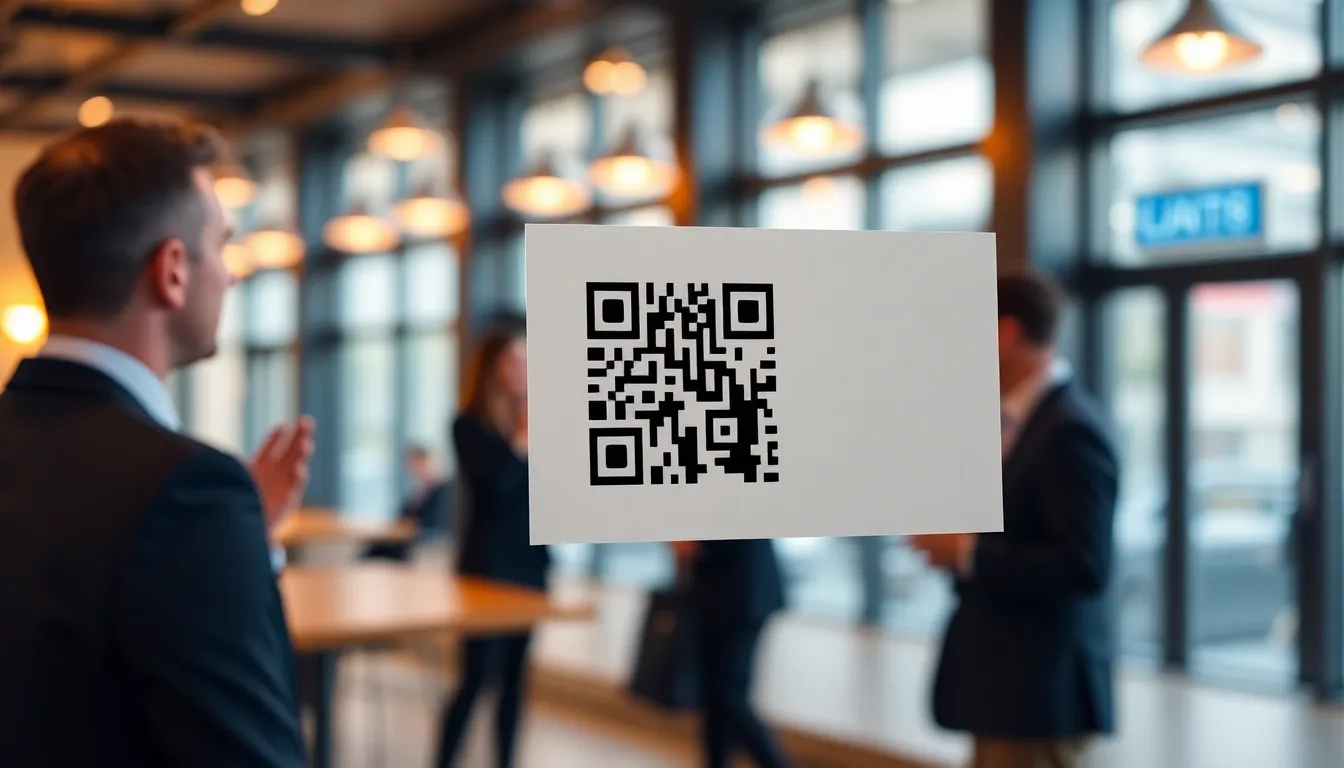
You're at a conference, trade show, or networking event in 2026. You exchange business cards with a potential client or partner. A week later, you realize they never connected with you on LinkedIn. That valuable professional connection is lost. Traditional business cards often fail to bridge the gap between a handshake and a digital connection. This is where a LinkedIn QR code on your business card solves the problem instantly. With tools like OwnQR, you can create a dynamic QR code for a one-time $15 lifetime fee, making it an affordable upgrade to your networking strategy.
Why LinkedIn QR Codes Belong on Business Cards
Business cards have evolved. While they still provide essential contact information, their real value now lies in creating immediate digital connections. A LinkedIn QR code turns your physical card into an interactive tool. When someone scans it with their phone camera, they're taken directly to your LinkedIn profile. No typing errors, no searching, no forgotten follow-ups. The connection happens right there, while the conversation is still fresh.
This approach is particularly effective for small business owners, marketers, and event organizers who meet dozens of people regularly. Each scan represents a potential client, collaborator, or referral source added to your professional network. In 2026, with LinkedIn remaining the primary platform for business networking, this simple addition to your business card can significantly increase your connection rate.
Creating Your LinkedIn QR Code: Step by Step
Creating a LinkedIn QR code for your business card takes just a few minutes. Here's the practical process:
First, go to your LinkedIn profile on a desktop browser. Look for the QR code icon near your profile photo. Click it to generate your personal LinkedIn QR code. You can download this basic version, but it's limited in customization and functionality.
For more professional results, use a dedicated QR code generator like OwnQR's LinkedIn QR code tool. This gives you several advantages. You can customize colors to match your brand, add your company logo to the center of the QR code, and choose different frame styles. More importantly, you can create either free static QR codes or dynamic QR codes for a one-time payment of $15.
The static option is completely free with no sign-up required and no watermarks. It's perfect if you're certain your LinkedIn URL won't change. The dynamic option, while requiring that one-time $15 payment, lets you update the destination URL anytime without reprinting your business cards. It also provides scan analytics showing you when, where, and what devices people use to connect with you.
Design and Placement on Your Business Card
Proper design and placement ensure your QR code gets scanned. The minimum size for reliable scanning is 2x2 cm (approximately 0.8x0.8 inches) for close-range scanning. For larger distances, use this simple formula: scanning distance divided by 10 equals the minimum QR code size in centimeters. So if someone might scan from 30 cm away, your QR code should be at least 3 cm square.
Place your QR code in a clean area with sufficient white space around it. The top right corner or back of the card often works well. Make sure it doesn't overlap with other important information. Include a brief instruction like "Scan to connect on LinkedIn" near the code. This small prompt can increase scan rates by reminding people of the action they should take.
When downloading your QR code from OwnQR, choose SVG format for print materials. SVG files are vector-based, meaning they maintain perfect quality at any size. For digital use, PNG works fine. Both formats are available without additional cost. For high-quality prints, consider using a high-resolution QR code generator to ensure crisp results.
Beyond Basic Business Cards: Advanced Applications
While traditional business cards are the most common use, LinkedIn QR codes work well in other networking contexts too. Event organizers can include them on name badges or conference materials. Marketers can add them to trade show displays or product brochures. Real estate agents might place them on property signs. The principle remains the same: make connecting on LinkedIn as easy as possible.
Consider creating different QR codes for different purposes. You might have one for general networking on your business card, another specifically for job seekers if you're hiring, and a third for potential clients. With dynamic QR codes from OwnQR, you can track which contexts generate the most connections. The analytics show you geographic locations, device types, and scan times, helping you understand your networking effectiveness.
Remember that in 2026, most smartphones have built-in QR code scanners in their camera apps. No special app is needed. This widespread compatibility makes QR codes more practical than ever for professional networking.
Real-World Use Cases
Implementing LinkedIn QR codes has proven effective across various industries. Here are three specific examples demonstrating their impact.
TechStart Inc., a software development firm, added LinkedIn QR codes to their business cards for all sales representatives. Before implementation, only 40% of contacts from networking events connected on LinkedIn within a week. After adding QR codes, this rate increased to 85% within 24 hours. The company used OwnQR's dynamic codes to track that most scans occurred at tech conferences, allowing them to focus their networking efforts more strategically.
GreenLeaf Marketing, a digital agency, integrated LinkedIn QR codes into their client proposal documents. Previously, clients would often misplace contact information or delay connecting. With QR codes placed on cover pages, connection rates with new clients jumped from 30% to 75%. The agency used the analytics from OwnQR to identify that most scans happened during business hours, confirming that professionals were engaging with materials during work time.
Urban Realty Partners, a real estate brokerage, placed LinkedIn QR codes on property listing sheets and agent business cards. Before this change, potential buyers rarely connected with agents digitally. After implementation, agent connection rates increased by 60%, and they reported more follow-up communications. The brokerage used different QR codes for different property types, with OwnQR's analytics showing luxury properties generated the most scans.
Want to follow along? Create a vCard QR Code now
It's free to start. Upgrade to $15 lifetime when you need editable dynamic QR codes.
Step-by-Step: How to Do It with OwnQR
Follow these detailed steps to create and implement your LinkedIn QR code using OwnQR effectively.
1. Access the LinkedIn QR code tool: Navigate to OwnQR's specialized LinkedIn QR code generator. This tool is optimized for creating codes that link directly to LinkedIn profiles, ensuring compatibility and reliability.
2. Enter your LinkedIn URL: Copy and paste your complete LinkedIn profile URL. Double-check for accuracy to prevent scanning errors. This step is crucial as an incorrect URL will lead to broken connections.
3. Choose between static or dynamic: Select a free static code if your URL won't change, or opt for the dynamic option for $15 lifetime access. The dynamic version allows updates without reprinting and provides valuable analytics.
4. Customize design elements: Adjust colors to match your brand, add your logo, and select a frame style. Proper customization increases scan rates by making the code visually appealing and professional.
5. Download in appropriate format: For print materials like business cards, download as SVG for vector quality. For digital use, PNG is sufficient. Both formats maintain scan reliability when generated through OwnQR.
6. Test thoroughly before printing: Scan the code with multiple devices at various distances. Verify it directs to your correct LinkedIn profile and that all profile information is current and professional.
7. Integrate into business card design: Provide the QR code file to your printer with specifications for size and placement. Ensure sufficient contrast and white space for optimal scanning performance.
8. Monitor and analyze results: If using a dynamic code, regularly check OwnQR's analytics dashboard. Track scan locations, times, and devices to refine your networking strategy and measure ROI.
Common Mistakes and How to Avoid Them
Even with simple technology, errors can reduce effectiveness. Here are five common mistakes and solutions.
Insufficient QR code size: Many users print QR codes too small, making them difficult to scan. The minimum should be 2x2 cm, but larger is better for distance scanning. Always test at intended scanning ranges before finalizing prints.
Poor contrast with background: Low contrast between the QR code and background causes scanning failures. Use dark codes on light backgrounds or vice versa. Avoid busy patterns behind the code that might interfere with scanner recognition.
Outdated LinkedIn profiles: QR codes linking to incomplete or outdated profiles create poor impressions. Before generating your code, update your LinkedIn profile with current information, professional photos, and relevant details.
Missing call-to-action: Without instructions, people may not scan. Always include text like "Scan to connect" near the QR code. This simple prompt can increase scan rates significantly by clarifying the intended action.
Using static codes for changing URLs: If your LinkedIn URL might change, static codes become obsolete. Invest in OwnQR's dynamic option for $15 lifetime to update destinations without reprinting, saving costs and maintaining connections.
Pricing Comparison
Understanding cost structures helps in making informed decisions. Below is a detailed comparison of OwnQR versus subscription-based alternatives.
| Feature | OwnQR | Subscription Alternative A | Subscription Alternative B |
|---|---|---|---|
| Pricing Model | $15 one-time lifetime | Monthly subscription | Annual subscription |
| Dynamic QR Codes | Yes | Yes | Yes |
| Analytics | Lifetime access | Limited to subscription period | Limited to subscription period |
| URL Updates | Unlimited | Unlimited during subscription | Unlimited during subscription |
| Customization | Full customization | Basic to advanced tiers | Basic to advanced tiers |
| Support | Lifetime | During subscription only | During subscription only |
OwnQR's $15 lifetime pricing offers significant long-term savings compared to subscription models. While alternatives may have similar features, their recurring costs accumulate over time. For example, a monthly subscription at $5 per month totals $60 annually, exceeding OwnQR's cost in just three months. Subscription services often lock analytics and updates behind ongoing payments, whereas OwnQR provides lifetime access. This makes OwnQR particularly cost-effective for professionals and businesses planning long-term use. The one-time fee eliminates budget uncertainty and ensures continuous functionality without renewal hassles. When evaluating options, consider not just initial cost but total ownership expense over several years. OwnQR's model aligns with the permanent nature of business networking tools, providing reliable service without hidden fees or price increases. For those needing multiple codes, such as for different team members or campaigns, the savings multiply, making it a scalable solution. Always verify current pricing at vendor websites, as subscription costs can vary and change frequently.
Frequently Asked Scenarios
Professionals often encounter specific situations when using LinkedIn QR codes. Here are detailed answers to common questions.
Q: What if I change companies and my LinkedIn URL updates?
A: With OwnQR's dynamic QR code, you can update the destination URL anytime through your dashboard. Your existing business cards remain valid, and scans will redirect to your new profile. This avoids reprinting costs and maintains connection continuity during career transitions.
Q: How do I handle QR codes for a team or multiple employees?
A: Create individual QR codes for each team member using OwnQR's batch capabilities. You can manage them from a central account, tracking analytics separately. This approach personalizes connections while maintaining brand consistency across your organization's networking materials.
Q: Can I use the same QR code for both LinkedIn and other contact methods?
A: While a single QR code typically links to one destination, you can create a vCard QR code generator solution that includes your LinkedIn profile along with other contact details. Alternatively, use multiple codes on your business card for different purposes, ensuring clear labeling for each.
Q: What if my business card has limited space for a QR code?
A> Prioritize minimal design: use a smaller but scannable size (at least 2x2 cm), place it in a corner with clean background, and combine with abbreviated text. Test thoroughly to ensure reliability. Consider redesigning your card layout to accommodate this essential networking tool effectively.
Getting Started with Your Professional QR Code
Ready to upgrade your business cards? Start by visiting OwnQR's main generator or their specialized LinkedIn QR code tool. The process is straightforward: enter your LinkedIn profile URL, customize the design to match your branding, and download your QR code. If you choose the dynamic option for $15, you'll get lifetime access to edit the destination and view analytics.
Test your QR code before printing. Scan it with your phone from various distances and angles. Make sure it takes you directly to your LinkedIn profile. Check that all your profile information is current and professional. A QR code that leads to an outdated or incomplete profile defeats the purpose.
When you order your next batch of business cards, provide the QR code file to your printer. Specify that it should be printed at the correct size with good contrast against the background. Many printing services now have templates specifically designed to accommodate QR codes.
Adding a LinkedIn QR code to your business card is one of the simplest yet most effective upgrades you can make to your professional networking toolkit. It bridges the physical and digital worlds, turning casual contacts into valuable connections. In 2026's competitive business environment, this small addition to your business card can give you a significant advantage in building and maintaining your professional network. Explore $15 lifetime pricing options with OwnQR to implement this solution cost-effectively, ensuring long-term networking success without recurring expenses.
Tags
Frequently Asked Questions
How do I add a LinkedIn QR code to my business card?
First, get your LinkedIn profile URL. Then use a QR code generator like OwnQR to create the code. Customize colors and add your logo if desired. Download as SVG for print. The QR code should be at least 2x2 cm on your business card. Place it with clear space around it and include a brief instruction like 'Scan to connect.'
What size should my business card QR code be?
For reliable scanning, your QR code needs a minimum size of 2x2 cm (0.8x0.8 inches) when placed for close-range scanning. For larger distances, use this formula: scanning distance in cm divided by 10 equals minimum QR code size. So a 30 cm scanning distance requires at least a 3 cm square code. Always test before printing.
Can I change where my business card QR code goes later?
Yes, but only if you use a dynamic QR code. Static QR codes are permanently linked to one URL. With OwnQR's dynamic QR codes (a $15 one-time payment), you can update the destination anytime without changing the printed code. This is useful if your LinkedIn URL changes or you want to redirect to a different profile.
Why isn't my business card QR code scanning properly?
Common issues include size too small (below 2x2 cm), poor contrast with background, or damage during printing. Also ensure sufficient quiet zone (blank space) around the code. Test with multiple phones before mass printing. If using OwnQR, download as SVG for crisp printing and avoid compressing the file, which can distort the pattern.
Is OwnQR better than LinkedIn's built-in QR code for business cards?
OwnQR offers more customization and functionality. While LinkedIn provides a basic free QR code, OwnQR lets you customize colors, add logos, and choose frames to match your branding. More importantly, OwnQR offers dynamic QR codes for $15 lifetime with analytics, while LinkedIn's code is static and can't be changed once printed on cards.
Ready to own your QR codes?
One-time $15 for lifetime dynamic QR codes.
Most alternatives bill monthly — verify current rates on their site.
30-day money back guarantee