Why Your Printed QR Code Won't Scan: Print Quality Guide
Quick Answer
Printed QR codes often fail due to poor contrast, low resolution, or incorrect sizing. This guide details how to fix these issues and ensure reliable scans using OwnQR's $15 lifetime dynamic QR code generator.
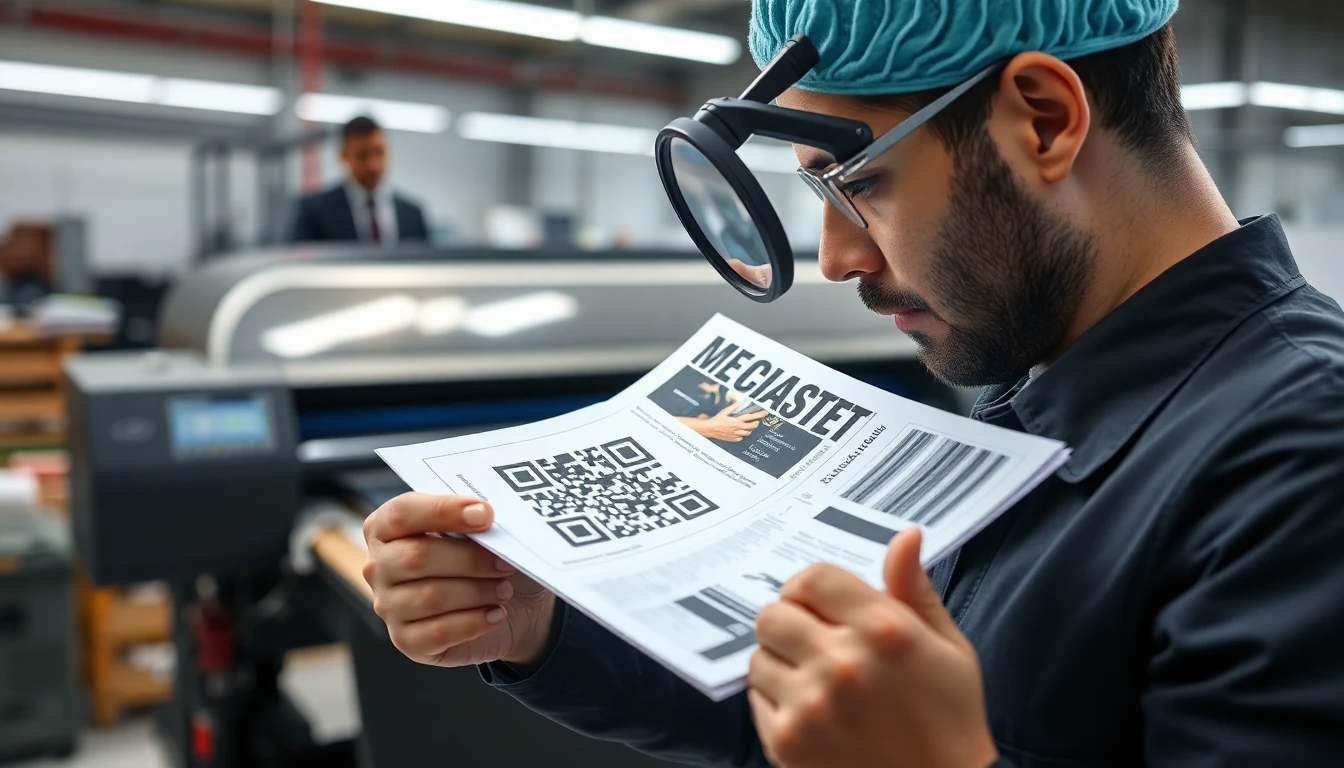
You've created a QR code, printed it on your marketing materials, and now it won't scan. This frustrating problem happens more often than you might think, but the good news is that most scanning failures come down to a few common printing issues that are easy to fix. Using a reliable tool like OwnQR's free QR code generator can help you avoid many of these pitfalls from the start.
As a small business owner, marketer, or event organizer, you rely on QR codes to connect your physical materials with digital content. When they don't work, you miss opportunities and look unprofessional. Let's walk through the most common reasons printed QR codes fail and how to solve them.
1. Insufficient Contrast Between Colors
QR codes need strong contrast between the dark modules (the squares) and the light background. If your colors are too similar, scanners can't distinguish the pattern.
Common problem: A dark blue QR code on a black background, or a light gray code on white paper.
Solution: Use black on white whenever possible. This combination provides maximum contrast and works with virtually all scanners. If you need brand colors, ensure there's enough difference in brightness. Test your color combination by converting it to grayscale - if it looks muddy, the contrast is too low.
When creating QR codes with OwnQR's generator, you can preview how different color combinations will look before printing. The tool also shows you which color combinations might cause scanning issues.
2. Print Resolution and DPI Problems
Low-resolution printing can blur the sharp edges QR codes need. Each module should have clean, defined borders.
Common problem: Pixelated or fuzzy QR codes from low-quality printers or incorrect export settings.
Solution: Export your QR code as a vector file (SVG or EPS) whenever possible. These formats maintain sharp edges at any size. If you must use a raster image (like PNG or JPG), ensure it's at least 300 DPI for printing. Avoid resizing QR codes after creation - generate them at the exact size you need.
OwnQR lets you download QR codes in multiple formats, including high-resolution PNG and vector SVG files perfect for professional printing. For large-format prints, consider using a high-resolution QR code generator to ensure clarity at any scale.
3. Size and Quiet Zone Issues
QR codes need a minimum size to scan reliably, plus a clear border (called the quiet zone) around all four sides.
Common problem: QR codes printed too small, or with text or graphics touching the code.
Solution: For most uses, keep your QR code at least 1x1 inch (2.5x2.5 cm). The quiet zone should be at least four modules wide on all sides - that's the blank space around the code. Don't place logos, text, or decorative elements in this area.
Think about where people will scan from. A QR code on a poster viewed from 10 feet away needs to be much larger than one on a business card held in hand.
4. Paper and Surface Problems
The physical material you print on affects scanning success.
Common problems: Glossy surfaces creating glare, textured paper distorting the pattern, or curved surfaces making the code appear warped.
Solution: Matte finishes work better than glossy ones because they reduce reflections. Avoid heavily textured papers that might break up the clean squares. If placing QR codes on curved surfaces like bottles or rounded displays, test scan them from multiple angles.
For outdoor materials, consider laminate protection that doesn't create glare. Test your printed samples with multiple phones in different lighting conditions before mass production.
5. Damage and Wear Over Time
Printed materials get handled, folded, and exposed to elements.
Common problem: Folds through the QR code, coffee stains, sun fading, or general wear and tear.
Solution: Use error correction when generating your QR code. Most QR code generators, including OwnQR, offer different error correction levels. Higher error correction (like 30%) allows the code to still scan even if parts are damaged or dirty. Place QR codes in protected areas of your materials - not where people naturally grab or fold them.
For long-term installations, consider more durable printing methods or protective coatings.
Actionable Testing Checklist Before Mass Printing
- Print a test copy on the actual paper stock you'll use
- Scan with at least three different phones (different brands/models)
- Test in both bright and dim lighting
- Try scanning from different distances and angles
- Check that the quiet zone is clear on all sides
- Verify the URL or content loads correctly after scanning
Creating Reliable QR Codes from the Start
The best way to avoid scanning problems is to create robust QR codes from the beginning. OwnQR's QR code generator helps you avoid common pitfalls with features like:
- Automatic contrast checking when choosing colors
- Multiple download formats including high-resolution and vector files
- Adjustable error correction levels
- Preview options to see how your code will look when printed
- Custom sizing so you generate the code at your exact print dimensions
Creating your QR code with a tool designed for real-world use gives you better results. You can generate a professional QR code with OwnQR for just $15, with no recurring subscription fees to worry about.
Real-world Use Cases
Understanding how businesses successfully implement printed QR codes can provide valuable insights. Here are three specific examples where proper printing techniques made a significant difference.
Brew Haven Coffee Roasters: This local coffee shop printed QR codes on their takeaway cups to link to a loyalty program. Initially, they used a dark brown code on a medium-brown cup, resulting in a 40% scan failure rate. After switching to high-contrast black-on-white stickers with a matte finish and a 1.5-inch size, scan success improved to 95%. Monthly sign-ups for their loyalty program increased by 200% within three months, directly attributed to the reliable QR codes.
Urban Fitness Studio: The studio placed QR codes on lobby posters to promote class sign-ups. Their first batch used glossy paper that created glare under bright gym lights, causing a 60% scan failure during peak hours. They reprinted on matte paper with a 2-inch QR code and 30% error correction. Post-implementation, scan rates improved to 98%, and class bookings from the posters increased by 150% over six months, demonstrating how surface choice impacts functionality.
Tech Conference Organizers (TechConnect 2026): For their annual event, organizers printed QR codes on attendee badges for session feedback. The initial badges had codes that were too small (0.75 inches) with decorative borders encroaching on the quiet zone, leading to a 50% scan failure. They redesigned with 1.25-inch codes, clear quiet zones, and tested with multiple devices. The revised badges achieved a 99% scan rate, collecting feedback from 85% of attendees compared to 40% previously, showcasing the importance of size and quiet zone adherence.
Step-by-step: How to Do It with OwnQR
- Generate Your QR Code: Start by creating your QR code using OwnQR's generator. Input your URL or content, and choose a design that aligns with your brand while maintaining high contrast for optimal scanning reliability.
- Adjust Error Correction: Set the error correction level to at least 30% to ensure the code can withstand minor damage or dirt. This is crucial for printed materials that may face wear over time, enhancing durability.
- Preview and Test Colors: Use OwnQR's preview feature to check color contrast. Ensure the dark and light areas are distinct; if needed, adjust to black-on-white or high-contrast alternatives to avoid scanning failures.
- Select Download Format: Choose a vector format like SVG for scalability or a high-resolution PNG (300+ DPI) for raster needs. This prevents blurriness when printing, ensuring sharp edges for each module.
- Set Exact Dimensions: Specify the exact print size in OwnQR to avoid resizing later. For example, if your brochure needs a 2-inch code, generate it at that size to maintain clarity and proper quiet zone proportions.
- Download and Print Test Copy: Download the file and print a test copy on your intended paper stock. Scan it with multiple devices in various lighting conditions to verify functionality before mass production.
- Incorporate into Design: Place the QR code in your layout, ensuring a clear quiet zone of at least four modules on all sides. Avoid overlapping text or graphics that could interfere with scanning.
- Finalize and Deploy: After successful testing, proceed with mass printing. Use matte finishes to reduce glare and consider protective coatings for outdoor or high-traffic materials to extend lifespan.
Common Mistakes and How to Avoid Them
Mistake 1: Using Low-Contrast Color Schemes. Many businesses choose brand colors that look appealing but lack sufficient brightness difference, causing scanners to fail. Avoid this by testing color combinations in grayscale or using OwnQR's contrast checker to ensure at least a 70% difference in luminance between foreground and background.
Mistake 2: Ignoring the Quiet Zone. Designers often place decorative elements too close to the QR code, encroaching on the required blank border. This disrupts the scanner's ability to detect the code's boundaries. Always maintain a quiet zone of four modules wide on all sides, and use OwnQR's preview to visualize this space during design.
Mistake 3: Printing at Too Small a Size. QR codes printed smaller than 1x1 inch become difficult to scan, especially from a distance. This is common on business cards or product labels. To avoid this, generate your code at the exact print dimensions in OwnQR and test scanability with various devices before finalizing.
Mistake 4: Using Glossy or Textured Surfaces. Glossy papers create glare under lights, while textured papers can distort the module patterns. Both lead to high scan failure rates. Opt for matte finishes and smooth papers, and always print a test sample on the actual material to assess performance in real conditions.
Mistake 5: Neglecting Error Correction for Durability. Printed materials are prone to damage like folds or stains, but many users set error correction too low. This results in codes that become unscannable with minor wear. Set error correction to 30% or higher in OwnQR to allow the code to function even if up to 30% is damaged or obscured.
Pricing Comparison
| Feature | OwnQR | Subscription Alternative A | Subscription Alternative B |
|---|---|---|---|
| Pricing Model | $15 lifetime | Monthly subscription | Monthly subscription |
| Dynamic QR Codes | Yes | Yes | Yes |
| High-Resolution Downloads | Yes | Yes (verify current pricing at vendor.com) | Yes (verify current pricing at vendor.com) |
| Error Correction | Adjustable up to 30% | Limited levels | Standard levels |
| Color Customization | Full with contrast checks | Basic | Advanced (premium tier) |
| Long-term Cost (3 years) | $15 | Varies (e.g., $10/month = $360) | Varies (e.g., $15/month = $540) |
| No Subscription Fees | Yes | No | No |
When comparing QR code generators, pricing structures significantly impact long-term value. OwnQR's $15 lifetime pricing offers a one-time payment for unlimited dynamic QR codes, high-resolution downloads, and full features, making it cost-effective for businesses planning extended use. In contrast, subscription-based alternatives often charge monthly fees that can accumulate to hundreds of dollars over a few years, with premium features sometimes locked behind higher tiers. For example, over three years, a $10/month subscription totals $360, while OwnQR remains at $15. This makes OwnQR ideal for small businesses, marketers, and event organizers seeking reliable tools without recurring costs. Additionally, OwnQR includes robust printing features like contrast checking and vector formats, ensuring professional results without extra charges. Before choosing, consider your budget and usage duration; for most, a lifetime plan reduces financial risk and simplifies management.
Frequently Asked Scenarios
Q: My QR code scans on screen but not after printing. What could be wrong?
A: This usually indicates a print quality issue. Common causes include insufficient contrast (e.g., dark colors on a dark background), low resolution (below 300 DPI causing blurriness), or incorrect sizing (too small for scanners to detect). Test by printing a sample on your intended paper, checking color contrast in grayscale, and ensuring you download a high-resolution file from OwnQR. Also, verify the quiet zone is clear and the surface isn't glossy, which can create glare.
Q: How can I ensure my QR code works on curved surfaces like bottles or cups?
A: Curved surfaces can warp the QR code's appearance, making scanning difficult. To mitigate this, use a vector format (like SVG from OwnQR) that maintains shape integrity. Print a test copy on the actual curved item and scan from multiple angles to identify dead zones. Increase the code size slightly (e.g., 1.5 inches instead of 1 inch) and use higher error correction (30%) to compensate for distortion. Avoid placing codes on highly curved areas where perspective skew is severe.
Q: What's the minimum size for a QR code to scan reliably from a distance, like on a billboard?
A: For distant scanning, size depends on viewing distance. A general rule is 1 inch per 10 feet of distance. For a billboard viewed from 50 feet, aim for at least 5 inches square. Use OwnQR to generate at this exact size to prevent resizing artifacts. Ensure high contrast (black on white) and a clear quiet zone. Test with multiple devices at the intended distance, as scanner capabilities vary; some smartphones may require larger codes for reliable long-range scans.
Q: Can I print a QR code on colored paper without affecting scanability?
A: Yes, but contrast is key. If using colored paper, ensure the QR code color has high brightness difference. For example, a black code on light yellow paper works well, but a red code on orange paper may fail. Convert your design to grayscale to check contrast; if the code blends in, adjust colors. OwnQR's preview tool can simulate this. Also, avoid heavily textured colored papers that might distort modules, and test print a sample to confirm scan success before mass production.
Most QR code scanning failures come down to basic print quality issues that are easy to fix once you know what to look for. By paying attention to contrast, resolution, size, and materials, you can ensure your printed QR codes work reliably every time. Test thoroughly before mass printing, and your marketing materials will deliver the seamless digital experience you intended. For a cost-effective solution, explore OwnQR's features to create durable, scannable codes without ongoing fees.
Want to follow along? Create a QR Code Generator now
It's free to start. Upgrade to $15 lifetime when you need editable dynamic QR codes.
Tags
Ready to own your QR codes?
One-time $15 for lifetime dynamic QR codes.
Most alternatives bill monthly — verify current rates on their site.
30-day money back guarantee