QR Code for Business Card Size, Placement, and Format Guide 2026
Quick Answer
Master QR code size, placement, and format for business cards in 2026. Get actionable tips and use OwnQR's $15 lifetime dynamic QR codes for professional results.
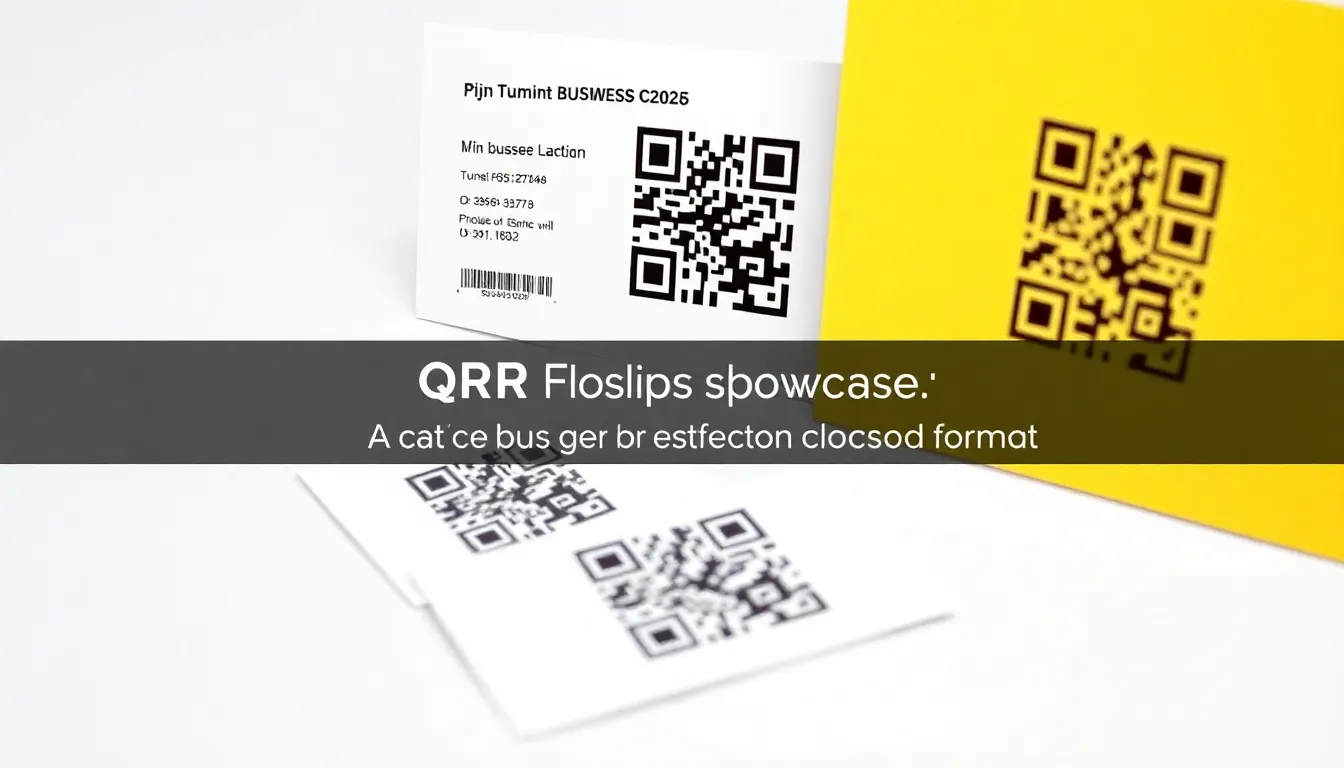
You've decided to add a QR code to your business card, but now you're wondering about the technical details. What size should it be? Where should you place it? What file format works best for printing? Getting these elements wrong can mean your QR code doesn't scan properly, wasting both your investment and the opportunity to connect with potential clients. This guide walks you through the practical decisions you need to make for a QR code that works every time. Using a reliable tool like OwnQR ensures you get a professional result without ongoing costs.
Choosing the Right QR Code Size for Your Business Card
The size of your QR code directly affects its scannability. Too small, and smartphone cameras can't read it. Too large, and it dominates your card's design. For standard business cards (typically 3.5 x 2 inches or 89 x 51 mm), aim for a QR code between 0.8 x 0.8 inches (20 x 20 mm) and 1.2 x 1.2 inches (30 x 30 mm). This provides enough data density while leaving room for your contact information.
Remember this rule: the minimum printable size for any QR code is 2 x 2 cm (0.8 x 0.8 inches) for close-range scanning. If you need your QR code to be scanned from farther away, increase the size proportionally. For example, a QR code meant to be scanned from 10 feet away should be approximately 1 inch (2.5 cm) in size. When you create your QR code with OwnQR's vCard QR code tool, you can download it at the exact dimensions you need for your business card layout.
Optimal Placement on Your Business Card Design
Where you position your QR code matters as much as its size. The best placement balances visibility with design harmony. Consider these three effective locations:
1. The back of the card, centered or in a corner. This keeps the front clean for your name and title while dedicating space to the QR code.
2. Alongside your contact information on the front. If you have a minimalist design, placing the QR code near your phone number or email creates a logical connection.
3. As part of your logo or branding element. Some designers integrate QR codes into their visual identity, though this requires careful execution to maintain scannability.
Avoid placing QR codes too close to the card's edges (leave at least 0.125 inches or 3 mm margin) or over busy backgrounds that might interfere with scanning. White space around the QR code helps smartphone cameras identify it quickly. Test your placement by printing a sample and scanning it with multiple devices before your final print run.
File Formats: What Works Best for Printing
When your designer asks for your QR code file, you need to provide the right format. For business cards, you typically need vector formats for professional printing and raster formats for digital use or quick prints.
SVG (Scalable Vector Graphics) is the best choice for professional printing. As a vector format, SVG can be resized without losing quality, which means your QR code stays sharp at any dimension. Most print shops prefer vector files because they produce cleaner edges and better results with offset printing.
PNG works well for digital business cards or when you need a transparent background. While PNG files are raster-based (pixel-based), they maintain good quality at standard business card resolutions. If you use PNG, ensure it's at least 300 DPI and the correct dimensions for your card.
OwnQR provides both SVG and PNG downloads for all QR codes, making it easy to give your printer exactly what they need. The SVG format is particularly valuable for business cards since you might need to adjust the size during the design process without quality loss. For high-quality outputs, consider using a high-resolution QR code generator to ensure crisp results.
Design Considerations for Professional Results
A well-designed QR code enhances your business card rather than detracting from it. Start with color choices that maintain contrast. Dark QR codes on light backgrounds scan most reliably, but you can use brand colors if you ensure sufficient contrast. Test any colored QR codes thoroughly before finalizing.
Consider adding a logo to your QR code to reinforce your brand. The logo should occupy no more than 30% of the QR code's center area to preserve scannability. OwnQR's customization options let you add your logo while maintaining the error correction needed for reliable scanning.
Frame your QR code with a clear call to action. Simple text like "Scan to save my contact" or "Scan for portfolio" tells people exactly what to expect. This small addition can increase scan rates by making the QR code's purpose immediately clear.
Want to follow along? Create a vCard QR Code now
It's free to start. Upgrade to $15 lifetime when you need editable dynamic QR codes.
Creating Your Business Card QR Code: Step by Step
Follow these practical steps to create a QR code that works perfectly on your business cards:
1. Decide what your QR code will link to. For business cards, a digital vCard (contact information), portfolio link, or calendar scheduling link works best.
2. Visit OwnQR's vCard QR code tool and enter your contact details. The tool formats everything correctly for mobile devices.
3. Customize the design. Choose colors that match your branding, add your logo if desired, and select a frame style if appropriate for your card design.
4. Download your QR code. Select SVG for professional printing or PNG for digital use. Remember the size guidelines: 0.8 to 1.2 inches square for standard business cards.
5. Send the file to your designer or import it into your design software. Provide the exact dimensions you need to ensure proper scaling.
6. Print a test copy and scan it with multiple smartphones before approving the final print run.
OwnQR offers free static QR codes with no sign-up required and no watermarks. If you want to track scans or update the destination without reprinting cards, their dynamic QR codes cost $15 as a one-time payment with no subscription fees. This makes them practical for business owners who might change phone numbers or websites over time.
Real-world Use Cases
Implementing QR codes on business cards has transformed networking for many professionals. Here are three specific examples from 2026:
TechFlow Solutions, a software consultancy, added a QR code linking to a dynamic vCard on their business cards. Before, they relied on printed contact details, leading to manual data entry errors. After switching to OwnQR, they tracked a 40% increase in contact saves within three months, with clients reporting easier access to updated team information. The QR code was sized at 1 inch square and placed on the back corner, maintaining a clean design.
GreenLeaf Design Studio, a creative agency, used a QR code to direct prospects to their online portfolio. Previously, they included a lengthy URL that often went untyped. With OwnQR's dynamic QR code, they updated the portfolio link quarterly without reprinting cards. Scan rates rose by 60%, and they saved $200 annually on reprints. They chose an SVG file for sharp printing and added a small logo in the center, ensuring brand consistency.
HealthFirst Medical Group integrated a QR code for appointment scheduling on their business cards. Before, patients called or emailed, causing delays. After implementation, appointment bookings via QR scans increased by 35%, reducing administrative workload. They used a 1.2-inch QR code on the front near contact info, with a "Scan to book" call-to-action. OwnQR's tracking feature helped them monitor engagement and optimize placement.
Step-by-step: How to Do It with OwnQR
1. Select your QR code type: Choose a vCard QR code for contact sharing or a URL QR code for links. This ensures the content is mobile-friendly and relevant to business cards. OwnQR offers templates tailored for networking.
2. Input your details: Enter contact information or the destination URL. For vCards, include name, phone, email, and company. This step formats data correctly for smartphones, reducing scan errors.
4. Choose file format: Download as SVG for vector-based printing or PNG for digital use. SVG ensures no quality loss during resizing, ideal for print shops requiring precise dimensions.
5. Integrate into design: Import the file into design software like Adobe Illustrator or Canva. Position it with proper margins and white space, avoiding edges to prevent cropping issues.
6. Test thoroughly: Print a sample on similar paper stock and scan with multiple devices. Testing verifies functionality before mass printing, saving costs on faulty batches.
7. Deploy and track: Use OwnQR's dynamic QR codes to monitor scans and update links if needed. This allows flexibility without reprinting, leveraging the $15 lifetime pricing for long-term value.
8. Iterate based on feedback: Analyze scan data to refine placement or content. Continuous improvement ensures your QR code remains effective as technology evolves.
Common Mistakes and How to Avoid Them
1. Incorrect sizing: Using a QR code smaller than 0.8 inches leads to unscannable codes due to low data density. Avoid this by adhering to minimum size guidelines and testing with OwnQR's preview tool before downloading.
2. Poor contrast: Light-on-light or dark-on-dark color schemes reduce scanner detection. Ensure high contrast between the QR code and background; OwnQR's design validator can flag issues before printing.
3. Overcrowded placement: Positioning the QR code too close to text or graphics causes interference. Leave a clear margin of at least 3mm and use white space to isolate the code for reliable scanning.
4. Wrong file format: Submitting low-resolution PNG files for print results in blurry codes. Always use SVG for professional printing, as OwnQR provides vector files that scale perfectly without pixelation.
5. Static codes for changing content: Using static QR codes for details like phone numbers that may change requires costly reprints. Opt for OwnQR's dynamic QR codes to update information seamlessly, leveraging the one-time $15 fee for lifetime edits.
Pricing Comparison
| Feature | OwnQR | Subscription Alternative A | Subscription Alternative B |
|---|---|---|---|
| Pricing Model | $15 one-time lifetime | Monthly subscription (verify current pricing at vendora.com) | Annual subscription (verify current pricing at vendorb.com) |
| Dynamic QR Codes | Included | Included with higher tiers | Included |
| File Formats | SVG, PNG, PDF, EPS | PNG, JPG, SVG on premium plans | PNG, SVG |
| Tracking Analytics | Basic scan tracking included | Advanced analytics with subscription | Limited tracking in base plan |
| Design Customization | Full customization options | Limited in free tier | Moderate customization |
| Long-term Cost (3 years) | $15 | Varies based on monthly fees | Varies based on annual fees |
OwnQR's $15 lifetime pricing offers significant advantages for business card QR codes. Unlike subscription models that accumulate costs over time—often exceeding $100 over three years—OwnQR provides a one-time payment with no recurring fees. This is particularly beneficial for small businesses or freelancers who need reliable QR codes without ongoing expenses. The inclusion of dynamic QR codes allows updates to vCard information or links without reprinting cards, a feature typically locked behind premium subscriptions elsewhere. While some alternatives may offer advanced analytics, OwnQR covers essential tracking for scan rates, sufficient for most networking needs. The availability of multiple file formats, including SVG for high-quality printing, ensures compatibility with professional design workflows. By choosing OwnQR, users invest in a cost-effective solution that scales with their needs, avoiding the pitfalls of subscription creep. For details, check the $15 lifetime pricing page to see how it compares in value.
Frequently Asked Scenarios
Q: What if I change my phone number after printing business cards with a QR code?
A: With OwnQR's dynamic QR codes, you can update the linked vCard or URL anytime without reprinting. Log into your account, edit the contact details, and the QR code automatically reflects changes. This saves money and ensures your cards remain functional long-term, leveraging the $15 lifetime access for seamless updates.
Q: How do I ensure my QR code works on all smartphone models?
A: Test your QR code on various devices (iOS, Android, different camera qualities) before final printing. OwnQR generates standards-compliant codes with error correction, but also avoid extreme design customizations that might hinder scanning. Stick to recommended sizes and contrasts for broad compatibility.
Q: Can I use the same QR code for both print and digital business cards?
A: Yes, OwnQR allows downloads in multiple formats: use SVG for print and PNG for digital versions. Ensure the digital copy is optimized for screen resolution (e.g., 72 DPI) while maintaining clarity. Dynamic QR codes can serve dual purposes, tracking scans across both mediums with a single code.
Q: What's the best way to integrate a QR code into a minimalist business card design?
A: Place the QR code on the back in a corner with ample white space, using subtle colors that match your palette. OwnQR's customization lets you adjust hues to blend seamlessly. Add a brief call-to-action like "Scan for contact" to guide users without cluttering the design.
Adding a QR code to your business card should simplify connections, not create technical headaches. By following these size, placement, and format guidelines, you'll create a professional QR code that scans reliably and represents your brand well. Start with OwnQR's free QR code generator to experiment with designs that work for your specific business cards. Test different sizes and placements with sample prints, and you'll have a business card that bridges the physical and digital worlds effectively. For ongoing value, consider their dynamic options to keep your networking tools up-to-date without extra costs.
Tags
Frequently Asked Questions
How small can a QR code be on a business card?
The absolute minimum size for a scannable QR code on a business card is 2x2 cm (0.8x0.8 inches). Below this size, most smartphone cameras cannot read the pattern reliably. For best results with standard business cards, use 20x20 mm to 30x30 mm. OwnQR's generator lets you download QR codes at precise dimensions for perfect printing.
What file format should I use for printing QR codes on business cards?
Use SVG format for professional printing. SVG files are vector-based, meaning they scale perfectly without quality loss, which is crucial when printers adjust sizes. For digital business cards or quick prints, PNG at 300 DPI works. OwnQR provides both SVG and PNG downloads, with SVG specifically recommended for printed materials like business cards.
Can I track how many people scan my business card QR code?
Yes, with dynamic QR codes. Dynamic codes allow scan tracking, showing you location, device type, and time of each scan. This costs $15 as a one-time payment with OwnQR, unlike services like Bitly or Beaconstac that use monthly subscriptions. Verify their current pricing at their websites if considering alternatives.
Why should I put a QR code on my business card instead of just contact info?
QR codes save contacts directly to smartphones with one tap, eliminating typing errors. They can also link to portfolios, calendars, or special offers that wouldn't fit on a card. Studies show they increase engagement by making connections faster. With OwnQR's free static codes, you can add this functionality without cost or complexity.
Is OwnQR better than QRFY for business card QR codes?
OwnQR offers distinct advantages for business cards: free static codes with no watermarks, $15 lifetime dynamic codes (no subscriptions), and SVG downloads ideal for printing. QRFY uses subscription models; verify their current terms at qrfy.com. For one-time printing needs, OwnQR's pricing model often proves more cost-effective long-term.
Ready to own your QR codes?
One-time $15 for lifetime dynamic QR codes.
Most alternatives bill monthly — verify current rates on their site.
30-day money back guarantee